
Import Settings in Search Magic for Turbify
What it does
Search Magic imports your catalog from your Turbify store. Import Settings decides what it imports. By default it imports your products, and your section pages too when section page filtering is on.
Open it from Import Settings in the menu.
Step-by-step
-
Store Data Import Rules. Set the conditions a product or page must meet to be imported. Each rule compares a store field, such as Page Type, with a value. Click Add rule for another condition, or Add group to group rules together. Choose AND for a group whose rules must all match, or OR for one where any rule can match. Delete removes a rule or group.
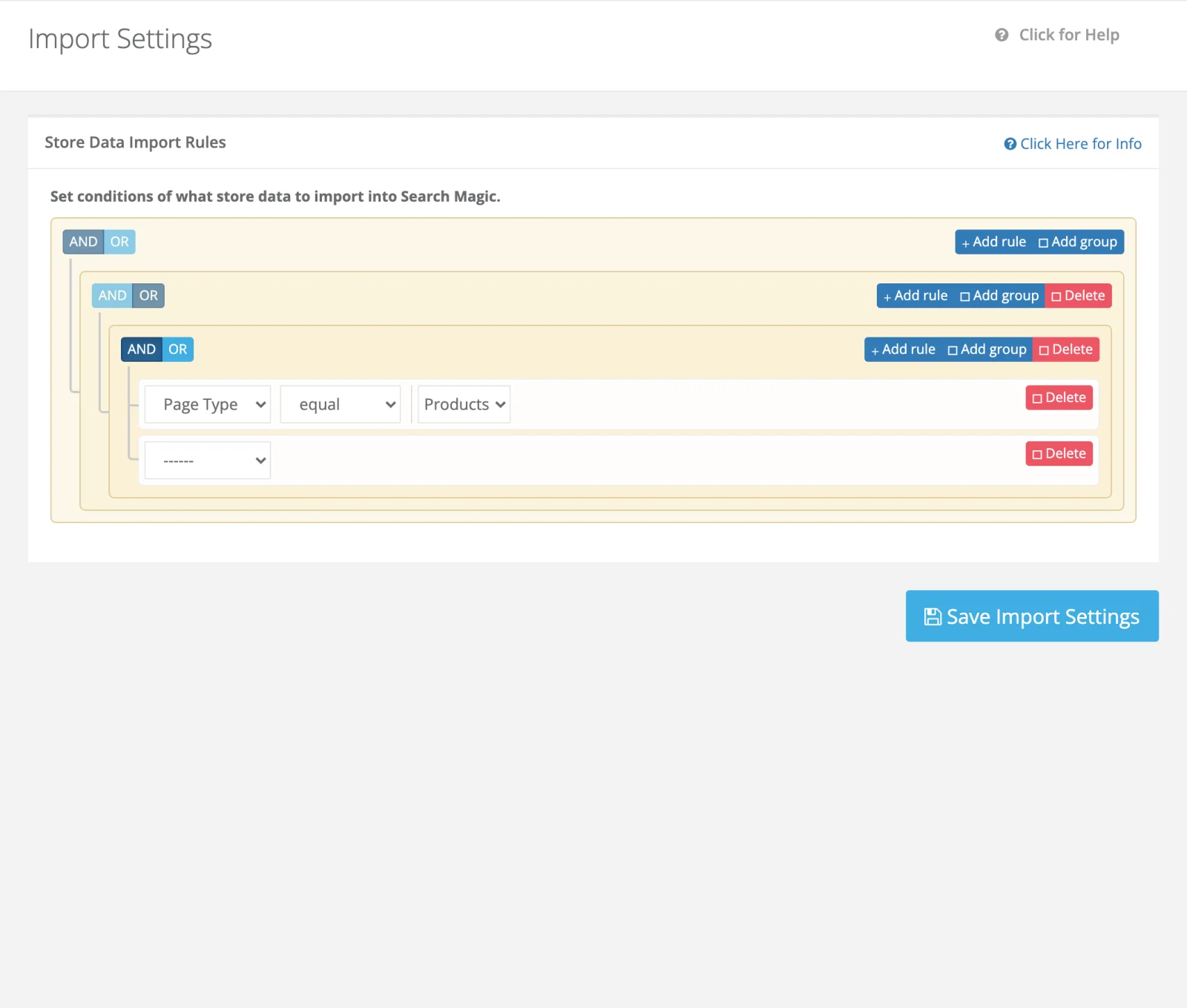
-
Save. Click Save Import Settings.
Note
Which store data feeds each Search Magic field, and how it's combined, split or formatted on the way in, is set per field. See Field Search Settings. If you need an import field changed that you can't change there, contact us.
Troubleshooting and FAQ
A product isn't in my search results
Check that it meets your import rules. A product that doesn't match them isn't imported, so it can't be found. See also Troubleshooting and FAQ.
Questions? Email us at help@yourstorewizards.com.