
Search Term Redirects in Search Magic for BigCommerce
What it does
A redirect sends a shopper to a page of your choice when their search matches one of its terms. For example, a search for "polo shirt" can go straight to your polo shirts category, and "returns" to your returns policy.
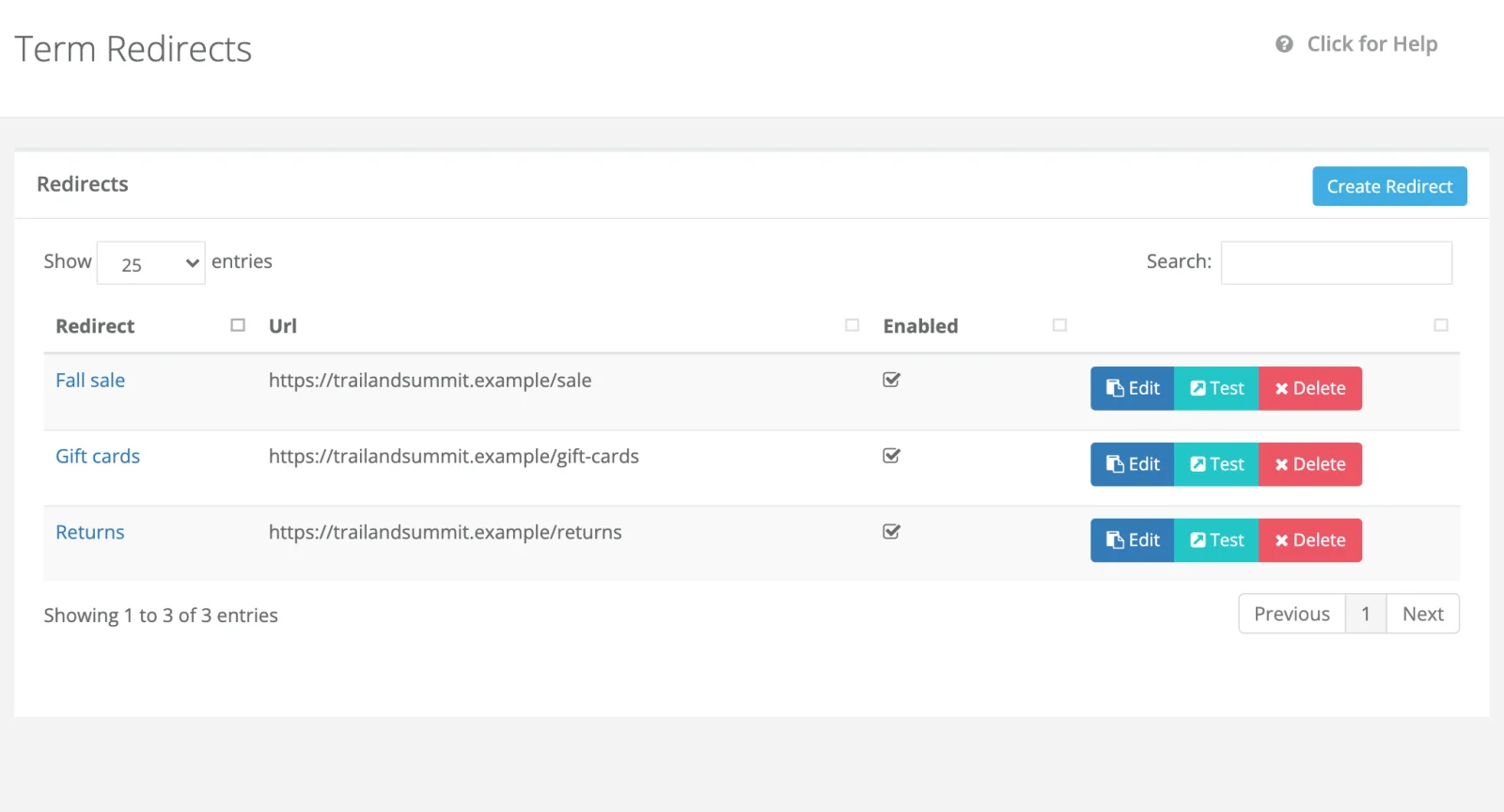
Open Redirects in the app's menu to see your redirects.
Step-by-step
-
Create Redirect. Click Create Redirect, or Edit next to an existing one.
-
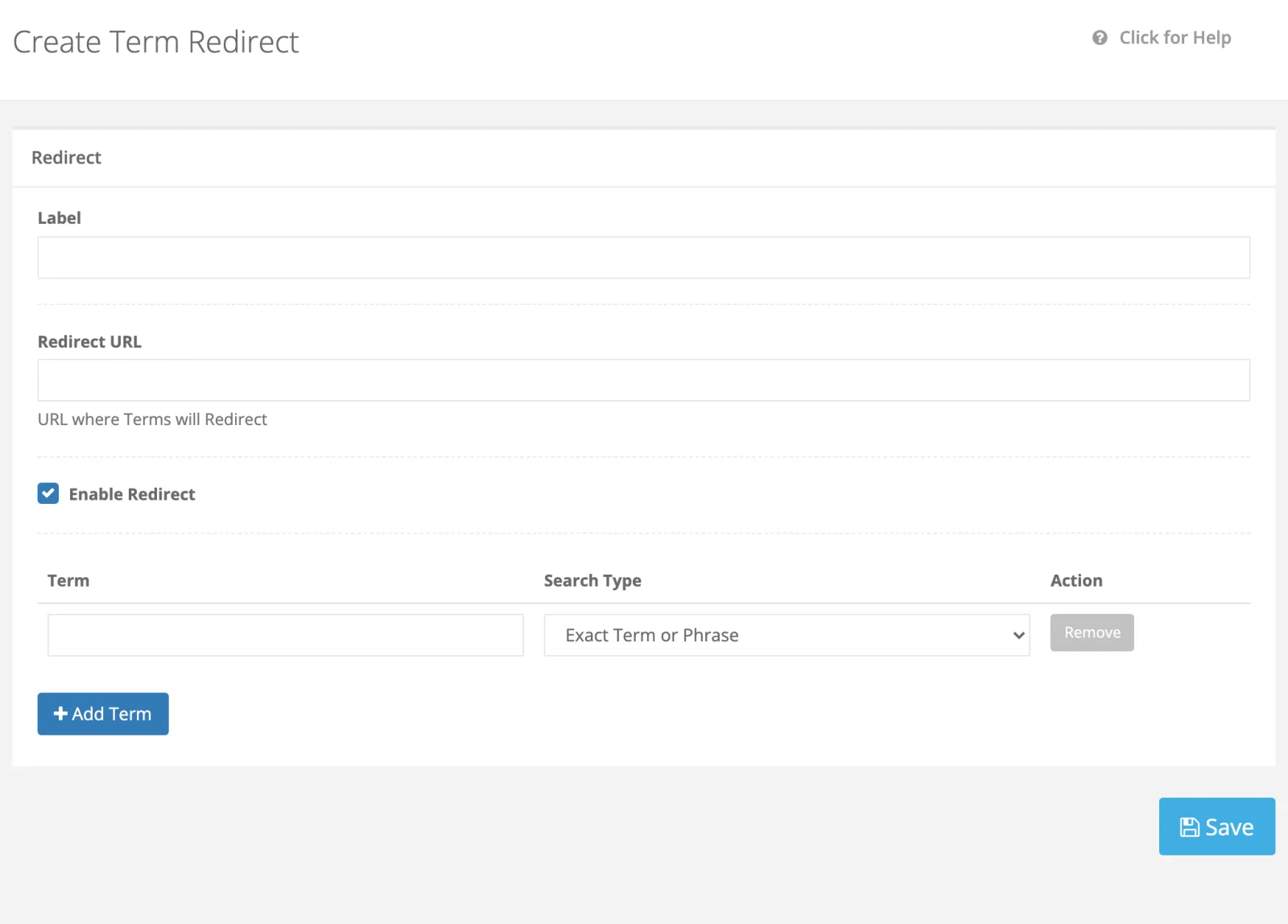
Label. A name to find the redirect by later. Shoppers don't see it.
-
Redirect URL. The page shoppers are sent to.
-
Enable Redirect. Leave it ticked for the redirect to work. Untick it to turn the redirect off without deleting it.
-
Terms. Enter a Term and choose its Search Type. Click Add Term for more terms, or Remove to delete one.
-
Save. Click Save.
Use Test in the list to check a redirect, and Delete to remove it.
Reference
Search types
| Search Type | When it redirects |
|---|---|
| Exact Term or Phrase | The whole search is the term. "info" matches the term "info", but "information" doesn't. |
| Contains Term | The search contains the word. A search for "about us" matches the term "about". |
| Contains Phrase | The search contains the phrase. "red polo shirt" matches the phrase "polo shirt". |
Troubleshooting and FAQ
A redirect catches searches it shouldn't
A short Contains Term matches every search with that word in it. Change it to Exact Term or Phrase.
Questions? Email us at help@yourstorewizards.com.