
Getting Started with Magic Sorter for BigCommerce
What it does
Magic Sorter gives you complete control over the order products appear in your BigCommerce categories. Set up a sort once, by dragging products into place or by choosing an automatic rule like Best Selling, and Magic Sorter keeps it in order on a daily schedule, so you don't have to re-sort every time your inventory changes.
Every plan includes:
- Drag-and-drop custom sorting: arrange products in any order you like.
- Property sorting: sort automatically by Best Selling, Newest, Price, Inventory, Name and more.
- Daily automatic sorting: categories re-sort at a time you choose.
- Automatic backups: every sort run is backed up so you can undo it.
- Large-catalog pagination: the editor stays fast with thousands of products.
- Multi-Storefront support: categories from every storefront are listed, labelled and filterable in one place.
Premium adds store-wide out-of-stock sorting, more saved snapshots and scheduled sorts, and longer backup retention. See Plans and limits.
Before you start
- A BigCommerce store you can install apps on.
- Magic Sorter from the BigCommerce App Marketplace.
Step-by-step
Connect your store
-
Install. Install Magic Sorter from the BigCommerce App Marketplace.
-
Open the app. In your BigCommerce control panel, go to Apps → Magic Sorter. The app signs you in automatically through BigCommerce.
-
Set up billing. Complete the billing form in the app during setup.
-
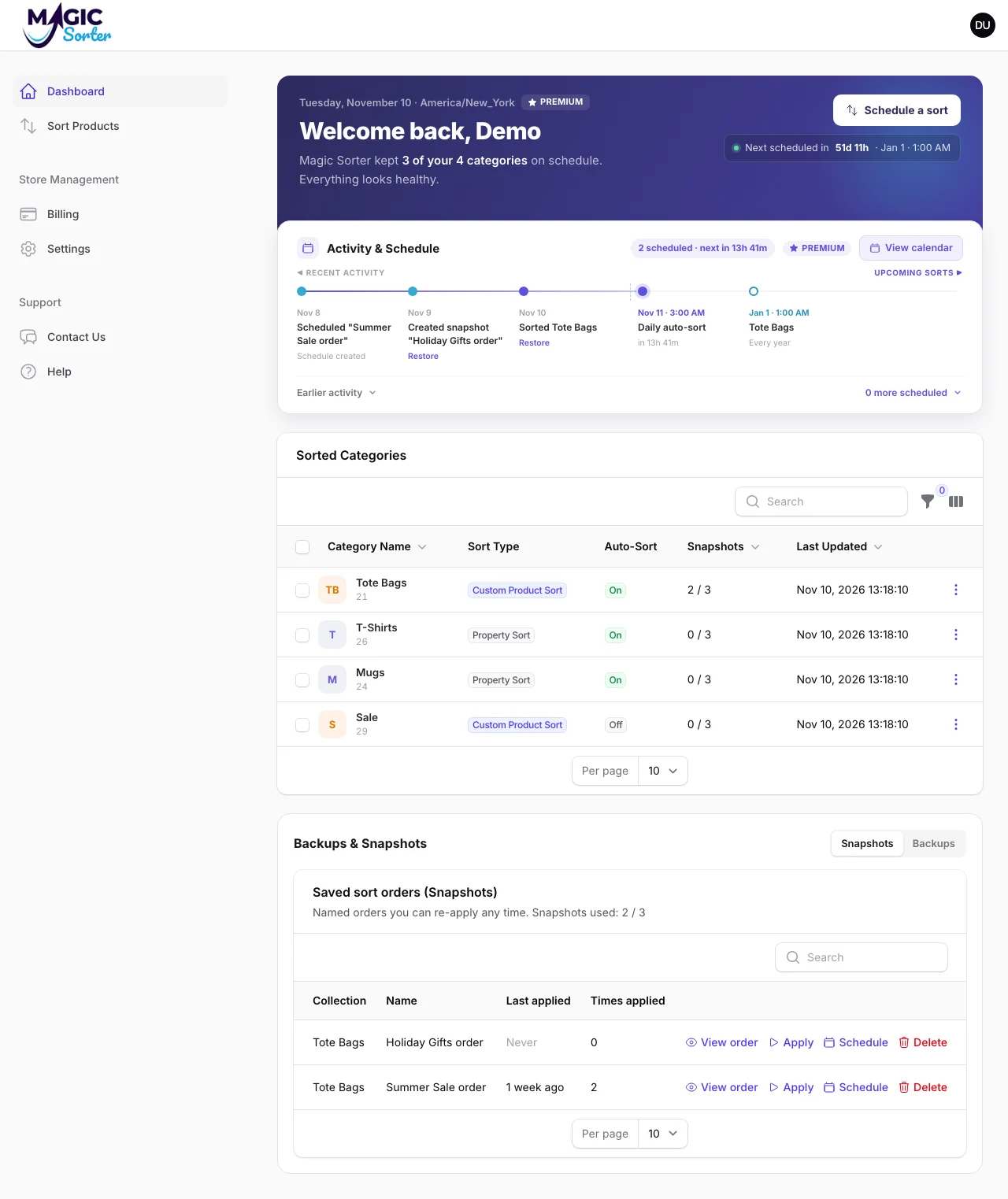
Dashboard. You land on your Dashboard.
Your first sort
-
Sort Products. In the left menu, open Sort Products. You'll see every category in your store.
-
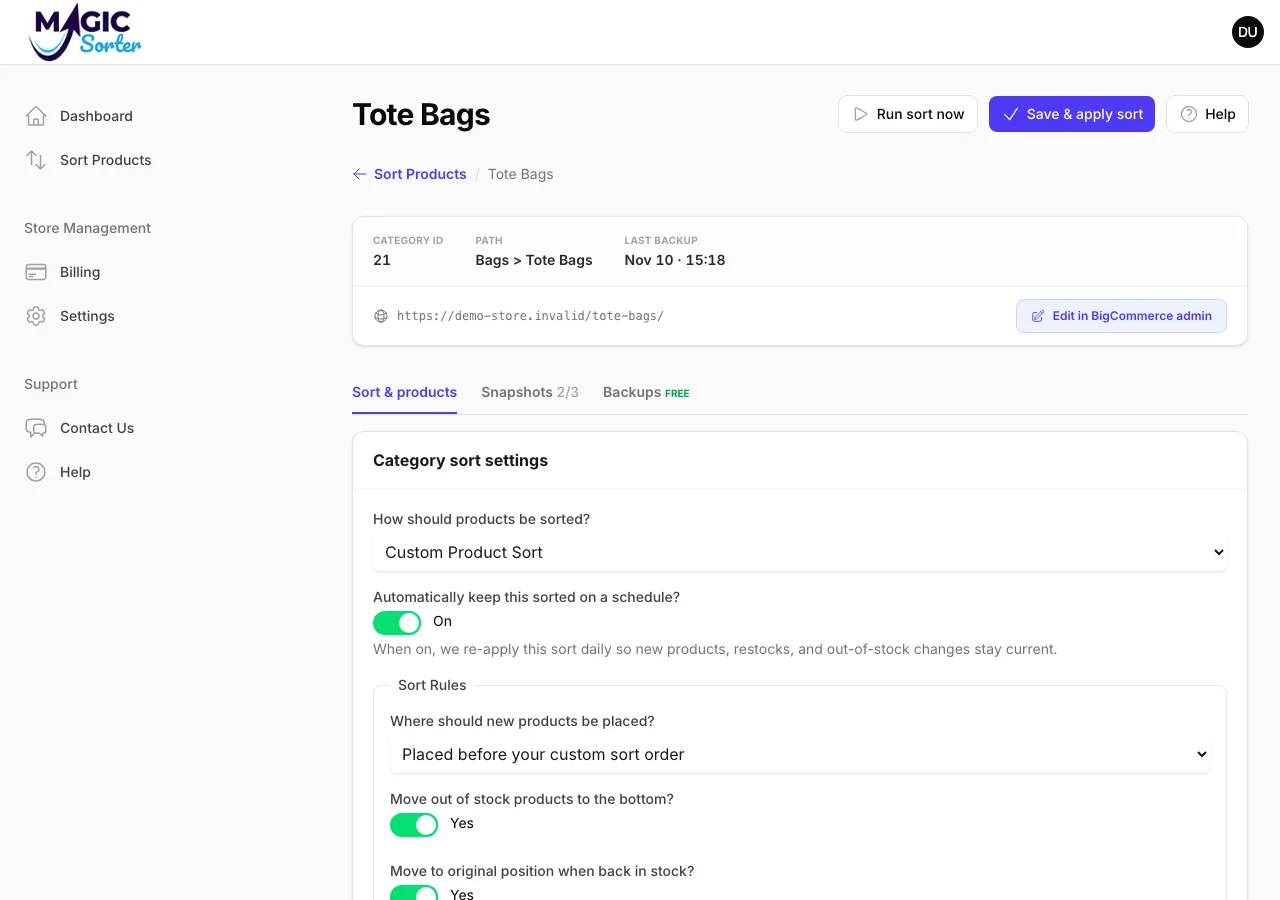
Edit Sort. Click a category, or its Edit Sort action, to open the Sort Editor.
-
Sort Type. Choose how the category is sorted:
- Custom Product Sort: drag products into the exact order you want.
- Property Sort: pick an automatic rule, such as Best Selling.
-
Drag products into place. If you chose Custom Product Sort, drag the products into order in the grid.
-
Save & apply sort. Click Save & apply sort. Your new order is queued and reaches your storefront within about a minute, and a backup is taken automatically.
Important
BigCommerce only shows Magic Sorter's order when the category sorts by Featured Items. See Make sure your storefront shows your sort.
That's your first category sorted. Next:
Questions? Email us at help@yourstorewizards.com.