
The Sort Products List in Magic Sorter for BigCommerce
What it does
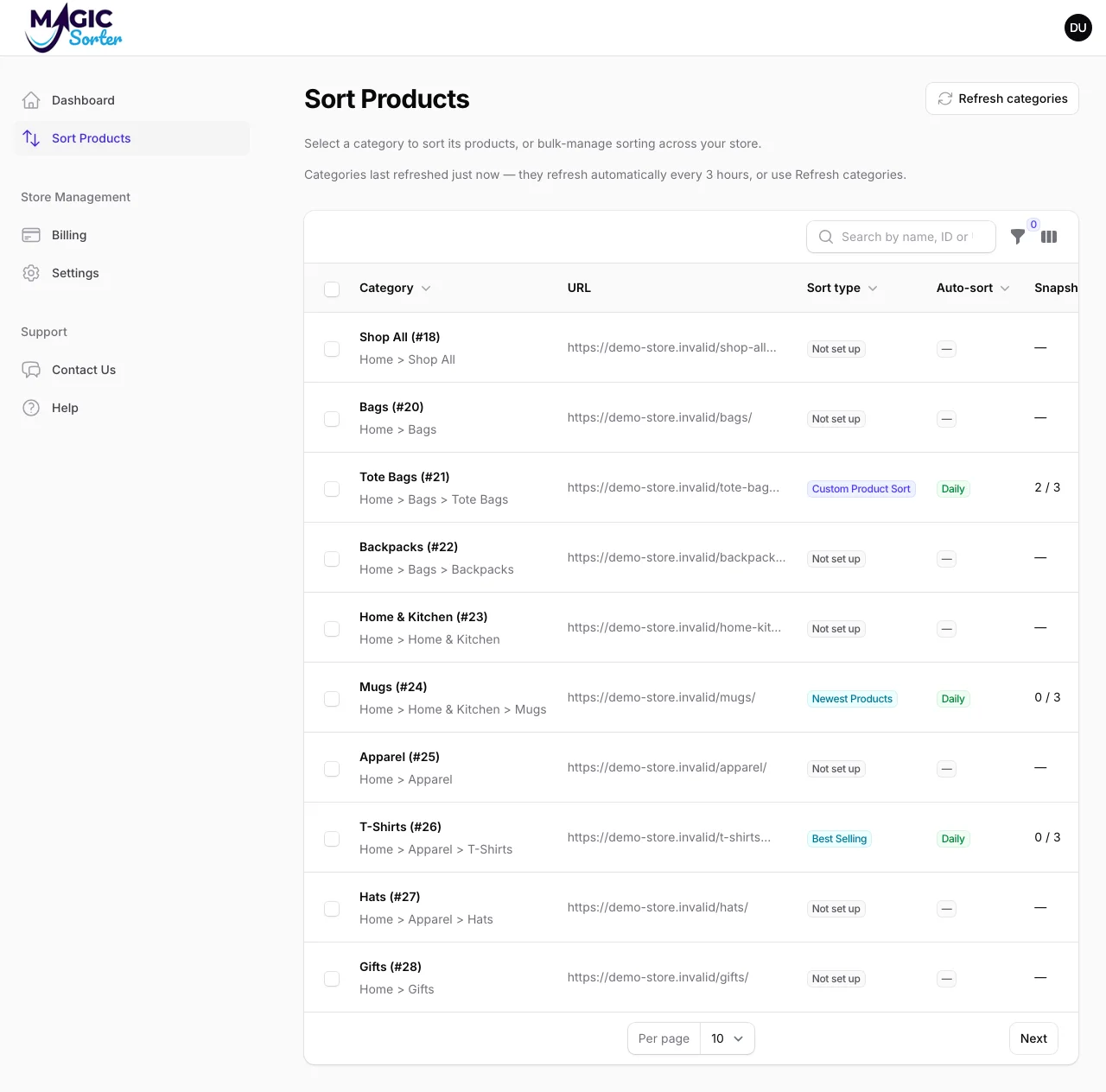
Sort Products is a searchable table of every category in your BigCommerce store. It shows how each category is sorted, lets you act on many categories at once, and is where you open a category to sort it.
Step-by-step
-
Sort Products. In the left menu, open Sort Products.
-
Find a category. Type in the search box, or use the filters to narrow the list.
-
Act on it. Use a row action on one category, or tick several categories and pick a bulk action.
Reference
Columns
| Column | What it shows |
|---|---|
| Category | Name and ID, with its breadcrumb path underneath |
| URL | The category's address on your storefront |
| Storefronts | Which storefront(s) the category belongs to. Multi-Storefront stores only. |
| Sort type | Custom Product Sort, a property name such as Best Selling, or Not set up |
| Auto-sort | On / Daily (runs automatically), Off (manual only), or — (not set up) |
| Snapshots | Saved sort orders used against your plan's allowance, for example 2 / 3 |
| Last backup | When the most recent backup was taken. Hidden at first; show it from the column picker. |
| Last updated | When the category's sort was last changed in Magic Sorter |
Filters
Narrow the list by sort type (set up or not, custom or property), auto-sort status, whether a category has snapshots, whether it has a backup, and, on Multi-Storefront stores, storefront.
Bulk actions
Tick one or more categories, then choose:
- Run sort now: re-apply the configured sort straight away.
- Auto-sort: On / Off: turn daily automatic sorting on or off.
- Change sort type: switch the selected categories to a Property Sort with the property you choose.
- Create snapshot: save the current order under a name.
Row actions
- Edit Sort: open the Sort Editor.
- Restore last backup: undo the last sort run. It asks you to confirm.
- Delete Saved Sort: remove this category's setup in Magic Sorter. Its products stay in their current order on your store, and the category shows as Not set up.
Refresh categories
Magic Sorter keeps a copy of your category list and refreshes it automatically every few hours; the page shows when it last did. Click Refresh categories to reload it straight away, for example after you add a category in BigCommerce.
Multi-Storefront stores
If your BigCommerce plan has Multi-Storefront turned on, Magic Sorter works across all your storefronts. There's nothing to set up.
- Every storefront's categories are listed. Sort Products shows categories from each of your category trees, not just the default one, so a category that exists only on a second storefront can be sorted too.
- Storefronts column. Each row has a badge for the storefront(s) the category belongs to. Show or hide the column like any other.
- Storefront filter. Use the Storefront filter to show one storefront, or type a storefront name in the search box.
- Sorting works the same. Automatic sorting, backups, snapshots and schedules all work per category, whichever storefront it belongs to.
Note
If categories show the name of their category tree instead of the storefront name, BigCommerce may be asking you to approve updated permissions for Magic Sorter (Apps → My Apps). Accept them and the storefront names appear the next time you open Sort Products. Everything else works normally in the meantime.
Stores without Multi-Storefront don't see the Storefronts column or filter.
Troubleshooting and FAQ
A new category isn't showing in Sort Products
Click Refresh categories to reload the list.
I have several storefronts but only see categories from one
Click Refresh categories first. If you still only see your default storefront's categories, email us at help@yourstorewizards.com.