
Update Guest Orders for BigCommerce
What it does
When a shopper checks out as a guest, the order isn't linked to a customer account, even if the same person later creates (or already had) an account with the same email address. Update Guest Orders finds those guest orders and connects them to the matching customer account in your store.
How the matching works:
- The tool only looks at guest orders (orders with no customer account attached) in the date range you choose.
- For each guest order, it takes the billing email address and looks for a registered customer in your store with the same email, ignoring upper and lower case.
- When it finds a match, it updates the order so it belongs to that customer.
- When it can't find a match, it leaves the order alone and notes why.
When the run finishes, you get a results file listing every guest order it looked at and what happened to it.
Use it when:
- A customer created an account after checking out as a guest and wants their earlier orders in their account history.
- You imported or moved customers and need older guest orders connected to the right accounts.
- You want order history and customer reporting complete, rather than split between guest and registered orders.
Before you start
- The customer account must already exist in your store. This tool links orders to registered accounts; it doesn't create accounts.
- Matching is by billing email address. If a shopper registered with a different email from the one on their guest order, those orders won't match.
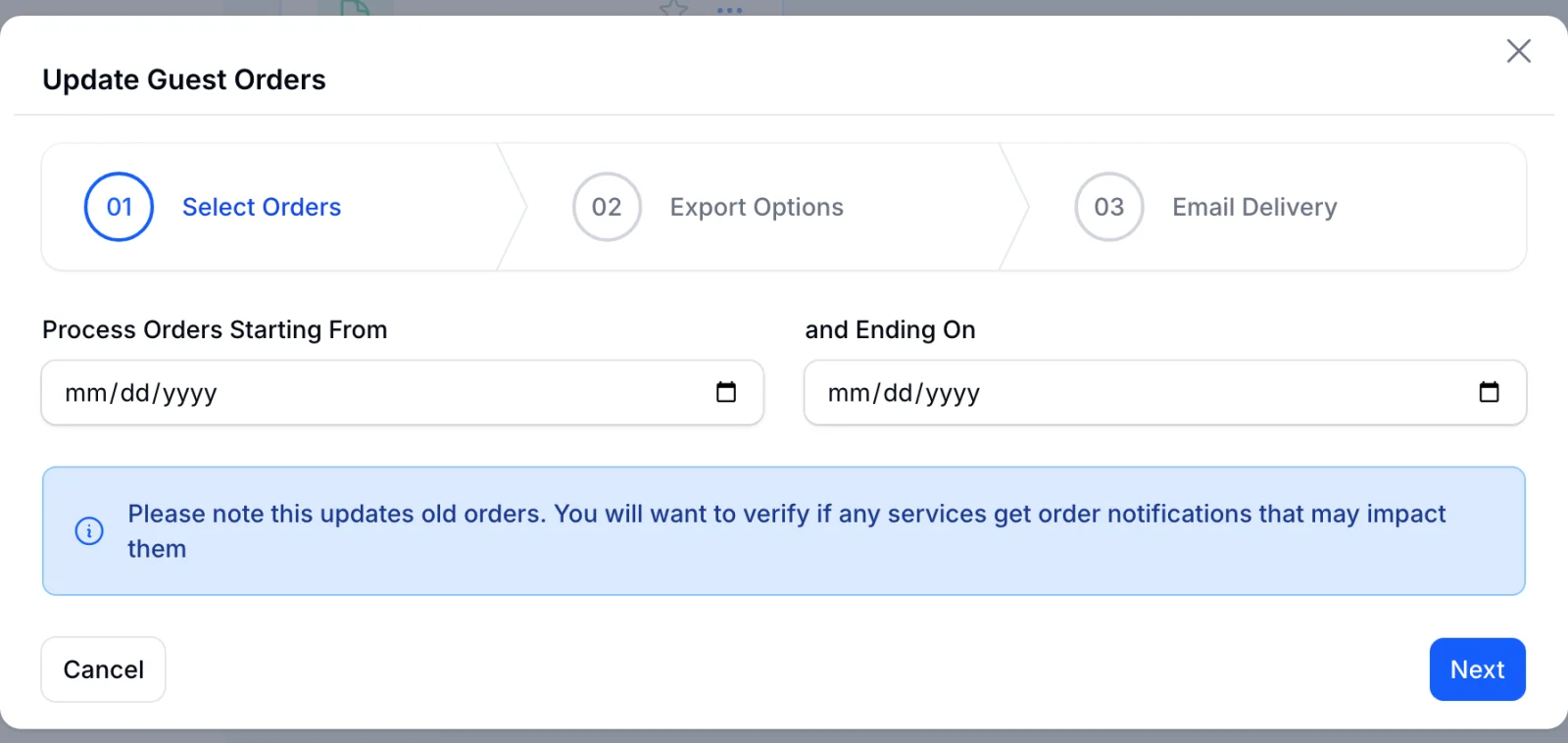
- This updates existing, often older, orders. If services, apps or integrations react to order changes or send order notifications, check that re-linking old orders won't set anything off. The tool reminds you of this on the first step.
- This is a paid add-on. If it isn't active for your store, the tool card offers a way to subscribe.
Step-by-step
-
Open Update Guest Orders. Choose the tool from your BigCommerce dashboard.
-
Select Orders. Choose the date range with Process Orders Starting From and and Ending On. If your store has more than one storefront, you can also choose one in Select Storefront. Read the reminder that this updates old orders, then continue.
-
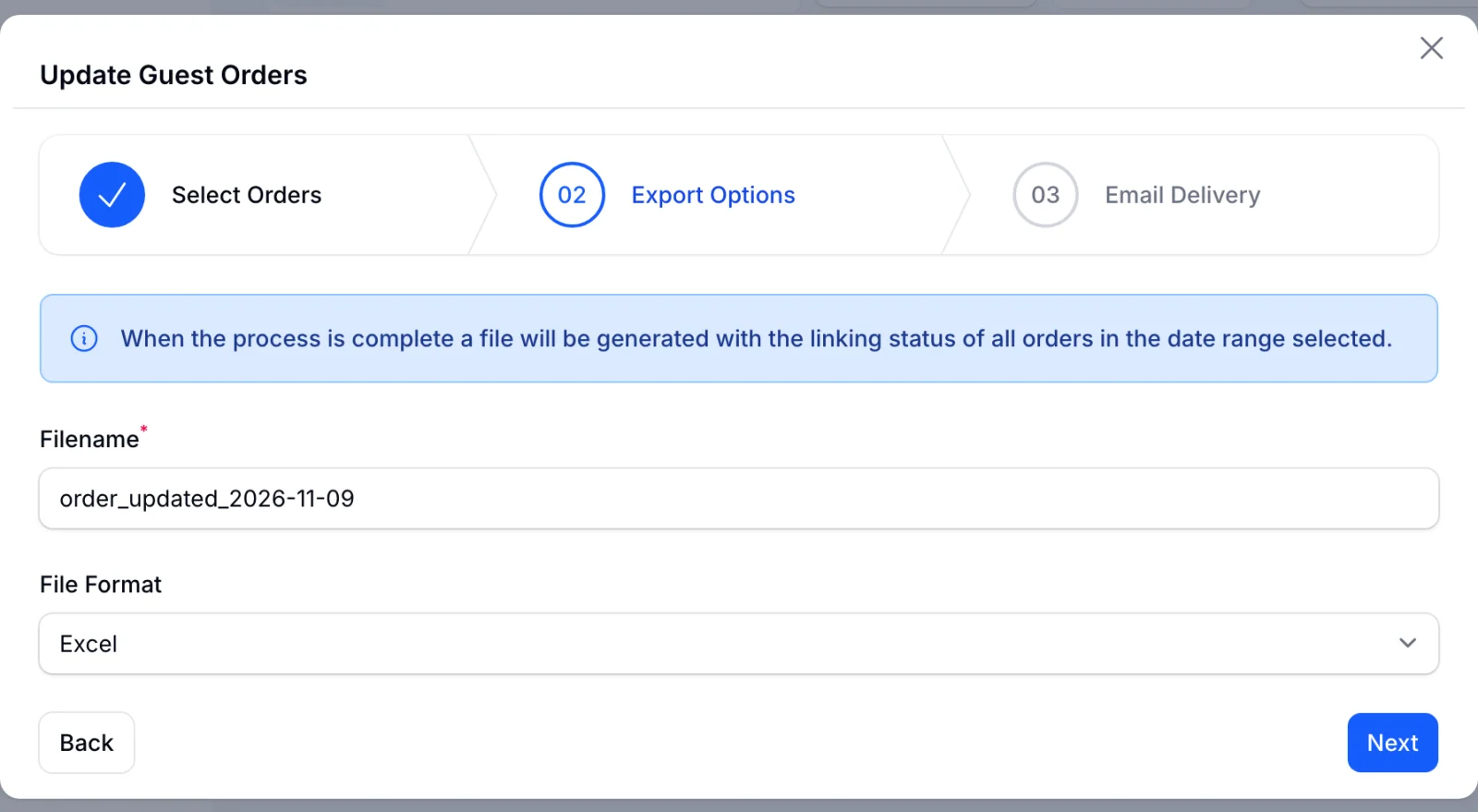
Export Options. Set the Filename for your results file (a name with today's date is filled in for you) and choose the File Format: CSV or Excel.
-
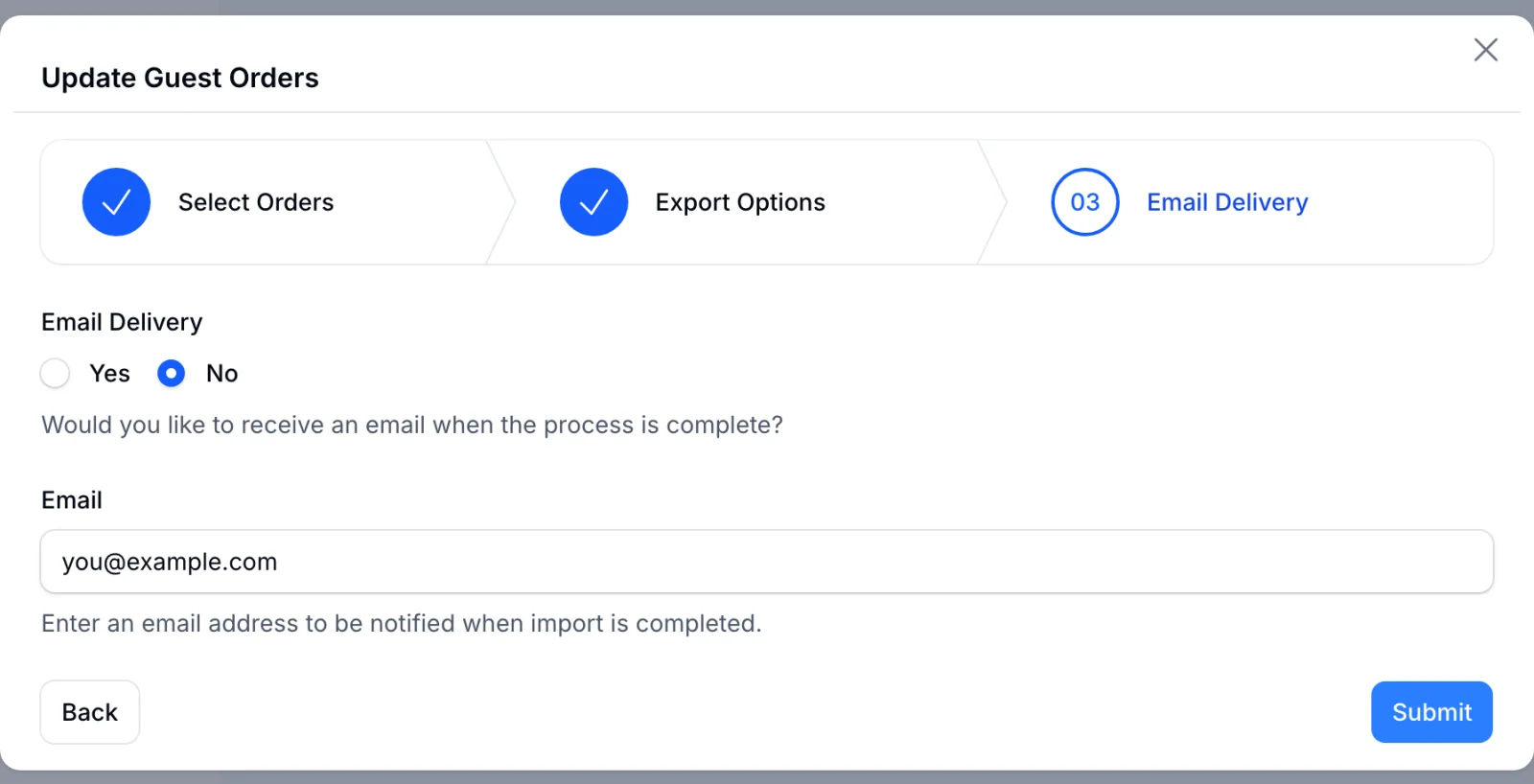
Email Delivery. Choose Yes to get an email when the run finishes; your email address is filled in.
-
Submit. The work happens in the background, so you don't need to keep the page open.
-
Download your results file from the tool when it's done, or from the email if you chose one.
Tip
If your plan includes scheduling, you can run this on a schedule so newly registered customers pick up their earlier guest orders automatically. On a repeating schedule, the dates are replaced by Set Range of Orders to Process (for example, Previous Day or One Week).
Reference
You don't upload a file for this tool: you choose a date range and the tool produces a results file, with one row per guest order it looked at.
| Column heading | What it tells you |
|---|---|
order_number |
The BigCommerce order number. |
order_status |
The order's status. |
order_date |
When the order was placed. |
customer_name |
The billing name on the order. |
customer_email |
The billing email used to look for a matching account. |
Process Message |
Order Linked to Customer when a match was found and the order was updated, or Unable to link order, email address not found in store when no matching account exists. |
Troubleshooting and FAQ
Some orders say "Unable to link order, email address not found in store"
There's no registered customer with that order's billing email, so there was nothing to link it to. That's expected for shoppers who never created an account, or who registered with a different email from the one they used at guest checkout.
Will this create accounts for my guest shoppers?
No. It only links orders to accounts that already exist. To bring in new customers, register or import them first, then run this tool.
A customer registered, but their old orders still aren't linked
Check that the email on the older guest orders is the same address as the one on their account (upper and lower case don't matter). Also check that those orders fall inside the dates you ran.
Nothing happened after I started the run
It runs in the background. Give it a few minutes, then check the tool, or the inbox you entered if you chose Yes for Email Delivery.
I got a permission error
The tool may need to be reconnected with your store. If it keeps happening, contact us from Contact Us in your dashboard and we'll help you fix it.