
Update Inventory for BigCommerce
What it does
Update Inventory updates stock and related inventory settings across many products at once from one file. List your products by SKU with the values you want, and the tool finds each matching product (or variant) in BigCommerce and applies the changes.
You can update any combination of:
- Inventory stock level (the current quantity)
- Low stock level (the warning threshold)
- Inventory tracking (by product, by variant, or not at all)
- Product visibility (shown or hidden on your storefront)
- Purchasability (available, disabled or preorder)
- Minimum and maximum order quantity
Rows are matched by SKU. The tool looks for a matching product first; if it doesn't find one, it checks your variants, so both simple products and variant SKUs are covered. SKUs that can't be found are skipped and listed in an errors file.
Tracking, visibility, purchasability and order quantities apply to products only. Stock level and low stock level work on both products and variants.
Use it when:
- You've done a stock count and need to send the new quantities to BigCommerce.
- A warehouse or supplier feed gives you fresh inventory numbers regularly.
- You want to hide out-of-stock items, switch products to preorder, or make them available again in bulk.
- You need to set low-stock warning levels or order quantity limits across many products.
Before you start
- The products must already exist in BigCommerce. This tool updates existing products matched by SKU.
- A CSV or Excel (.xlsx) file, or a link to a CSV file or Google Sheet, whose first row has the column names. Older .xls files aren't supported.
- Every row needs a SKU, plus at least one other column for the update to do anything.
- For tracking, visibility and purchasability, use the values in the Reference.
- Update Inventory is a paid add-on. If it isn't active for your store, the tool card offers a way to subscribe.
Step-by-step
-
Open Update Inventory. Choose the tool from your BigCommerce dashboard.
-
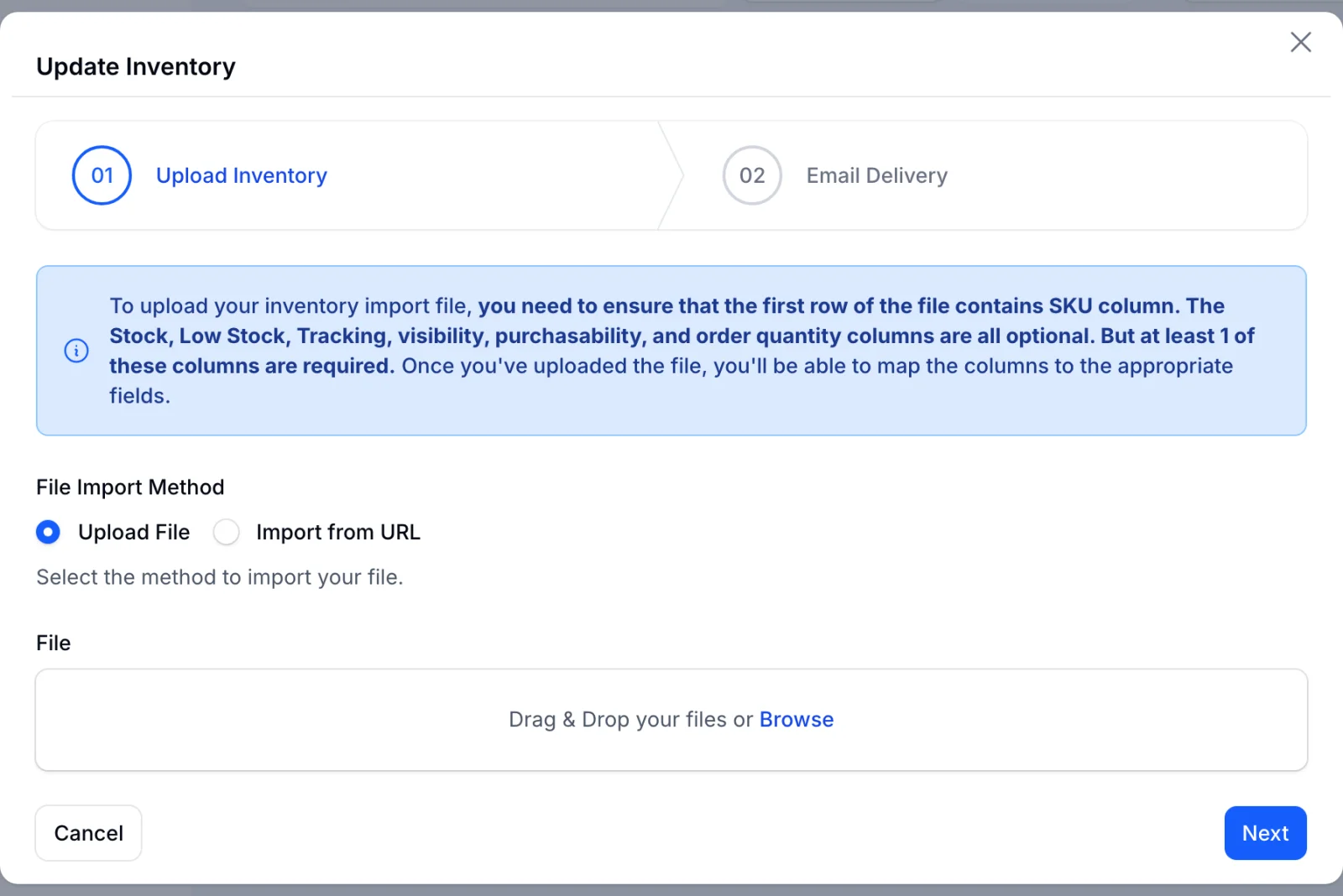
Upload Inventory. Choose Upload File or Import from URL and add your file. The first row must have your column names, including SKU.
-
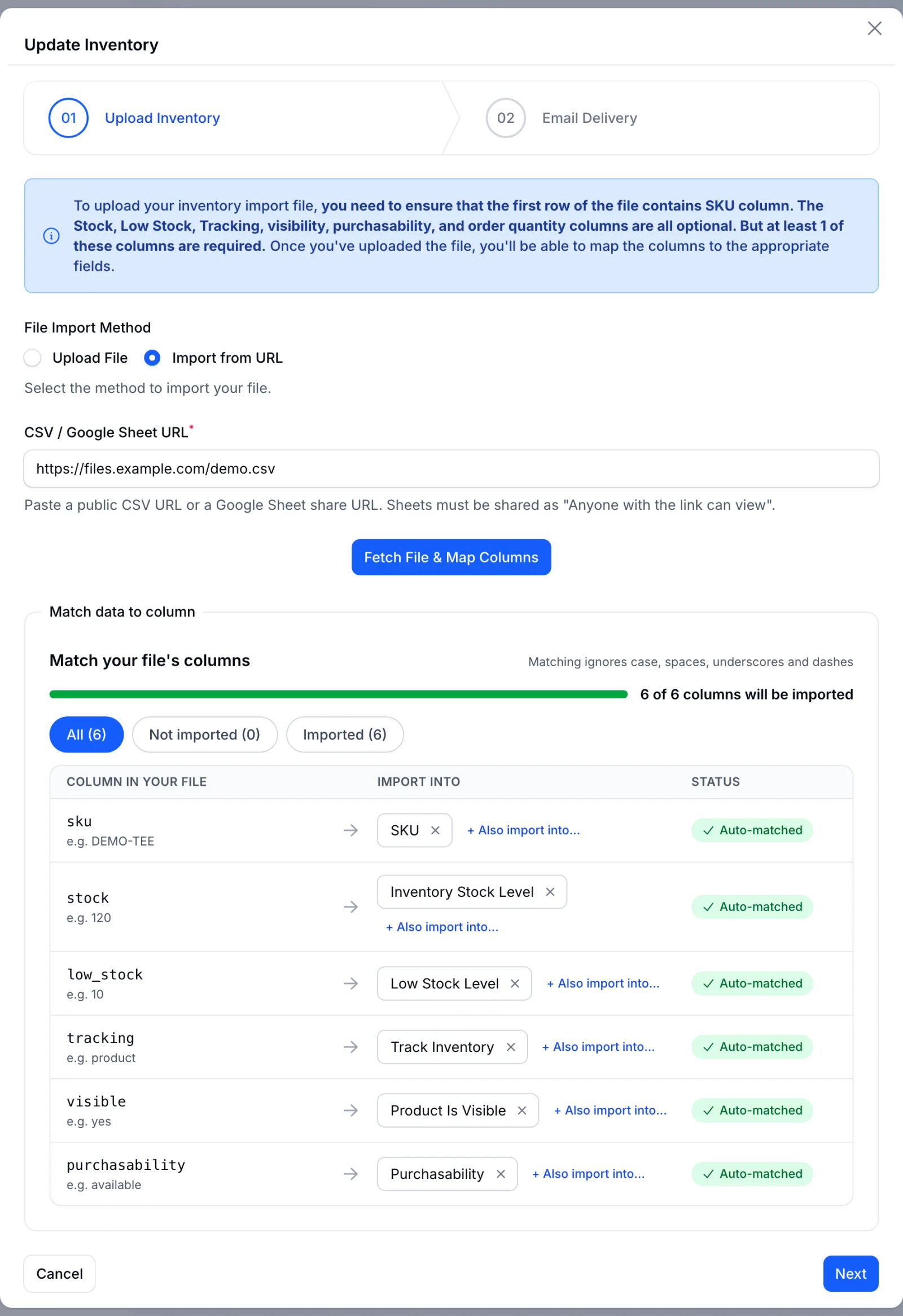
Match your file's columns. Pick the matching field for each column in your file; columns named like the fields are matched for you.
-
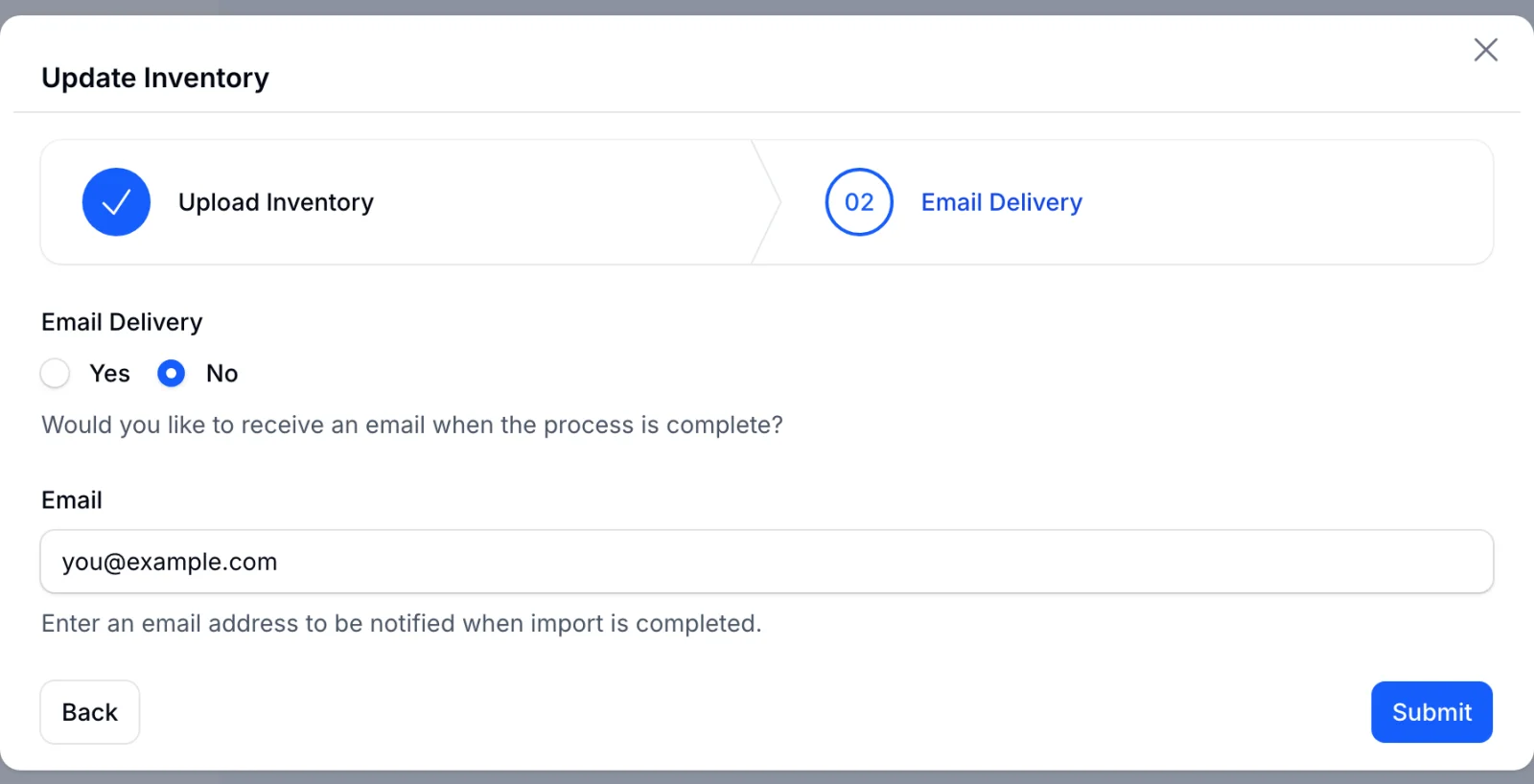
Email Delivery. Choose Yes to get an email when the update finishes; your email address is filled in.
-
Submit. You'll see "Import has been Queued". The update runs in the background, so you don't need to keep the page open.
-
Check the result. Rows that couldn't be updated are listed under Download Errors on the notification (and in the email, if you chose one).
Reference
SKU is required; include at least one other column.
| Field | Notes |
|---|---|
| SKU | The product or variant to update. Must match a SKU already in BigCommerce. |
| Inventory Stock Level | The new stock quantity. A number. Products and variants. |
| Low Stock Level | The low-stock warning level. A number. Products and variants. |
| Track Inventory | product (or p), variant (or v), or none (or n, no). Products only. |
| Product Is Visible | yes (or y, true, 1) to show the product; no (or n, false) to hide it. Products only. |
| Purchasability | available (or a, in stock), disabled (or d, out of stock), or preorder (or p, pre-order). Products only. |
| Minimum Order Quantity | The smallest quantity a customer can order. A whole number. Products only. |
| Maximum Order Quantity | The largest quantity a customer can order. A whole number. Products only. |
- Each value replaces the current value for that field.
- Leave a cell blank, or leave the column out, to keep that setting as it is.
- Values other than the ones listed are ignored for that row.
- If the same SKU appears on more than one row, the last row is used.
- Setting tracking to
varianton a product with no variants is reported as an error, and that row isn't changed.
Troubleshooting and FAQ
"Sku … not found in BigCommerce. So it was not updated."
That SKU didn't match any product or variant in your store, so it was skipped. Check the SKU matches what's in BigCommerce and that the product still exists.
"Inventory Tracking set to variant but product has no variants."
You set Track Inventory to variant on a product that has no variants. Use product for that SKU instead.
My tracking, visibility or purchasability values didn't take
These fields only accept the values in the reference table; anything else is ignored. They also apply to products, not individual variants. To hide a product, use no, n or false.
I set a variant's stock, but a product setting didn't change
Stock level and low stock level work on products and variants, but tracking, visibility, purchasability and order quantity limits are product-only.
My file is too large
Your plan may limit how many rows you can import at once. If your file is over the limit, you'll see a message with your plan's maximum. Split the file, or upgrade your plan.
Nothing happened after I submitted
The update runs in the background. Give it a few minutes, then check the notification in the tool, or your inbox if you chose Yes for Email Delivery.
I got a permission error
The tool may need to be reconnected with your store. If it keeps happening, contact us from Contact Us in your dashboard and we'll help you fix it.