
Export Product Variants for BigCommerce
What it does
Export Product Variants exports your BigCommerce product variants to a spreadsheet. Choose which variants to include with simple filters, pick the fields (columns) you want, and select a file format. When the export is ready, you're emailed a link to download the file.
If you don't fill in any filter, all of your product variants are exported.
Use it to:
- Get a spreadsheet of your variants for review, reporting or backup.
- Gather variant data (SKUs, prices, stock, identifiers) to prepare a bulk update.
- Export just some variants, such as those for particular products or SKUs.
Before you start
- Decide which variants you need: everything, or a set narrowed by Product ID, Product SKU, Variant SKU, UPC or Variant ID.
- Decide which fields (columns) you want in the file.
Step-by-step
-
Open Export Product Variants. Choose the tool from your BigCommerce tools.
-
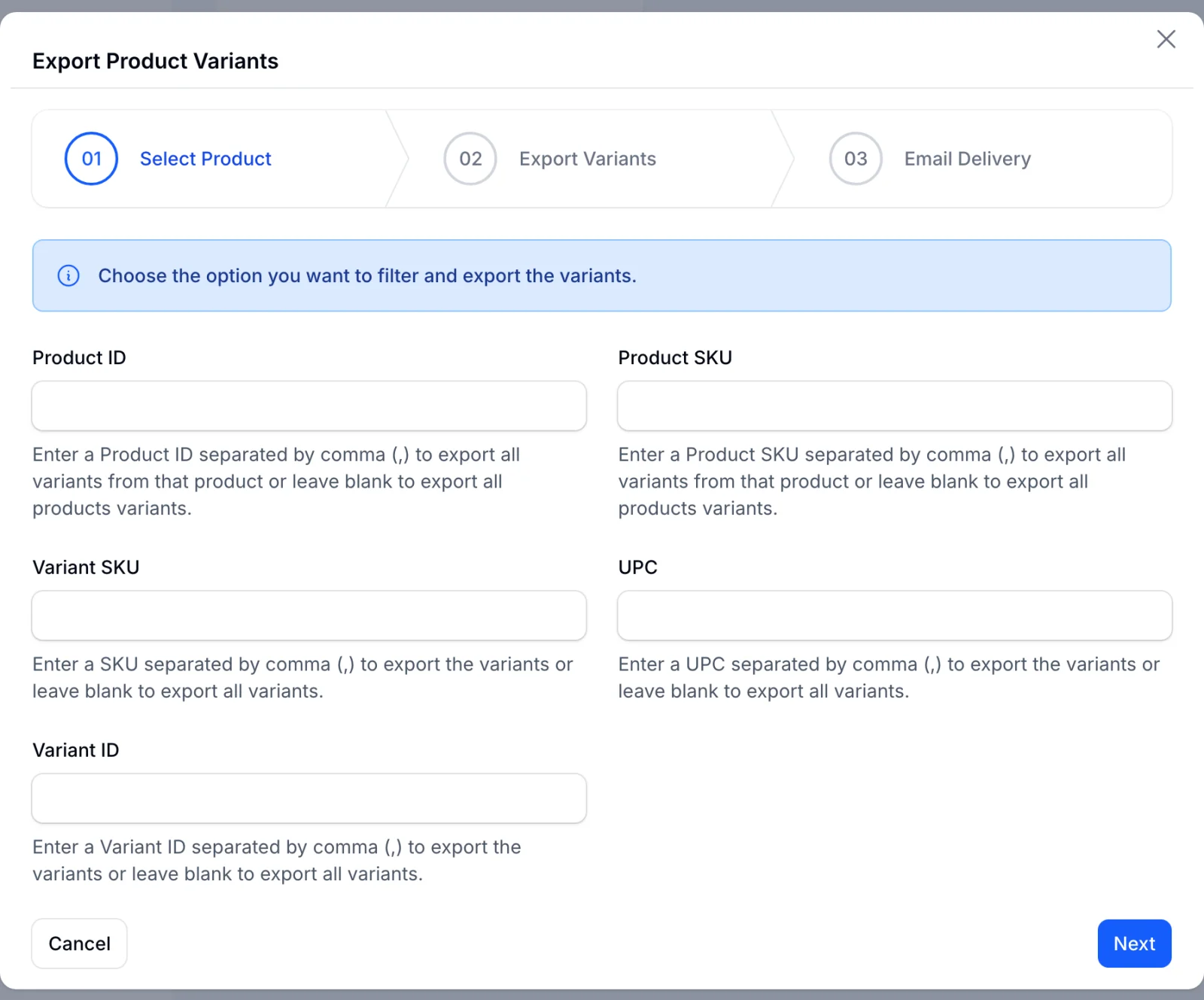
Select Product. Fill in a filter to narrow the export, or leave them all blank to export every variant.
-
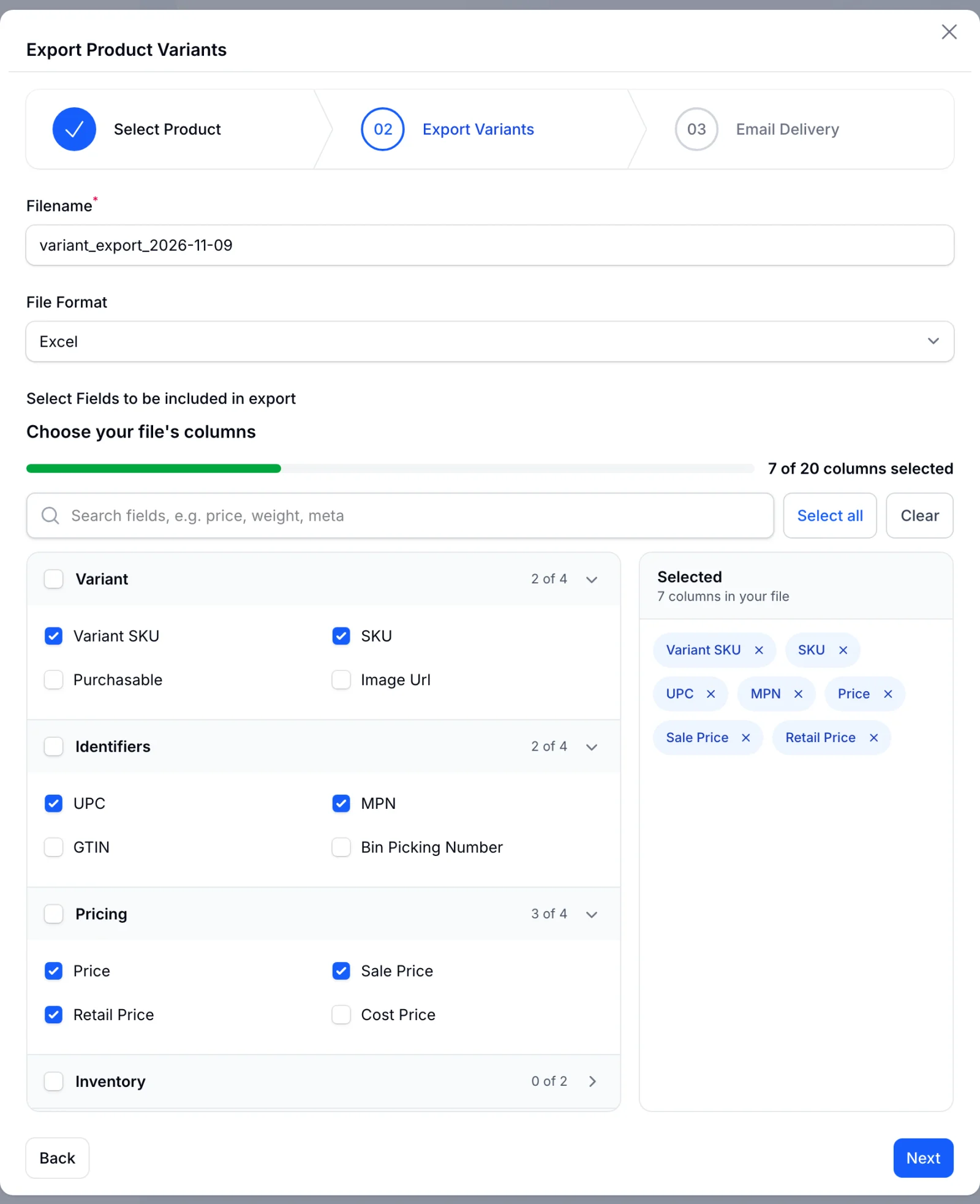
Export Variants. Enter a Filename (a name with today's date is filled in for you) and choose a File Format: CSV or Excel. Then pick your columns under Select Fields to be included in export. Fields are grouped into sections (Variant, Identifiers, Pricing, Inventory, Shipping & Dimensions) that you can search and select all at once.
-
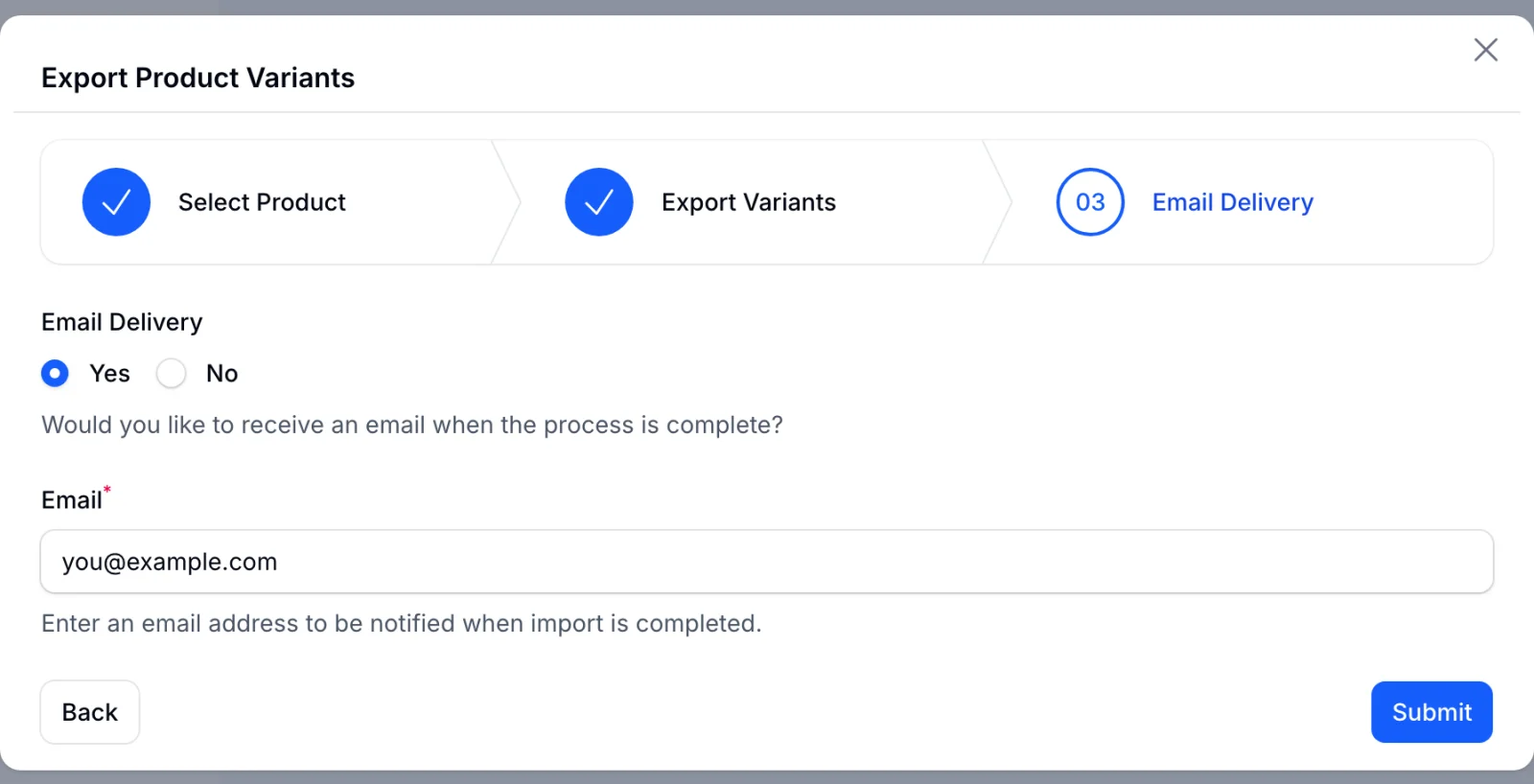
Email Delivery. The download link is emailed to you when the export finishes. Your account email is filled in; change it, or choose No if you don't want the email.
-
Submit. When the export is ready, download your file from the tool, or from the link in the email.
Reference
Filters on the Select Product step
Each filter accepts several values separated by commas. Leave them all blank to export every variant.
- Product ID: all variants of the listed product IDs.
- Product SKU: all variants of the listed product SKUs.
- Variant SKU: only the listed variant SKUs.
- UPC: only variants with the listed UPCs.
- Variant ID: only the listed variant IDs.
Columns
Only the fields you tick appear, in the order below. Variant SKU, SKU, UPC, MPN, Price, Retail Price and Sale Price are ticked by default.
| Field | Column heading | What it holds |
|---|---|---|
| Variant SKU | variant_sku |
The variant's SKU. |
| SKU | sku |
The SKU of the product the variant belongs to. |
| UPC / MPN / GTIN | upc, mpn, gtin |
The variant's identifiers. |
| Price / Sale Price / Retail Price / Cost Price | price, sale_price, retail_price, cost_price |
The variant's prices. |
| Fixed Cost Shipping Price | fixed_cost_shipping_price |
The variant's fixed shipping cost. |
| Width / Height / Depth / Weight | width, height, depth, weight |
The variant's dimensions and weight. |
| Calculated Weight | calculated_weight |
The weight BigCommerce calculates for the variant. |
| Purchasable | purchasing_disabled |
true when purchasing is turned off for the variant, false when it can be bought. |
| Image Url | image_url |
The variant's image address. |
| Stock | stock |
The variant's inventory level. |
| Low Stock | low_stock |
The variant's low-stock warning level. |
| Bin Picking Number | bin_picking_number |
The variant's bin picking number. |
File format: CSV or Excel.
Troubleshooting and FAQ
My export has more rows than expected
If you leave every filter blank, all variants in your store are exported. Fill in a filter on the Select Product step to narrow the results.
My filter returned nothing
Check that the values you entered match what's in your store and are separated by commas. Put your values in the field that matches what you have (for example, Variant SKU rather than Product SKU).
My file is empty
Make sure you ticked at least one column on the Export Variants step. Only the fields you tick are included.
Where's my file?
When the export finishes, you're emailed a link to download it. Check your spam folder, confirm the address on the Email Delivery step, and make sure delivery wasn't turned off. You can also download the file from the tool.
I got a permission or API error
This usually means your store connection is missing a permission the tool needs. Contact us from Contact Us in your dashboard and we'll help you fix it.
Tip
To change variants in bulk from a spreadsheet, use Import Product Variants.