
Export Price List Pricing for BigCommerce
What it does
In BigCommerce, a price list gives a specific group of customers or storefronts their own prices. Each entry ties a product SKU to one or more prices (price, sale price, retail price and MAP) that replace the default prices for the customers and channels on that list.
Export Price List Pricing exports the entries from the price lists you choose into a spreadsheet, so you can review your pricing, share it, or prepare a bulk update. It runs in the background and emails you a download link when the file is ready.
Use it to:
- Get a snapshot of your price list pricing for review or reporting.
- Start a bulk price change from your current prices.
- Share price list pricing with someone who doesn't have access to your store.
- Back up your price list entries before making changes.
Before you start
- The price lists you want must already exist in BigCommerce.
- Decide whether you want a CSV or an Excel (.xlsx) file.
- This is a paid tool. If it isn't active for your store yet, you'll be asked to add it to your plan.
Step-by-step
-
Open Export Price List Pricing. Choose the tool for your BigCommerce store.
-
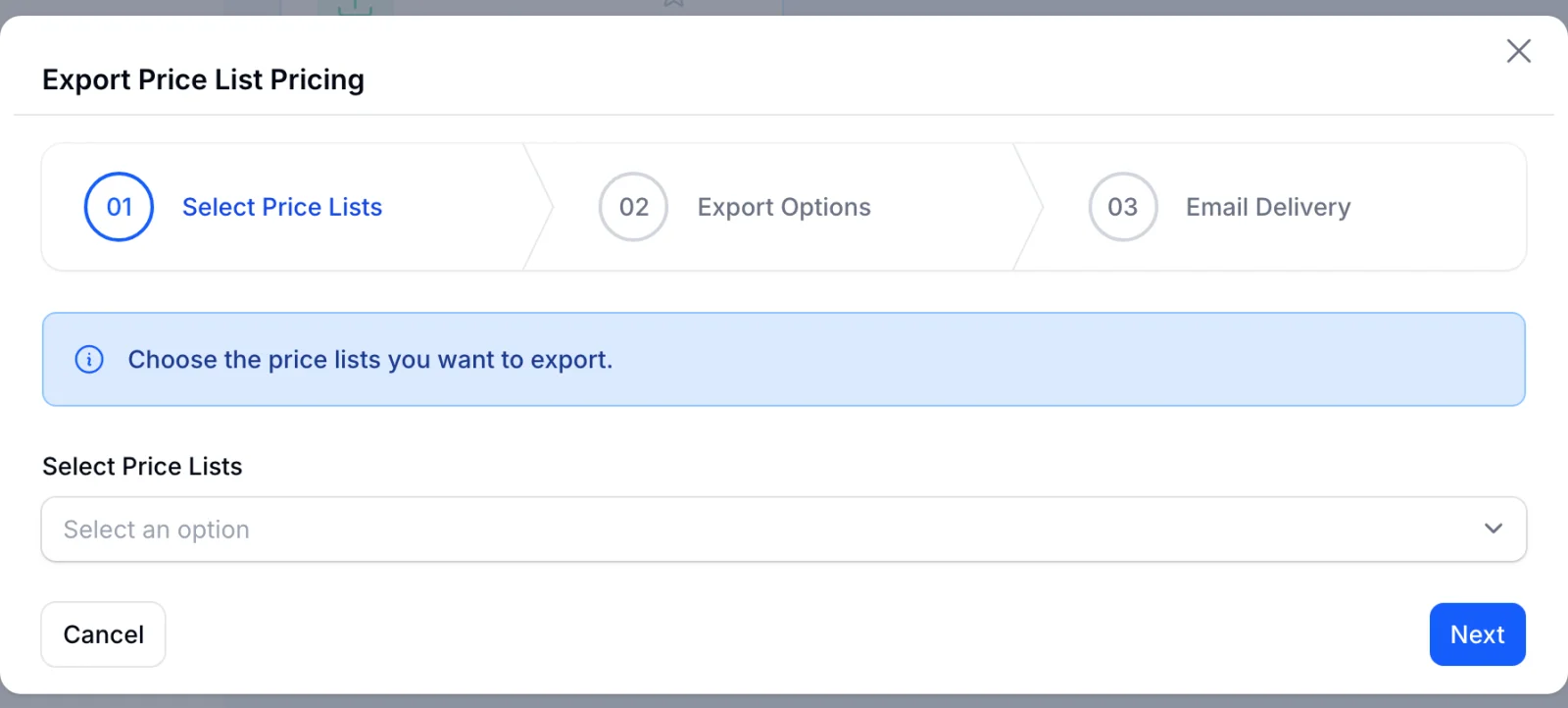
Select Price Lists. Choose one or more price lists to export. The field is searchable, so you can type to filter. Leave it empty to export every price list.
-
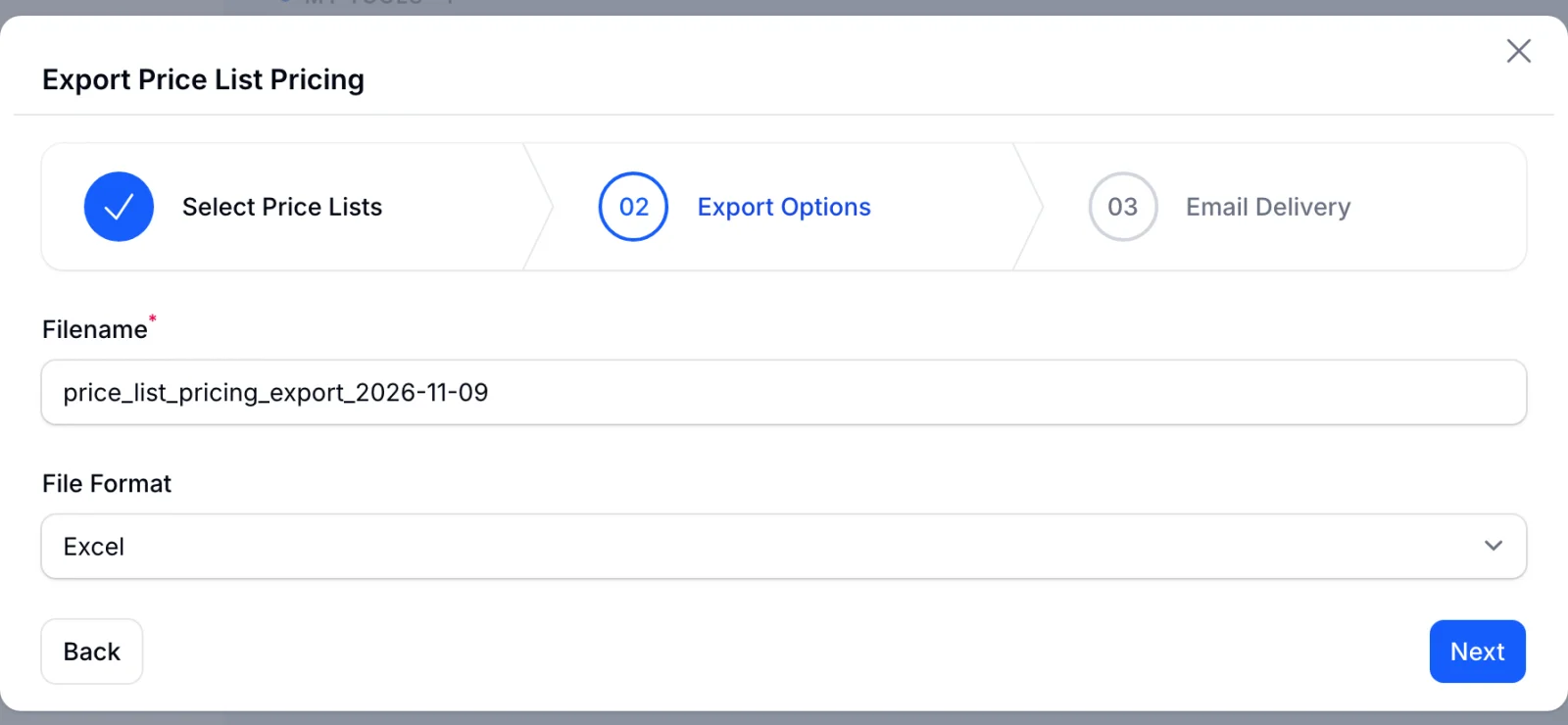
Export Options. Set a Filename (a name with today's date is filled in for you) and choose a File Format: CSV or Excel.
-
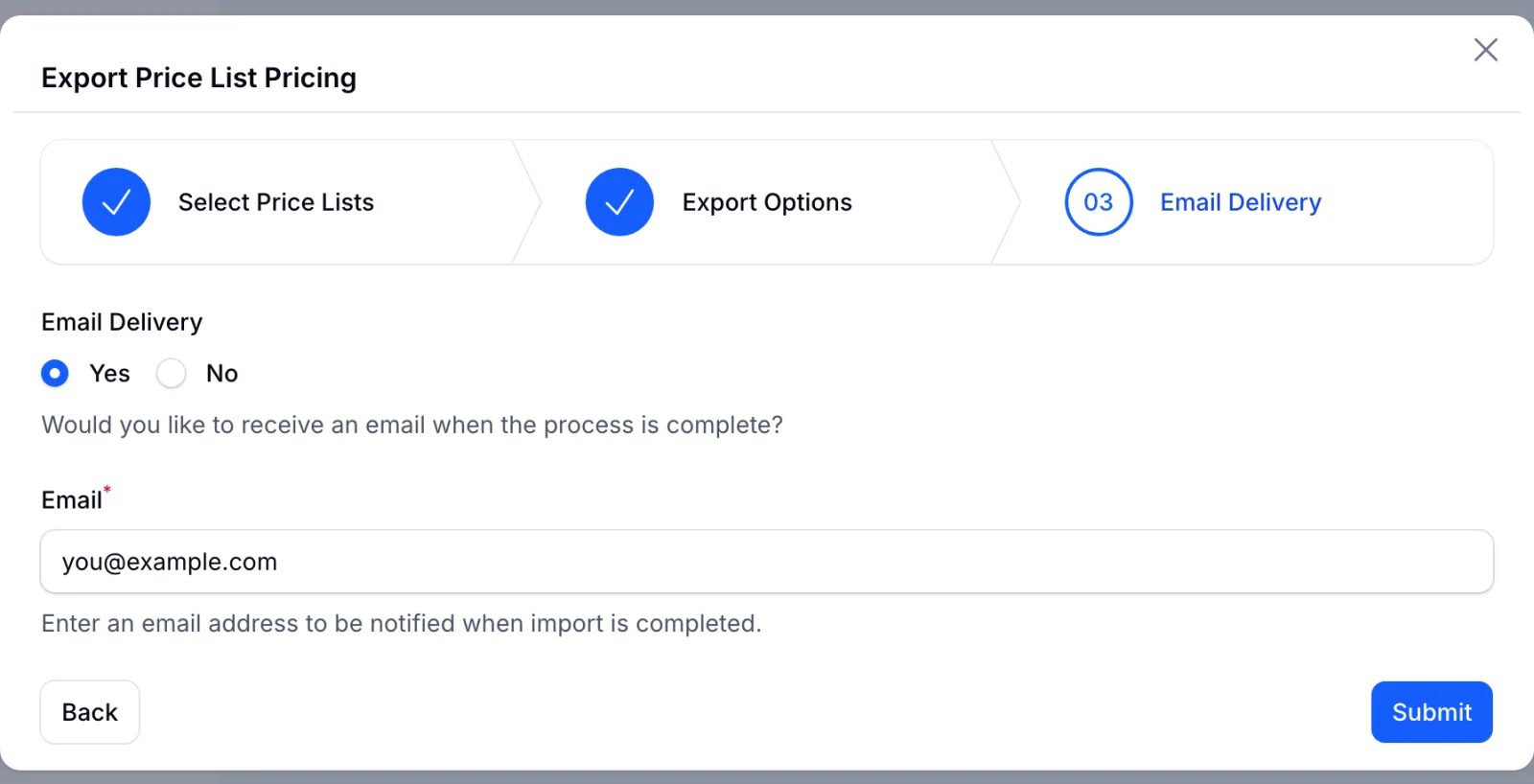
Email Delivery. The download link is emailed to you when the export finishes. Your account email is filled in; change it, or choose No if you don't want the email.
-
Submit. The export runs in the background.
-
Download your file. Download it from the tool when it's ready, or from the link in the email.
Reference
The file has one row per price list entry, with these columns:
| Column heading | What it holds |
|---|---|
sku |
The product or variant SKU on the price list entry. |
price |
The entry's price. |
sale_price |
The entry's sale price. |
retail_price |
The entry's retail price. |
map_price |
The entry's MAP (minimum advertised price). |
price_list |
The name of the price list the entry belongs to. |
File formats: CSV, a plain comma-separated file that opens in any spreadsheet app, or Excel (.xlsx).
Troubleshooting and FAQ
I didn't get an email
Give the export a few minutes, then check your spam folder, confirm the address on the Email Delivery step, and make sure delivery wasn't turned off. You can also download the file from the tool once it finishes.
A price list is missing from the picker
Only price lists that exist in your BigCommerce store appear. Create the price list first, then run the export again.
Which format should I pick?
CSV for the simplest, most compatible file, or Excel if you prefer an .xlsx workbook.
Can I edit this file and import it again?
Yes. After editing prices, use the Price List Updater to send the changes back to BigCommerce. When you match your file's columns there, match price_list to Price List Name.
I got a permission or API error
This usually means your store connection is missing a permission the tool needs. Contact us from Contact Us in your dashboard and we'll help you fix it.