
DMARC Report Analyzer for BigCommerce
What it does
DMARC Report Analyzer turns the technical DMARC reports that email providers send you into something you can read. Upload one or more report files and the tool reads each sending source in them, checks whether its mail passed SPF and DKIM, and sends you a summary with a spreadsheet of the details.
It only reads the files you upload. It doesn't change anything in your store or your email settings.
Use it when:
- You receive DMARC reports for your domain and want to know what they mean.
- You want to confirm your order confirmations, newsletters and support replies are being authenticated properly.
- Your store emails are landing in spam or being rejected, and you want to see where authentication breaks down.
- You want to spot services or senders you don't recognize sending mail as your domain.
Before you start
- You need DMARC aggregate report files. Mailbox providers such as Google, Microsoft and Yahoo email them to the address in the
ruapart of your domain's DMARC record, usually once a day per provider. They arrive as a.zipor.gzattachment holding an XML file, or as a plain.xmlfile. - Don't rename the files. The tool reads the provider and your domain from the file name the provider gave it.
- You can upload up to 20 files at once, each up to 250 MB.
- If you aren't receiving reports, your domain probably doesn't have a DMARC record with a reporting address yet. Once it does, the reports arrive on their own.
Step-by-step
-
Open DMARC Report Analyzer. Choose the tool from your BigCommerce dashboard.
-
Upload the file. Drop your report files into Upload XML or ZIP or GZIP File, or browse for them. Add the
.zipor.gzfiles exactly as they arrived, or the.xmlfiles.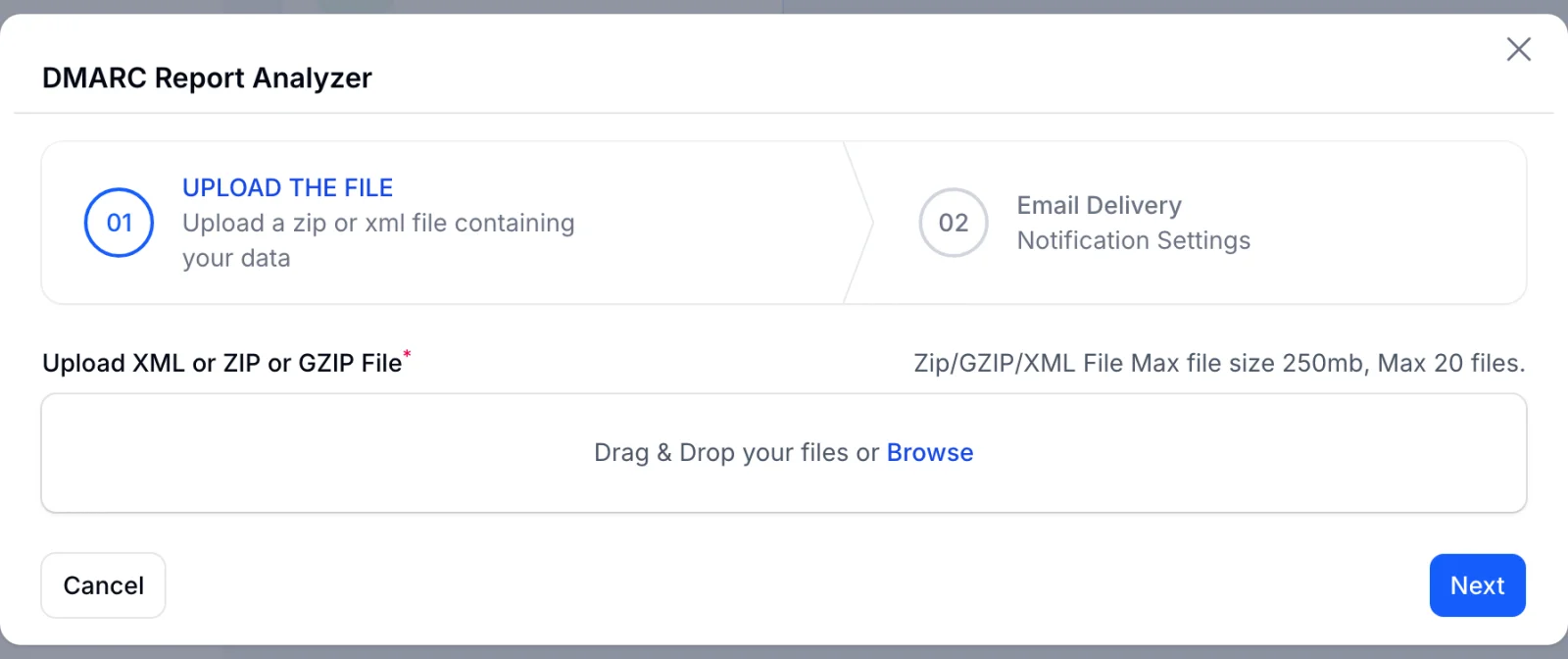
-
Email Delivery. The summary comes by email, so this is set to Yes, with your email address filled in. Change the address if you like.
-
Submit. The tool reads your files in the background.
-
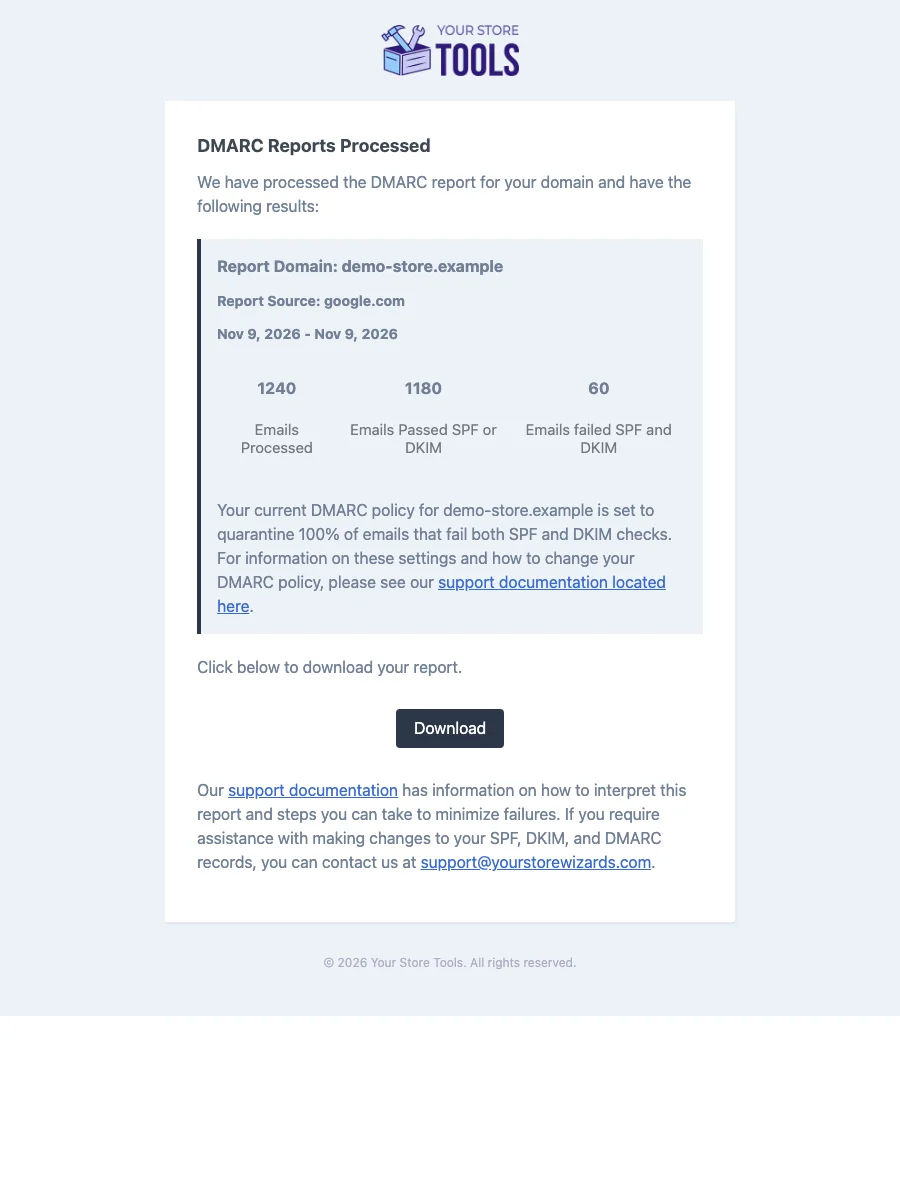
Read your results. You'll get an email titled "Your DMARC Reports Are Ready!" with a summary of each report and a link to the spreadsheet. The spreadsheet is also in the tool's notifications under Download File.
Reference
The summary (in the email), for each report:
- Report Domain: the domain the report is about (your sending domain).
- Report Source: the provider that sent the report, such as
google.com. - Emails Processed: the number of messages the report covers.
- Passed and failed counts: a message counts as passed only when it passed both SPF and DKIM. If either one failed, it counts as failed.
- Your current DMARC policy, in plain words: do nothing with, quarantine, or reject the emails that fail, with the percentage of mail it applies to if your record sets one.
The spreadsheet has a row per sending source:
| Column | What it tells you |
|---|---|
| IP | The address the mail came from. |
| Messages | How many emails came from that source. |
| Status | pass when both SPF and DKIM passed, otherwise fail. |
| Policy Evaluated | What the provider did with the mail (the disposition) and the DKIM and SPF results. |
| Auth Results | The SPF and DKIM domains that were checked and the result for each. |
A few failures are normal, from forwarded mail or spammers pretending to be your domain. Steady failures from a service you use, such as your email platform or a marketing tool, mean its SPF or DKIM setup needs attention.
Troubleshooting and FAQ
"No data found in the file"
The file didn't hold a readable DMARC report. Upload the report attachment from your provider (the .zip, .gz or .xml they emailed), not a screenshot, PDF or other file.
I got an error report instead of my results
If any file in the upload can't be read, you get an error report instead of the summary. Remove or replace that file and run the tool again. Check you haven't renamed any files.
My file type was rejected
Only .zip, .gz and .xml files are accepted, each 250 MB or smaller, up to 20 at a time.
I'm not getting any reports to upload
Reports are only sent when your domain has a DMARC record with a reporting (rua) address. Set that up first.
What should I do about the failures?
Look at the Auth Results for the sources that failed. If a service you use is failing, its SPF or DKIM DNS records usually need updating. For help reading your report or changing your SPF, DKIM or DMARC records, contact us from Contact Us in your dashboard.
Does this change my store or email settings?
No. It only reads the files you upload.