
Bulk Coupon Creator for BigCommerce
Prefer to work inside your store's admin? This tool is also a standalone app: Bulk Coupon Creator App
What it does
Bulk Coupon Creator adds coupon codes to a promotion you've already set up in BigCommerce, hundreds or hundreds of thousands at a time. Instead of creating codes one by one in BigCommerce, you pick the promotion the codes belong to, then let the tool make codes for you or upload your own list.
There are two ways to create codes:
- Create via Wizard: the tool makes unique codes for you. You choose how they look: how long, letters and/or digits, and an optional prefix such as
SUMMER-. You can create up to 500,000 codes in one run, and an example shows what your codes will look like before you start. - Import from File: upload a file, or point to a file on the web, with codes you already have, and tell the tool which column is which.
The discount itself (what's on sale, the conditions, the dates) comes from the promotion you picked; the tool only supplies the codes. The work runs in the background.
The tool also helps you manage the promotions themselves. From the tool's menu you can:
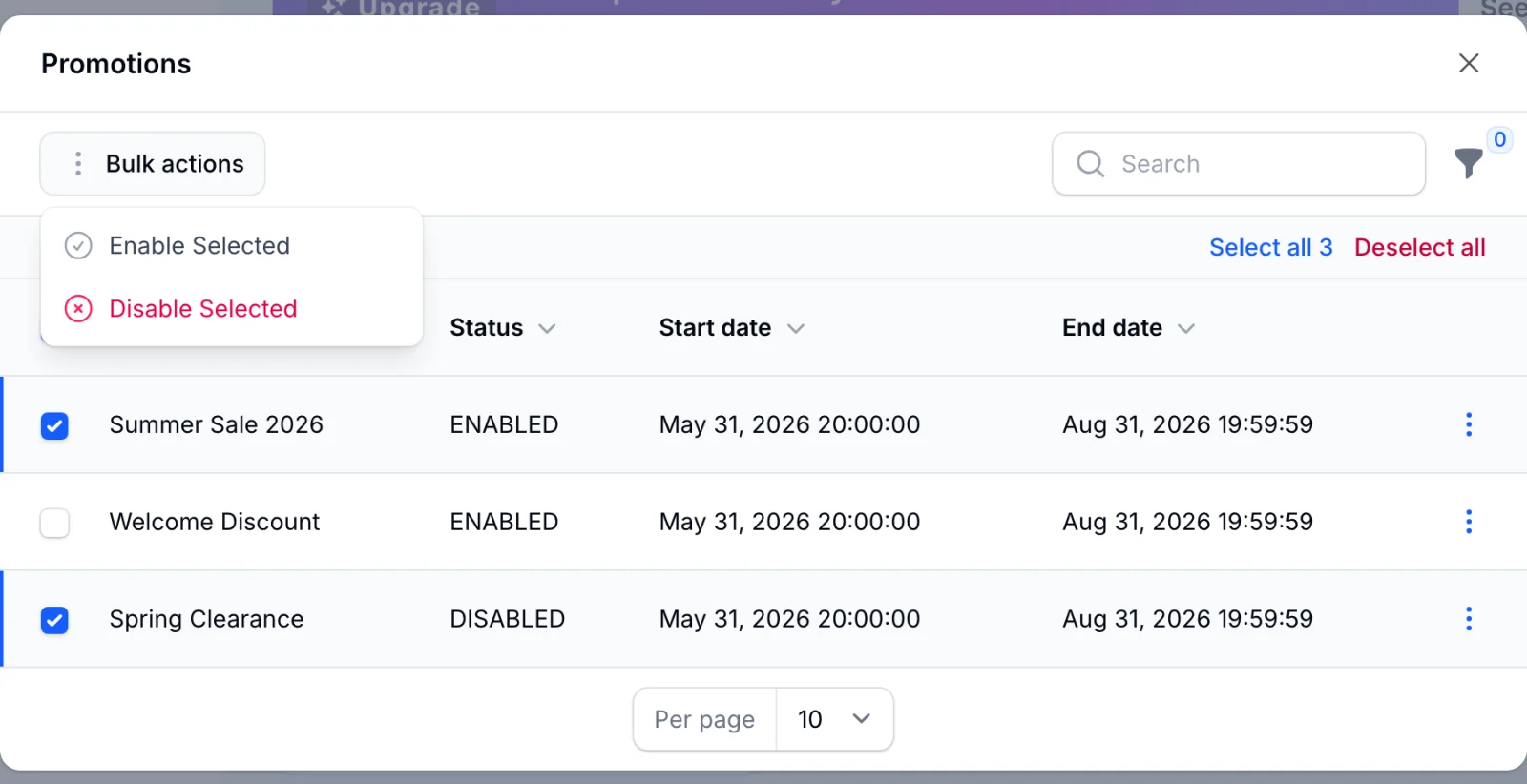
- View Promotions: browse the coupon promotions in your store, search and filter them, and enable or disable several at once.
- Export Promotions: download a spreadsheet of your coupon promotions.
- Import Promotions: update existing promotions in bulk from a spreadsheet. Handy for disabling a batch of old promotions in one go.
Use it when:
- A campaign needs thousands of single-use codes, one per customer, influencer or insert card.
- You already have a list of codes and need them on a BigCommerce promotion quickly.
- You want codes that follow a pattern, such as
SUMMER-XXXX. - Creating codes one at a time in BigCommerce would take far too long.
Before you start
- Create your promotion in BigCommerce first, set up to use coupon codes. This tool adds codes to it; it doesn't create the promotion or its discount rules. Only promotions that use coupon codes appear in the list.
- Decide whether you're creating codes or importing your own.
- If you're importing, make sure the first row of your file has column headings.
- If your store has more than one storefront, you'll pick the storefront first so the right promotions show up.
- Bulk Coupon Creator is a paid add-on. If you aren't subscribed, the tool card offers a way to subscribe instead of the launch button.
Step-by-step
-
Launch Bulk Coupon Creator. Open the tool from your dashboard and choose Launch Bulk Coupon Creator.
-
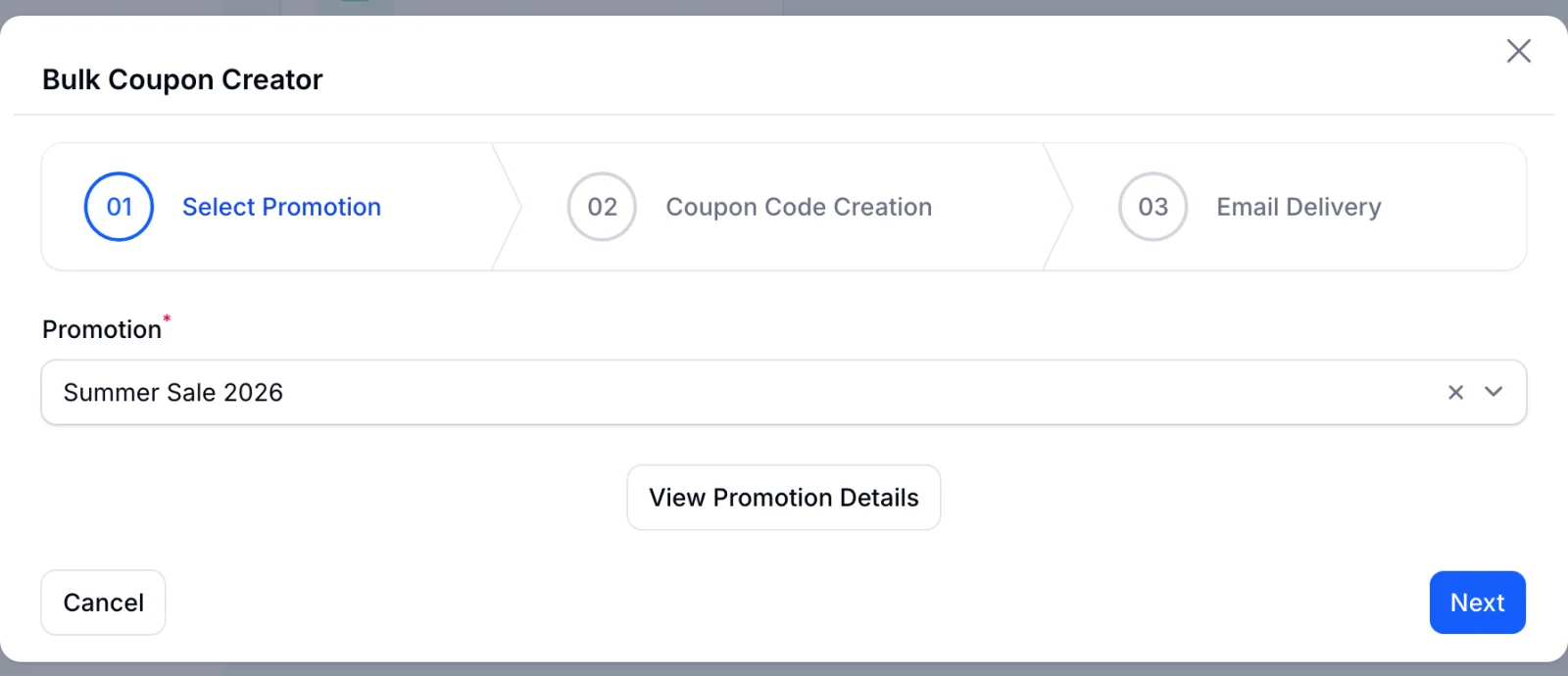
Select Promotion. Pick the promotion the codes should belong to. To check it's the right one, choose View Promotion Details. You can also browse first with View Promotions in the tool's menu.
-
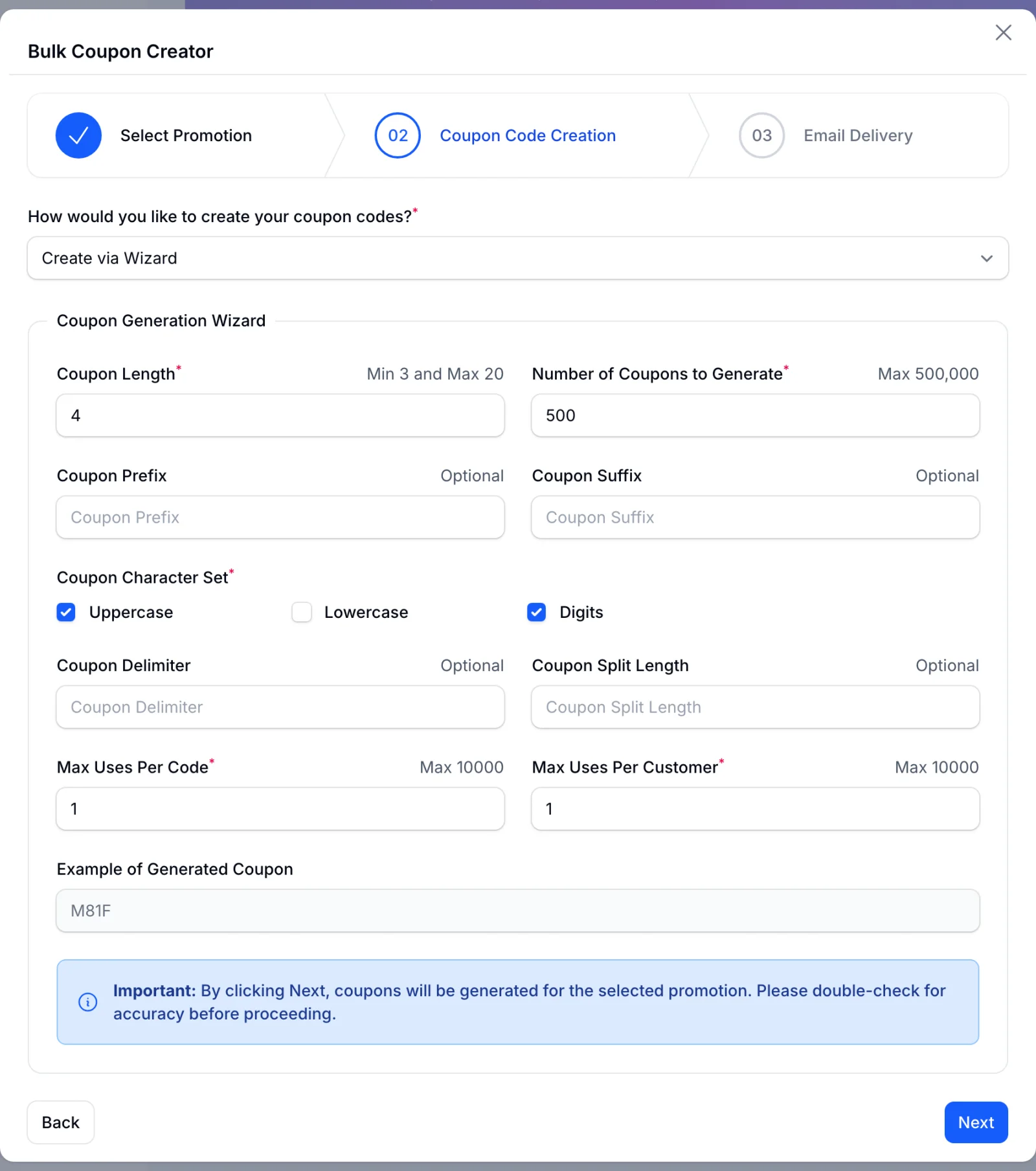
Coupon Code Creation. Under How would you like to create your coupon codes?, choose:
- Create via Wizard, and fill in the settings (see the Settings). The Example of Generated Coupon shows what your codes will look like.
- Import from File, then add your file and match your columns to the tool's fields on the Match your file's columns screen.
-
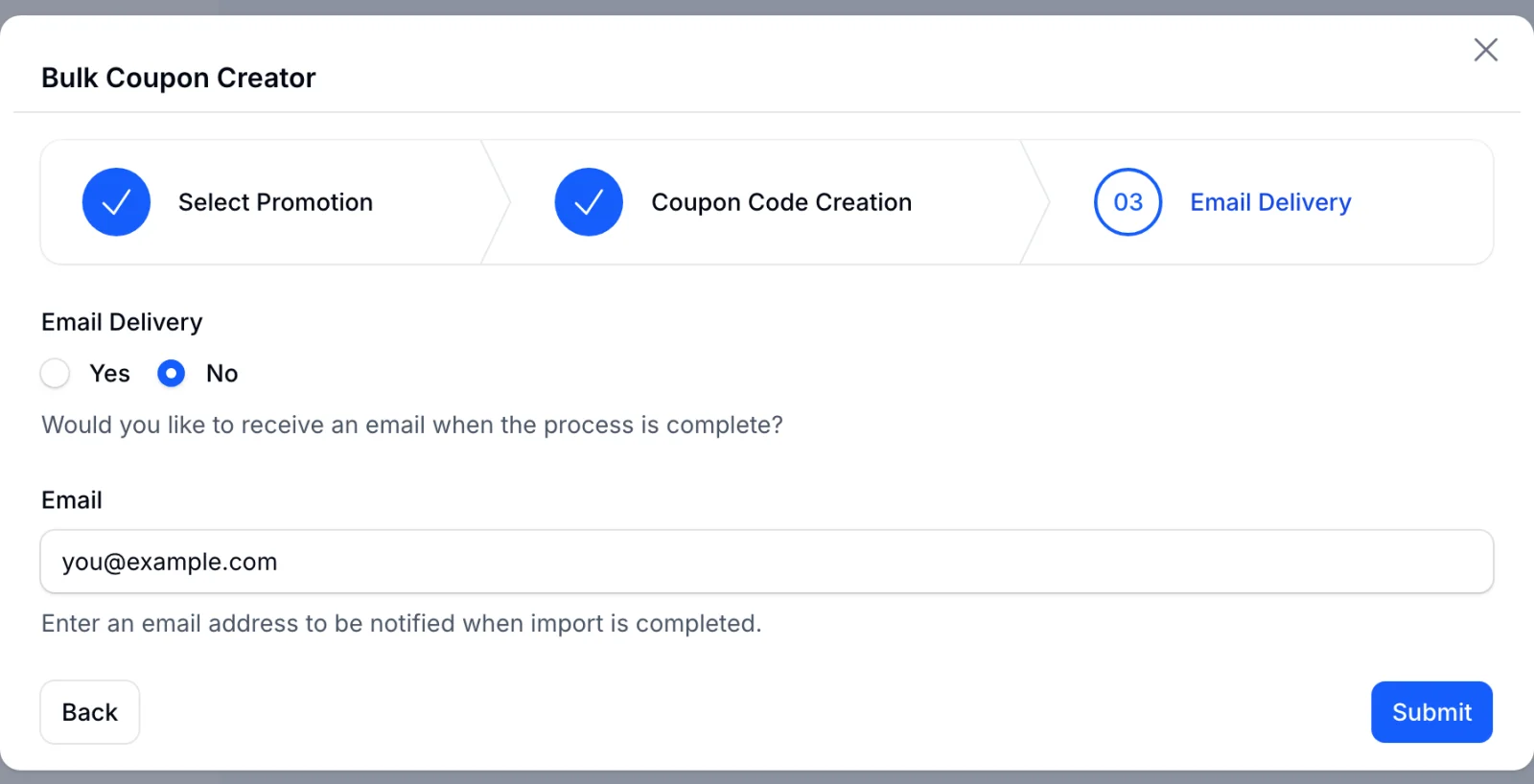
Email Delivery. Choose Yes to get an email when the run is done. Your email address is filled in; change it if you like.
-
Submit. The run works in the background, so you don't need to keep the page open.
-
Check the result. If any codes couldn't be created, a report shows which ones and why.
Settings
Create via Wizard
| Setting | Required? | What it means |
|---|---|---|
| Coupon Length | Yes | How long the random part of each code is (3 to 20 characters). The prefix and suffix are added around it. |
| Number of Coupons to Generate | Yes | How many codes to create, up to 500,000 per run. |
| Coupon Prefix | No | Text added to the start of every code, such as SUMMER- (up to 20 characters). |
| Coupon Suffix | No | Text added to the end of every code (up to 20 characters). |
| Coupon Character Set | Yes | What the random part is made of: Uppercase, Lowercase and/or Digits. |
| Coupon Delimiter | No | The character between groups, usually a dash, as in ABCD-EFGH. Used only with Coupon Split Length. |
| Coupon Split Length | No | Breaks the code into groups of this many characters (1 to 5), separated by the delimiter. |
| Max Uses Per Code | Yes | How many times each code can be used in total. Usually 1. Maximum 10,000. |
| Max Uses Per Customer | Yes | How many times one customer can use a code. Usually 1. Maximum 10,000. |
| Example of Generated Coupon | — | A preview of what your codes will look like. |
Import from File
The first row of your file must be column headings. After you add the file, choose Upload File or Import from URL, then match your columns to these fields:
| Field | Required? | What it means |
|---|---|---|
| Coupon Code | Yes | The code itself. Letters, numbers, spaces, _ and - are allowed. |
| Max Uses Per Code | No | How many times the code can be used in total. Must be a number. |
| Max Uses Per Customer | No | How many times one customer can use the code. Must be a number. |
Managing promotions
Beyond creating codes, the tool's menu (the ⋯ button on the tool card) gives you three ways to manage the coupon promotions themselves.
Enable or disable promotions in bulk
Open View Promotions to see every coupon promotion in your store. Search by name, and filter by Promotion Status or channel. Tick the promotions you want to change (selecting all works across pages), then choose Enable Selected or Disable Selected. After you confirm, the changes go straight to BigCommerce and a message tells you how many promotions were updated.
Each promotion's row also has actions to Create Coupons for it, View Promotion Details, and Export All Coupons.
Export Promotions
Export Promotions downloads a spreadsheet of your coupon promotions. Choose the Filename and the Export File Type (Excel or CSV), and optionally narrow the export to one Promotion Status or Channel. The export runs in the background; you get a notification with a download link, plus an email with the link (email delivery is on by default; you can turn it off or change the address).
The file has these columns: id, name, redemption_type, status, current_uses, max_uses, start_date, end_date, stop, can_be_used_with_other_promotions, currency_code and channels. It's ready to edit and import again.
Import Promotions (update only)
Import Promotions updates promotions you already have. It never creates new promotions, and it never touches a promotion's discount rules. A typical workflow:
- Export Promotions to get a spreadsheet of your promotions.
- Open it, keep the rows you want to change, and edit the columns you care about. For example, set status to
DISABLEDfor a batch of old promotions. - Choose Import Promotions, upload the file, and confirm the column matching.
- Pick your email notification and start the run. When it finishes, any rows that couldn't be updated come back in a report showing why.
Only the cells you fill in are changed: a blank cell leaves that value as it is on the promotion. Columns you don't match are ignored.
| Column | Required? | What it means |
|---|---|---|
| Promotion ID | Yes | Which promotion to update. It's the id column of the export. |
| Name | No | Rename the promotion. |
| Status | No | ENABLED or DISABLED. |
| Max Uses | No | How many times the promotion can be used in total. 0 means unlimited. |
| Start Date | No | When the promotion starts, for example 2026-07-21 00:00:00. |
| End Date | No | When the promotion ends. |
| Stop Other Promotions | No | true or false. |
| Can Be Used With Other Promotions | No | true or false. |
Troubleshooting and FAQ
The promotion I want isn't in the list
Only promotions that use coupon codes appear. Check the promotion exists in BigCommerce and is set up for coupon codes. If your store has more than one storefront, make sure you've picked the right one; the list updates to match.
I don't see the Launch Bulk Coupon Creator button
Bulk Coupon Creator is a paid add-on and your subscription isn't active. Use the subscribe or upgrade option on the tool card.
My import won't accept some codes
Codes can only contain letters, numbers, spaces, _ and -. Rows with anything else, or with usage limits that aren't numbers, come back in the report so you can fix and re-import them. Also check that your first row has column headings.
Can I create more than 500,000 codes at once?
No, 500,000 is the most per run. For bigger campaigns, do more than one run.
Nothing happened after I submitted
The run happens in the background, and big batches take longer. Give it some time. If you chose Yes on the Email Delivery step, check that inbox.
My promotion import says "Promotion Not Found"
The import updates existing promotions only; it can't create new ones. Each row needs the promotion's id from your store, and the safest way to get it is to start from an Export Promotions file. Rows with an id that doesn't exist come back in the report.
Can the promotion import change my discount rules?
No. The import never touches a promotion's rules, and blank cells leave the current value unchanged. Only the cells you fill in are updated.
I got an API permission error
This usually means the tool needs to be reconnected or authorized again with your store. If it keeps happening, contact us from Contact Us in your dashboard and we'll help you fix it.
Note
Bulk Coupon Creator is also available as a standalone BigCommerce app. See Bulk Coupon Creator app.