
Importing and Exporting Subscribers for BigCommerce
What it does
- Data Export downloads your active subscribers as a CSV file.
- Data Import adds subscriptions in bulk from a CSV file, for example sign-ups collected by another app.
Before you start
- To import, your sending domain must be verified. See Verify your sending domain.
- An import file is a CSV of up to 5 MB and 10,000 rows. Split bigger files and import them in parts.
- It needs an Email column, a Product Name column, and a SKU or Variant ID column (at least one of the two). A subscription Date column is optional.
Step-by-step
Import subscribers
-
Open Data Import. In the menu, go to Settings → Data Import.
-
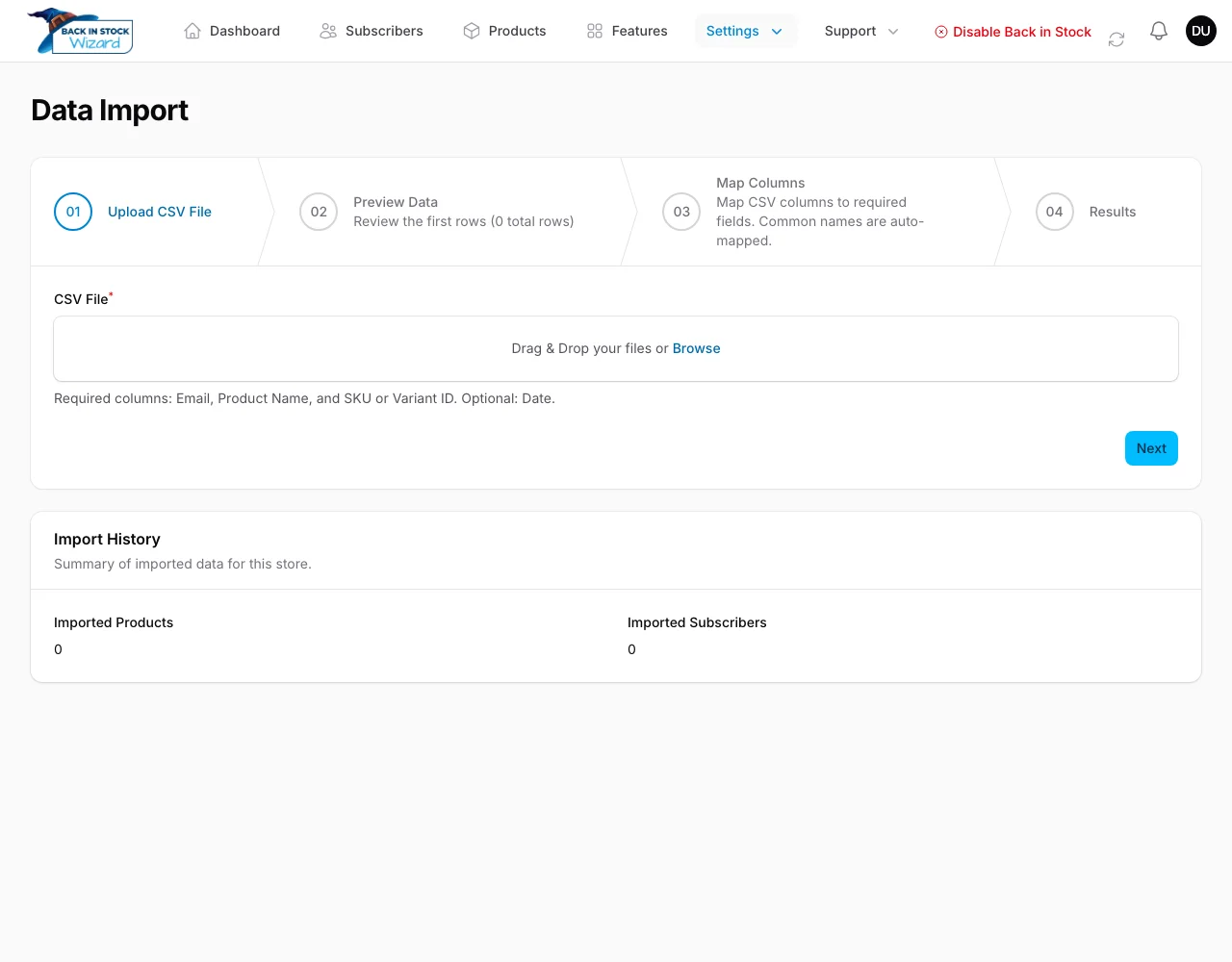
Upload CSV File. Choose your file. Common column names are recognized automatically.
-
Preview Data. Check the first rows look right.
-
Map Columns. Match your columns to the fields. Under the product identifier, map SKU, Variant ID or both. A Variant ID is looked up in your live BigCommerce catalog, so each sign-up is attached to the right product.
-
Results. The import runs in the background. Click Import Another File to start another.
When the import finishes, Import History shows how many products and subscribers were imported.
Export subscribers
-
Open Data Export. In the menu, go to Settings → Data Export.
-
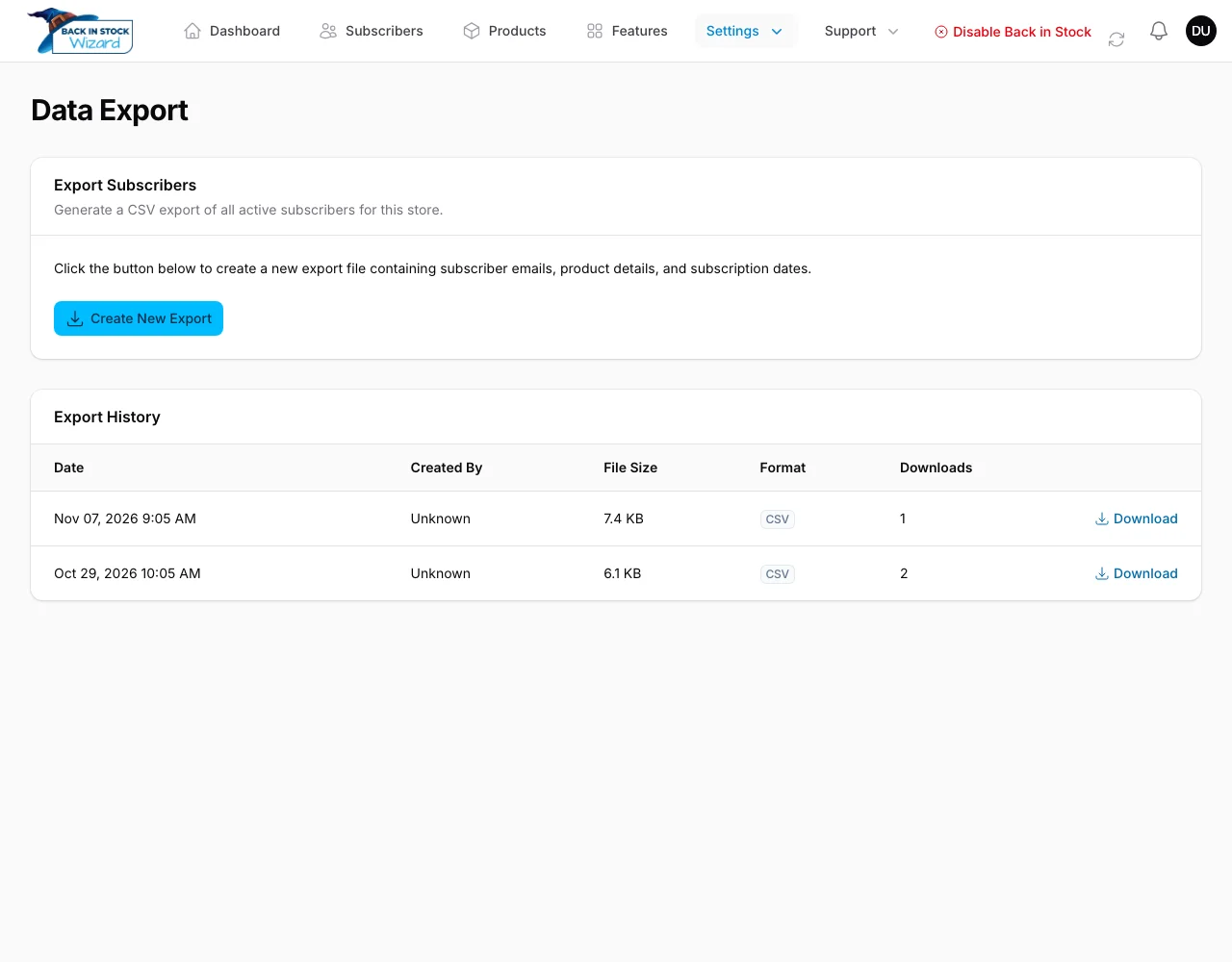
Create New Export. Click Create New Export. The CSV has the columns Email, Product Name, Product SKU and Subscribed At.
-
Download. The file appears in Export History, which shows each export's Date, Created By, File Size, Format and Downloads. Click Download to get it, now or later.
Troubleshooting and FAQ
I can't upload a file to import
Imports are blocked until your sending domain is verified in Mail Settings. Also check the file is a CSV under 5 MB with no more than 10,000 rows.
My imported subscribers aren't showing yet
The import runs in the background. Give it a little time; the totals in Import History update when it's done.
Questions? Email us at help@yourstorewizards.com.