
Features: Inventory Rules, Daily Report and WebDAV for BigCommerce
What it does
The Features page lists extra features that are off until you turn them on:
- Notifications to Inventory Percentage: email only as many waiting shoppers as the stock that came back can serve.
- Minimum Inventory Threshold: hold back in stock emails until enough stock is available.
- Daily Subscriber Report: a daily email summary of your sign-up activity.
- File Access (WebDAV): connect your BigCommerce WebDAV storage to upload images for your emails and form.
Step-by-step
-
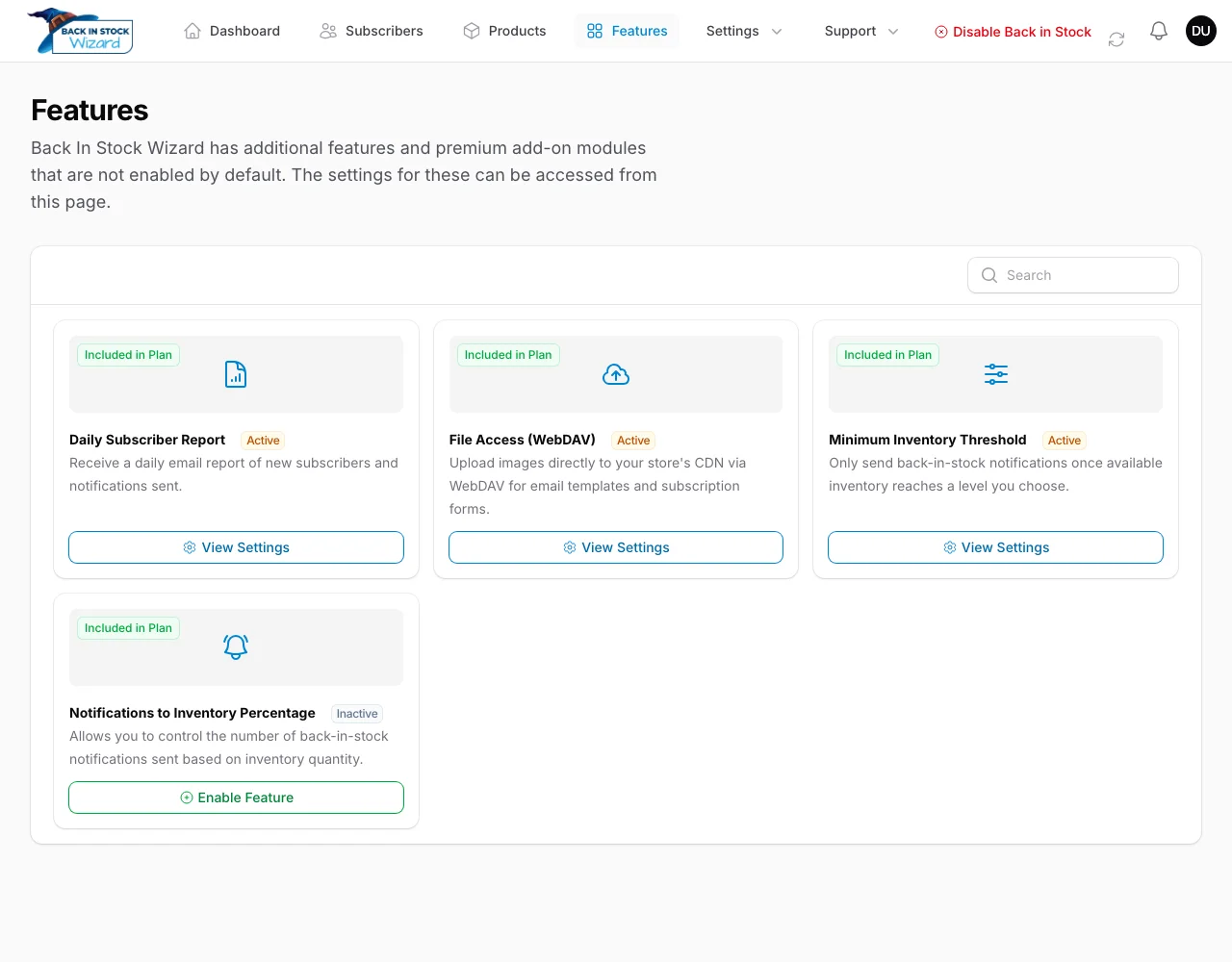
Open Features. In the menu, open Features. Each card shows the feature, a short description and an Active or Inactive badge. Features that are part of your plan are marked Included in Plan.
-
Enable Feature. Click Enable Feature (or View Settings on a feature that's already on). A window shows the full description, the status and any settings.
-
Enable or Disable. Click Enable to turn it on, or Disable to turn it off.
-
Save Settings. For the two inventory features, set the options in the same window and click Save Settings. The other two features get their own page under Settings.
Settings
Notifications to Inventory Percentage
Normally every waiting shopper is emailed the moment a product is restocked, however few units come back. This feature caps the number of emails to match the stock you have, which helps when popular products sell out again within minutes.
When a product is restocked, the app emails this many shoppers: restocked stock × your percentage ÷ 100, rounded. The shoppers who signed up first are emailed first, and at least one shopper is always emailed.
For example, with 100 units restocked and 200 shoppers waiting:
- 100% emails 100 shoppers.
- 75% emails 75 shoppers.
- 50% emails 50 shoppers.
For products with variants, the stock is the total across all in-stock variants.
| Setting | Values |
|---|---|
| Percentage | A whole number from 1 to 100. The default, 100, is the same as the feature being off. |
Minimum Inventory Threshold
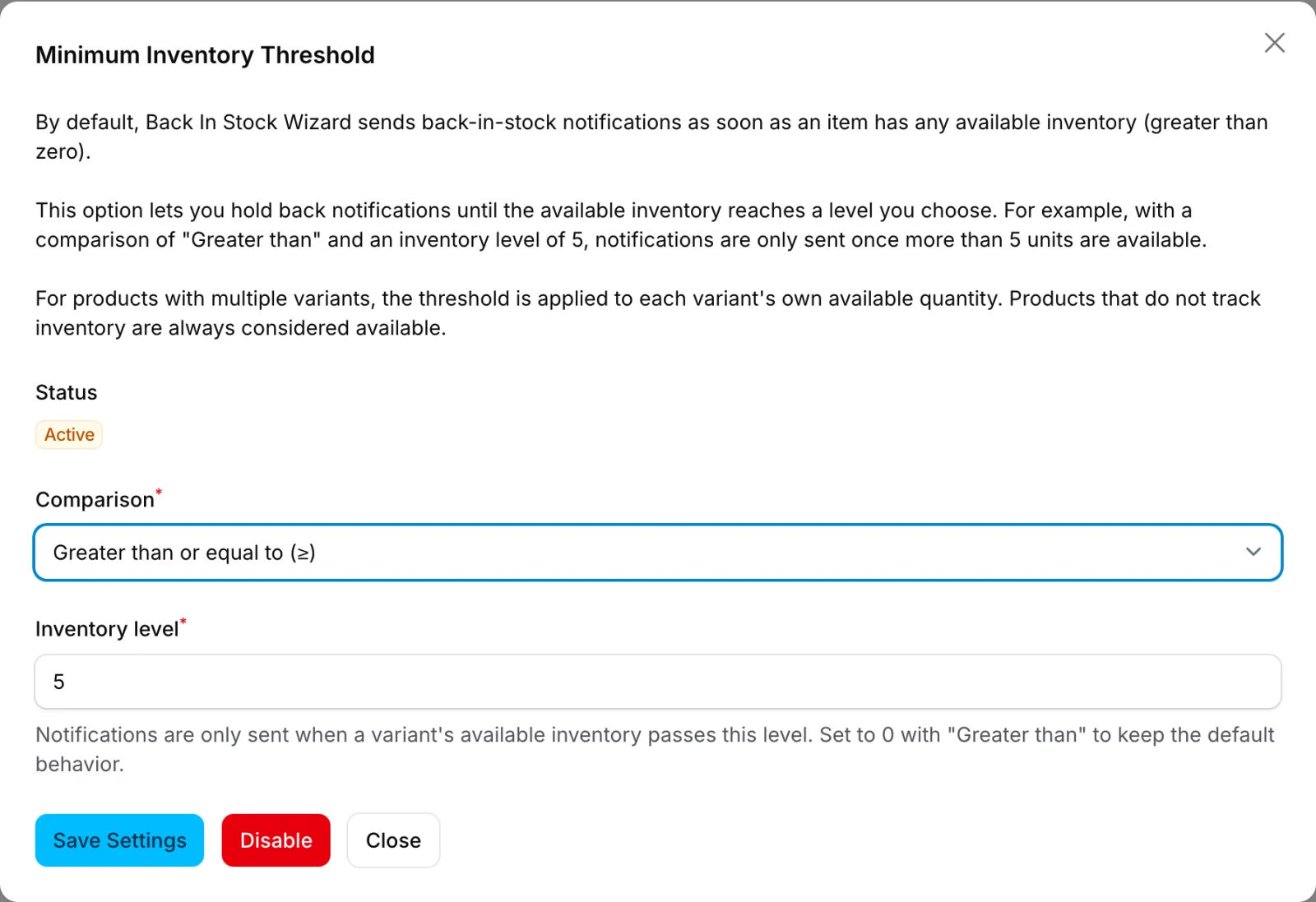
Normally the emails go out as soon as a product has any stock. With this feature, they only go out once the available stock clears a level you choose, so a small restock such as a return doesn't trigger emails for stock that will sell out at once.
For example, with Greater than (>) and an inventory level of 5, emails go out only once more than 5 units are available.
- For products with variants, each variant is checked on its own: shoppers waiting for a variant are emailed when that variant clears the level.
- Products that don't track inventory always count as available.
- It works with the percentage feature: the threshold decides whether the emails go out, and the percentage decides how many shoppers get them.
| Setting | Values |
|---|---|
| Comparison | Greater than (>) or Greater than or equal to (≥). |
| Inventory level | A whole number from 0 to 100,000. The default, 0 with "Greater than", is the same as the feature being off. |
Daily Subscriber Report
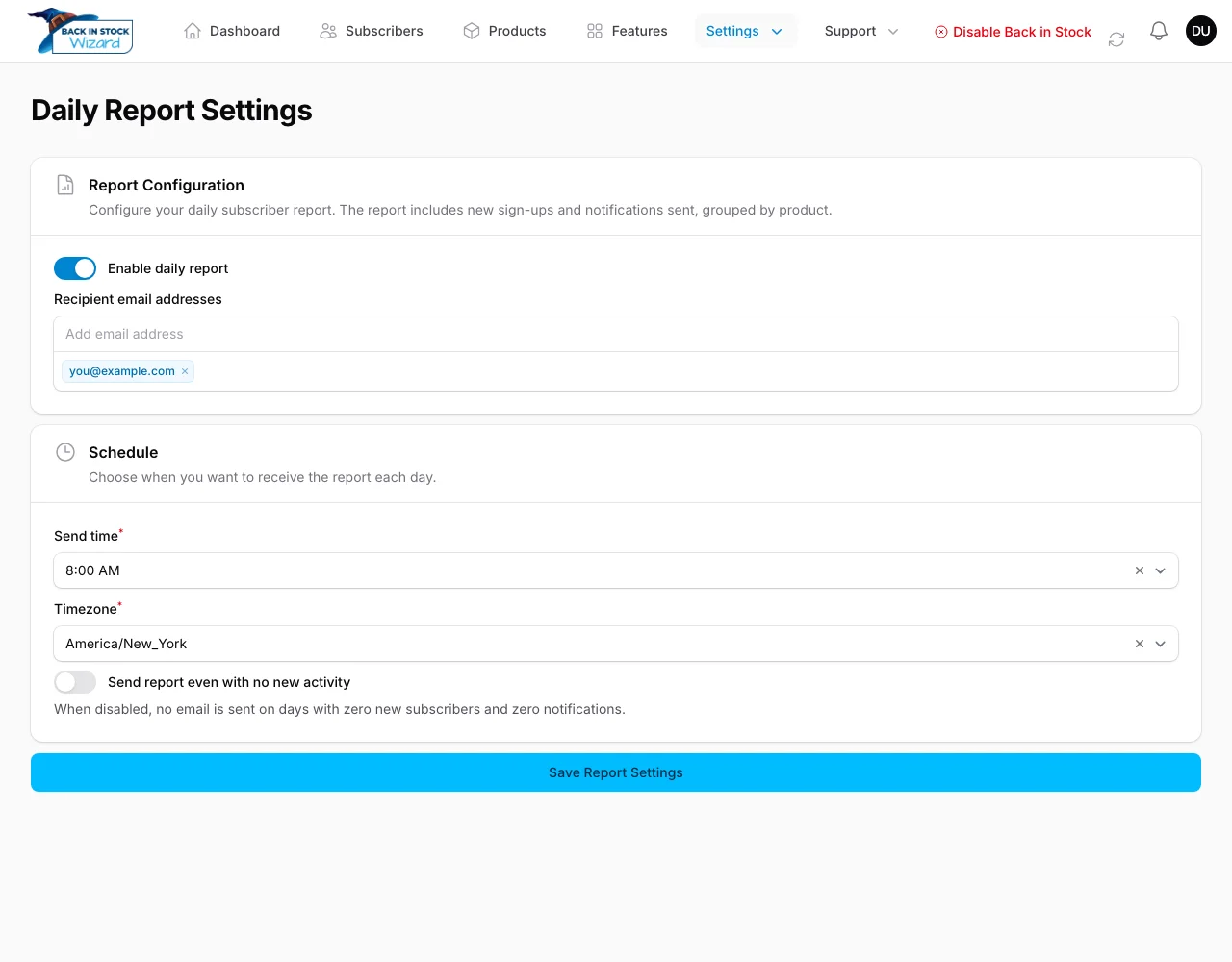
Once it's on, go to Settings → Daily Report.
| Setting | What it does |
|---|---|
| Enable daily report | Turn the report on or off. |
| Recipient email addresses | One or more addresses to send it to. |
| Send report even with no new activity | Send it on quiet days too, not only when there's something to report. |
| Send time | The hour to send it, from 0 to 23. |
| Timezone | The timezone for the send time. |
File Access (WebDAV)
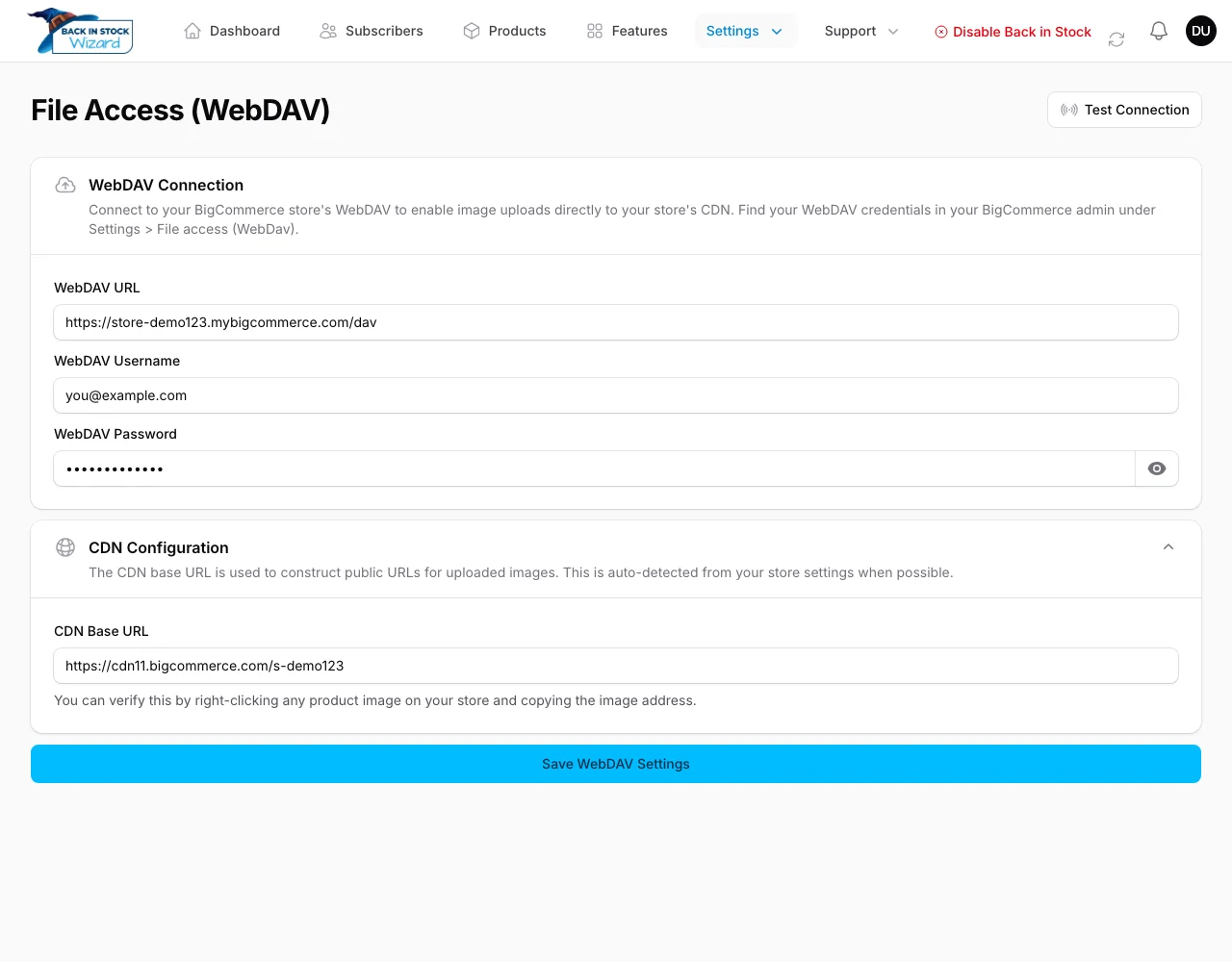
Once it's on, go to Settings → File Access (WebDAV) to connect your BigCommerce WebDAV storage, so you can upload images for your emails and form.
| Field | What it means |
|---|---|
| WebDAV URL | Your store's WebDAV address, from your BigCommerce control panel. |
| WebDAV Username | Your WebDAV user name. |
| WebDAV Password | Your WebDAV password. |
| CDN Base URL | Filled in for you when it can be detected. |
Click Test Connection to check the details, then Save WebDAV Settings.
Troubleshooting and FAQ
A feature's settings page isn't in the menu
The Daily Report and File Access (WebDAV) pages only appear once the feature is turned on in Features.
I set a threshold of 0 with "Greater than or equal to"
A level of 0 has no effect: emails go out as soon as any stock is available, as if the feature were off.
Questions? Email us at help@yourstorewizards.com.