
Dashboard, Subscribers and Products for BigCommerce
What it does
Three pages show what's happening with your back in stock sign-ups:
- Dashboard: your numbers, a chart and a live activity feed.
- Subscribers: everyone who signed up, their history and their email activity.
- Products: the products shoppers are waiting for, so you know what to restock first.
Step-by-step
Dashboard
-
Pick a date range. Click Filter By Date and set a Start Date and End Date. The Dashboard shows the last 30 days to start with.
-
Read the tiles. Six tiles show your numbers for the range, each with the change from the period before and a small trend line:
Tile What it counts Subscribers Shoppers signed up, with new sign-ups this period. Products tracked Products with sign-ups, with new ones this period. Emails sent Back in stock emails sent. Open rate The share of sent emails that were opened. Engaged Shoppers who opened or clicked an email. Bounced / Unsub Emails that couldn't be delivered, and shoppers who unsubscribed. 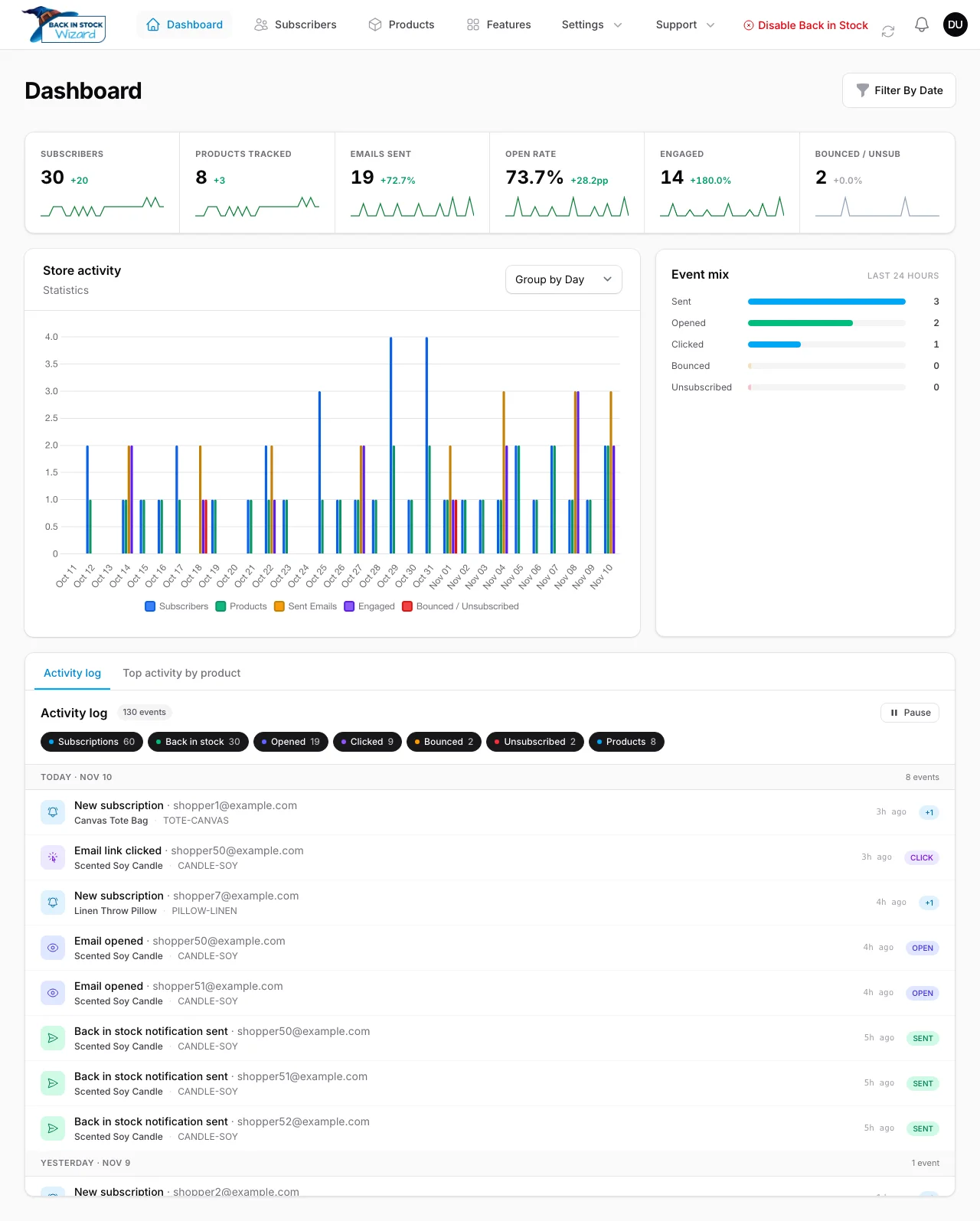
-
Store activity. The chart shows subscribers, products, sent emails, engaged, and bounced or unsubscribed over the range. Use Group by to show it by Day, Week or Month.
-
Event mix. Beside the chart, a breakdown of the Last 24 hours: sent, opened, clicked, bounced and unsubscribed.
-
Activity log. Under the chart, a live feed of everything that's happened. Narrow it with the chips: Subscriptions, Back in stock, Opened, Clicked, Bounced, Unsubscribed and Products.
-
Top activity by product. The second tab lists the busiest products: Product (name and SKU), Subs, Sent, Opens, Clicks and Last event.
Subscribers
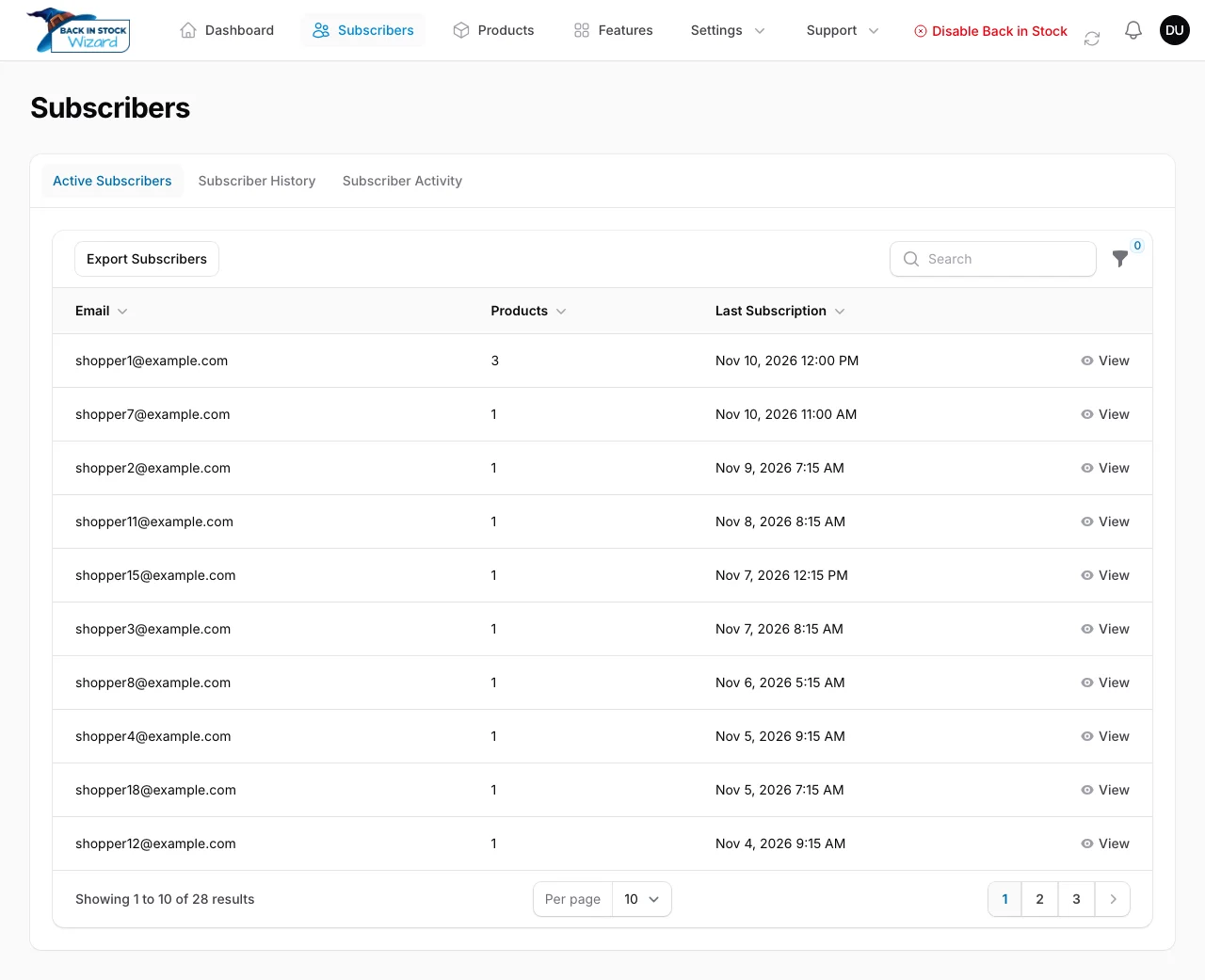
In the menu, open Subscribers. It has three tabs:
- Active Subscribers: shoppers waiting to be emailed, with their email, products and latest sign-up. View one to see each product, its SKU, when they signed up and the status. Export Subscribers downloads the list.
- Subscriber History: every back in stock email sent, with its opens. Events shows what happened to an email, and Preview Email shows it. Export Subscriber History downloads the list.
- Subscriber Activity: each event (sent, opened, clicked, unsubscribed, bounced) with the subscriber, product, email client, device, link and time. Export Activity downloads the list.
Products
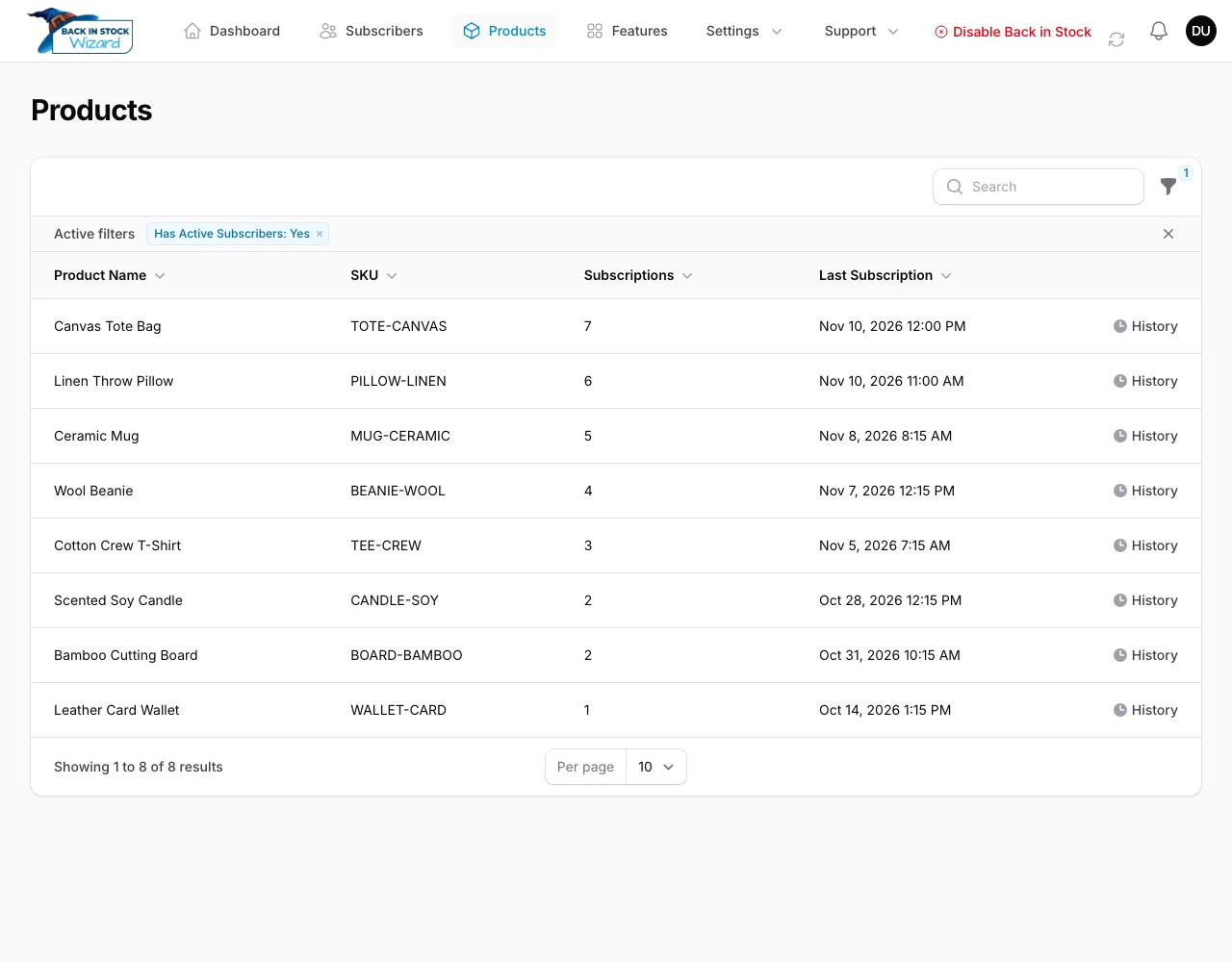
In the menu, open Products. Each product with sign-ups shows its Product Name, SKU, number of Subscriptions and Last Subscription. Use the Has Active Subscribers filter to see only products shoppers are still waiting for. History shows the emails sent for the product and the stock updates the app received for it.
Troubleshooting and FAQ
Where did the setup checklist go?
The Set up your store checklist at the top of the Dashboard disappears once every step is done or skipped.
How does the app know a product is back in stock?
BigCommerce notifies the app whenever a product or its stock changes, and the app also re-checks your products regularly. When a product someone is waiting for is back, the email goes out.
Questions? Email us at help@yourstorewizards.com.