
Synonyms in Search Magic for Shopify
What it does
A synonym entry links a Keyword with one or more Synonyms, so shoppers find your products whichever word they use. Its Type decides which way the link works.
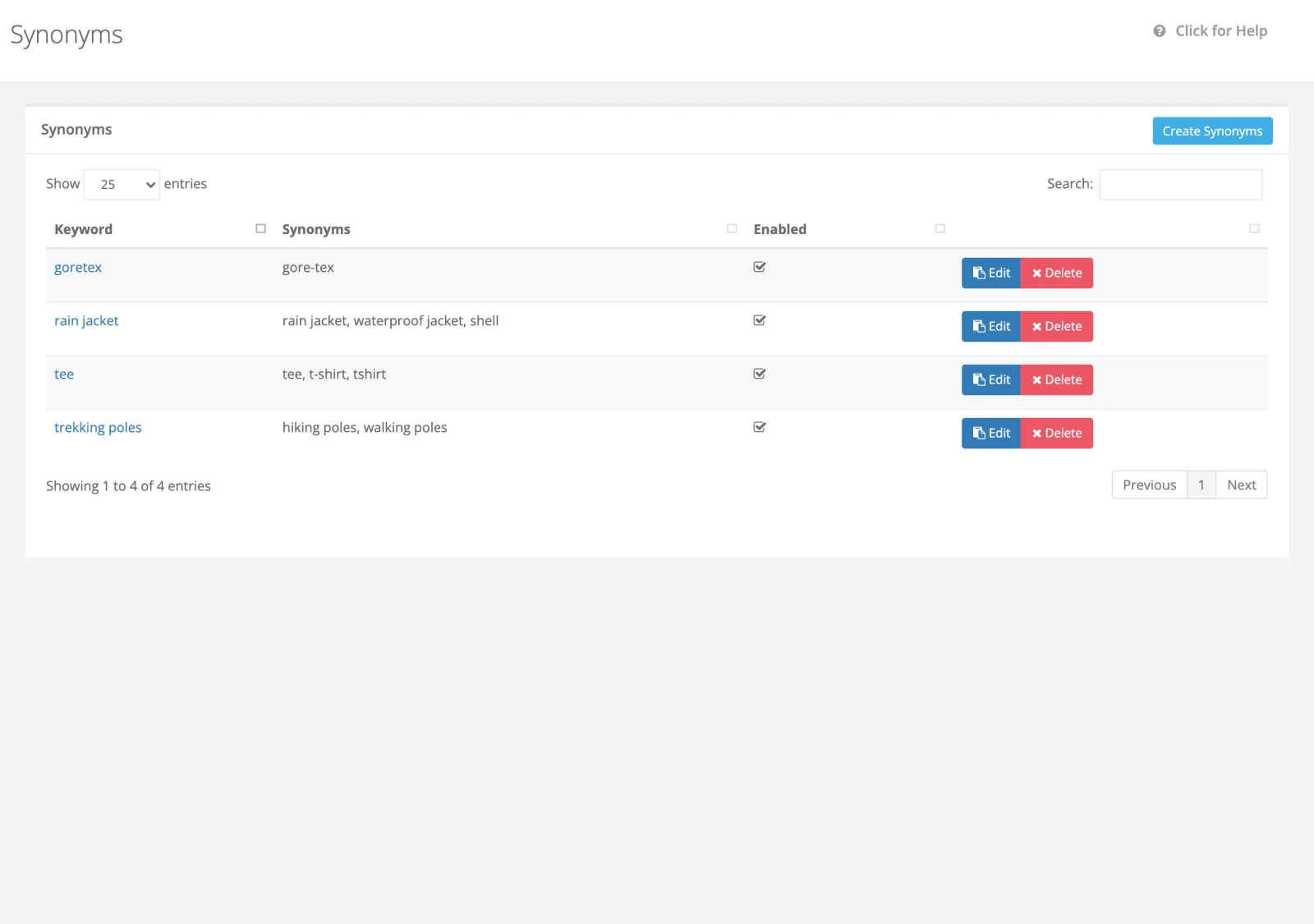
Open Synonyms in the app's menu to see your entries.
Step-by-step
-
Create Synonyms. Click Create Synonyms, or Edit next to an existing entry.
-
Fill in the form. Enter the Keyword, the Synonyms separated by commas (for example
shirt,tee,tee shirt), and the Type.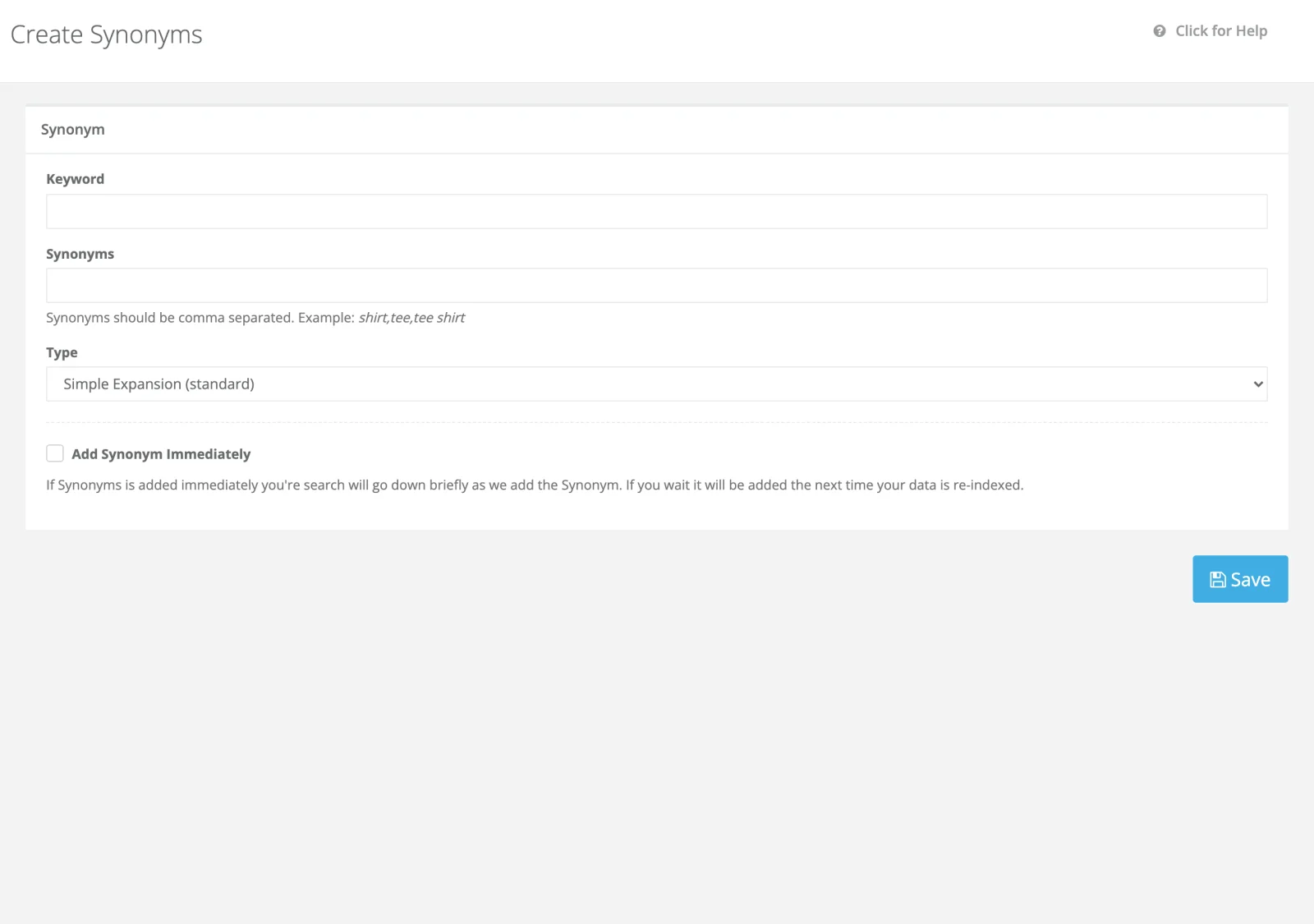
-
Add Synonym Immediately. Tick it to add the synonym to your search now. Your search goes down briefly while it's added. Leave it unticked and the synonym is added the next time your products are indexed.
-
Save. Click Save.
To remove an entry, click Delete next to it in the list.
Reference
Types. In these examples the keyword is ABC and the synonyms are MNO and XYZ.
| Type | What a search finds |
|---|---|
| Simple Expansion (standard) | Every word finds every other. A search for ABC, MNO or XYZ finds products matching any of the three. |
| Expand Keyword To Synonyms | One way only. A search for ABC finds products matching ABC, MNO or XYZ. A search for MNO finds only MNO products, and XYZ only XYZ products. |
| Contract Keyword to Synonyms | The synonyms are searched as the keyword. A search for MNO or XYZ is treated as ABC and finds only ABC products. |
Troubleshooting and FAQ
My new synonym doesn't work yet
If you saved it without Add Synonym Immediately, it's added the next time your products are indexed. Edit it, tick Add Synonym Immediately and save to add it now.
Questions? Email us at help@yourstorewizards.com.