
Connecting Google Analytics 4 to Search Magic for Shopify
What it does
Connecting Google Analytics 4 lets Search Magic report on how search affects your store, such as revenue from shoppers who search, in its Dashboard.
Before you start
- A Google Analytics 4 property for your store, and admin access to it.
- The Search Magic email address to give access to. Email us at help@yourstorewizards.com and we'll send it.
Step-by-step
1. Give Search Magic access
-
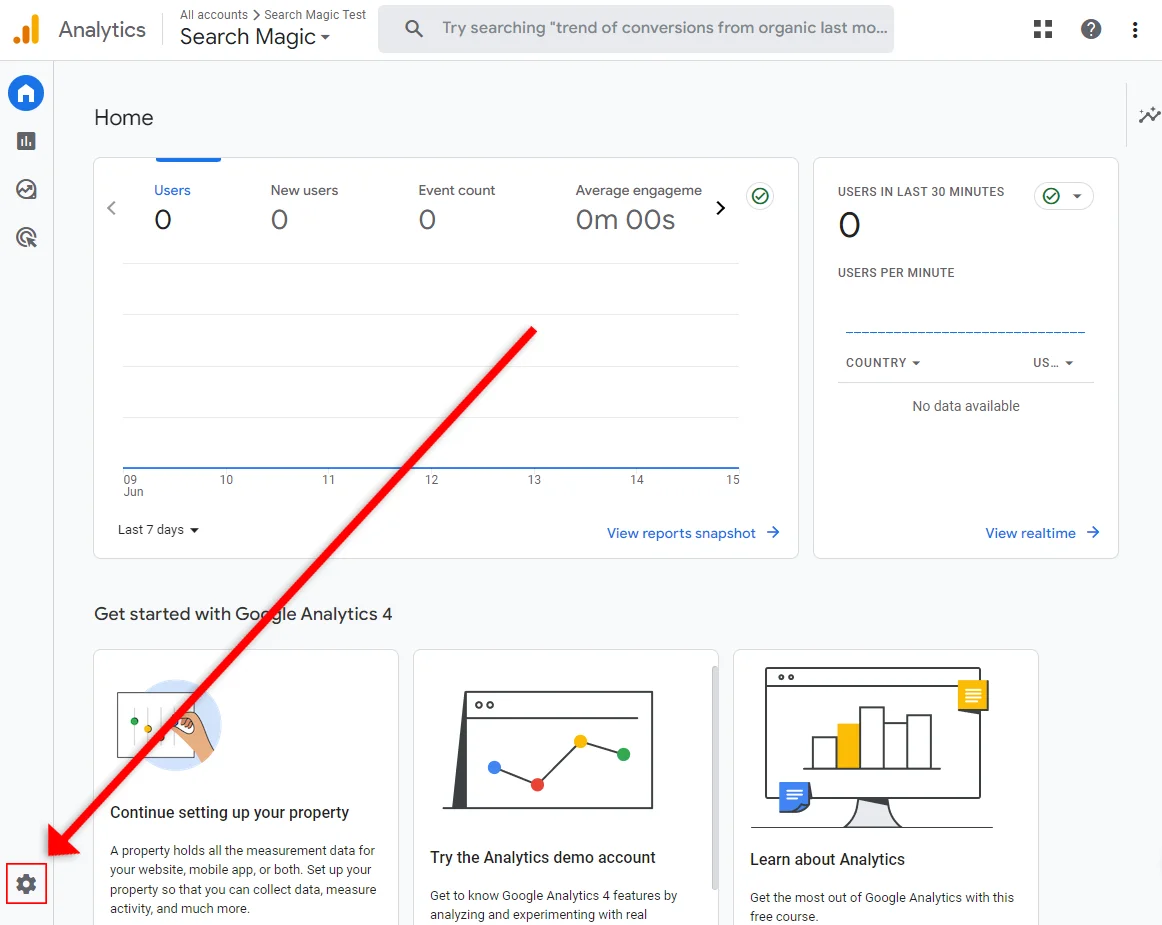
Admin. In Google Analytics, click Admin.
-
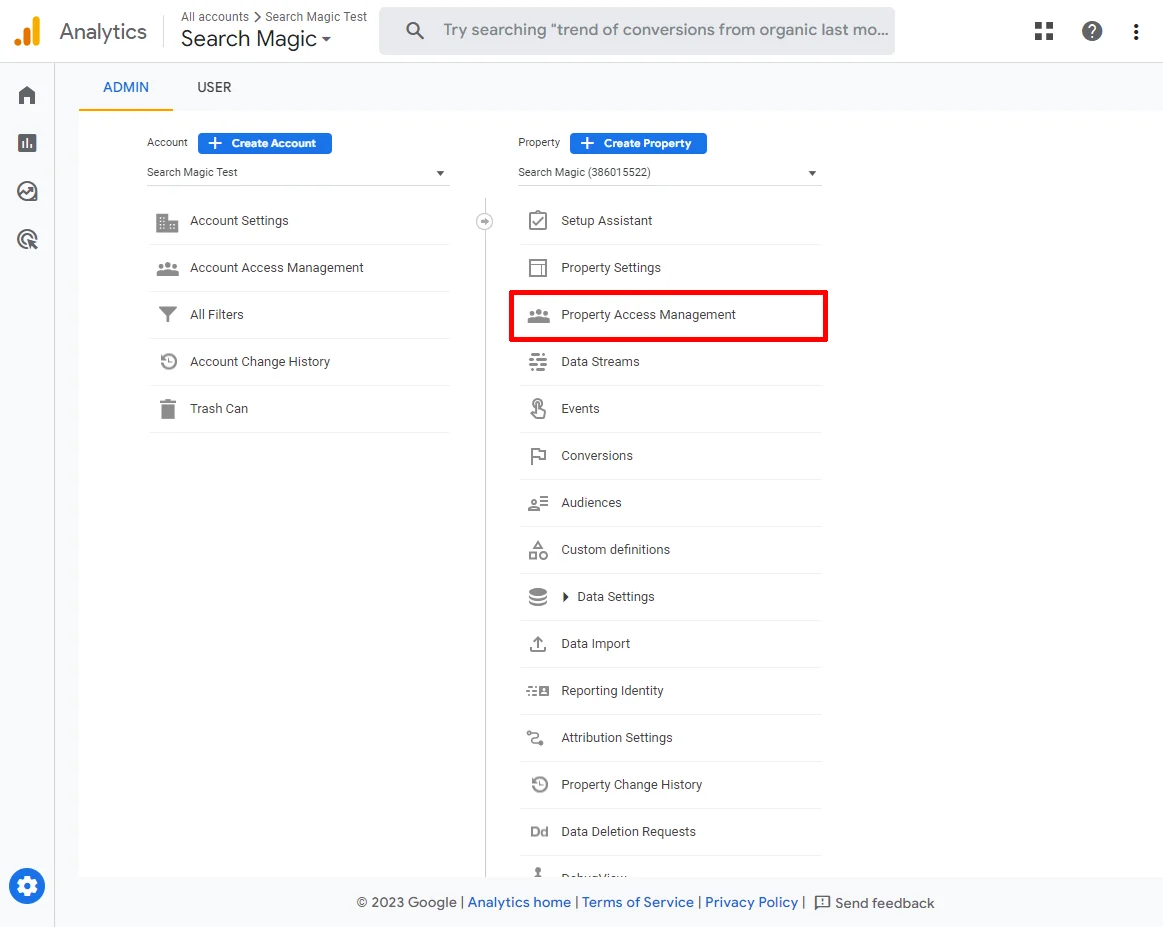
Property Access Management. Under your property, open Property Access Management.
-
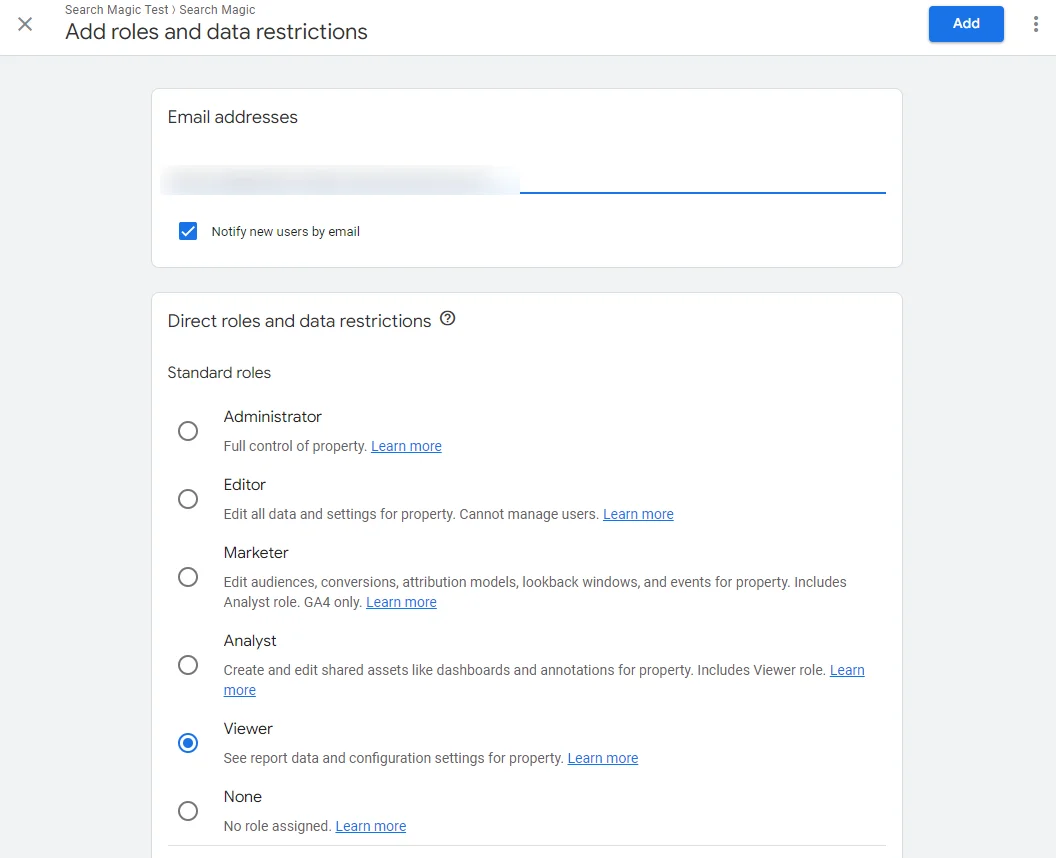
Add a user. Add a new user with the Search Magic email address and the Viewer role, then click Add.
2. Create two audiences
-
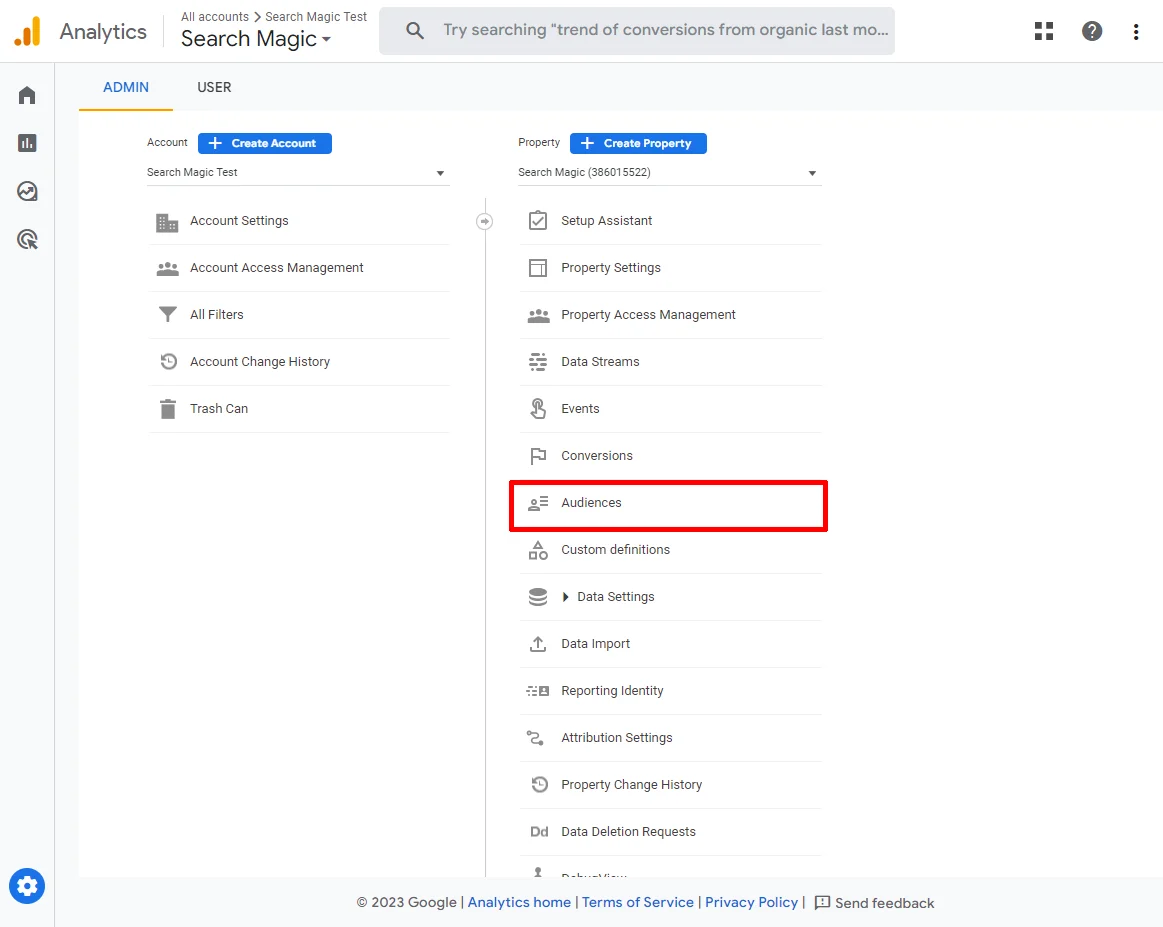
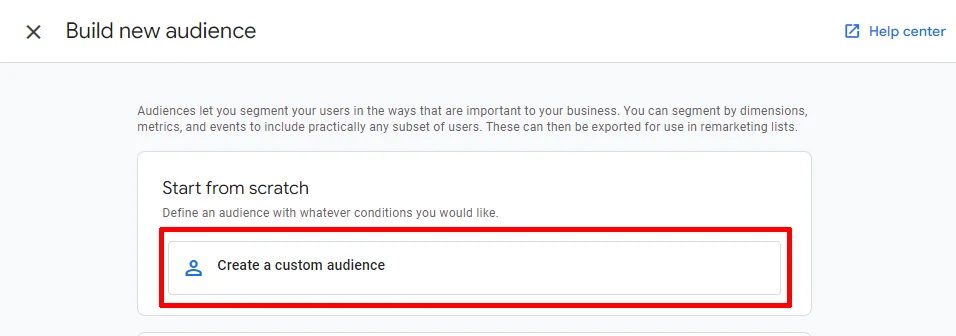
New Audience. In Admin, open Audiences, click New Audience, then Create a Custom Audience.
-
Site Search Users. Name the audience Site Search Users, include users with the event
view_search_results, and click Save.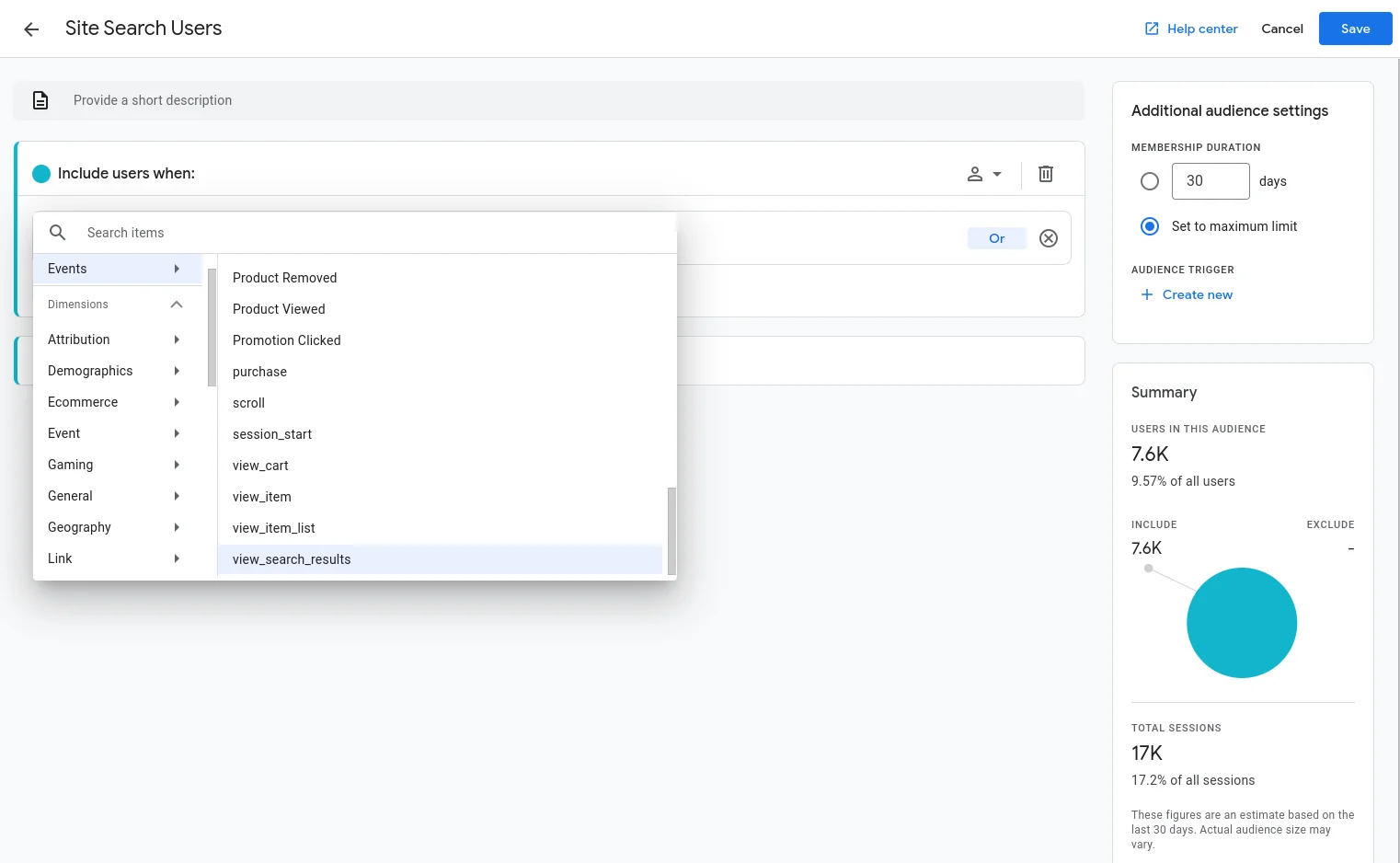
-
Non-Site Search Users. Create a second custom audience named Non-Site Search Users. Delete the Include condition it starts with, add Exclude users when the event is
view_search_results, and click Save.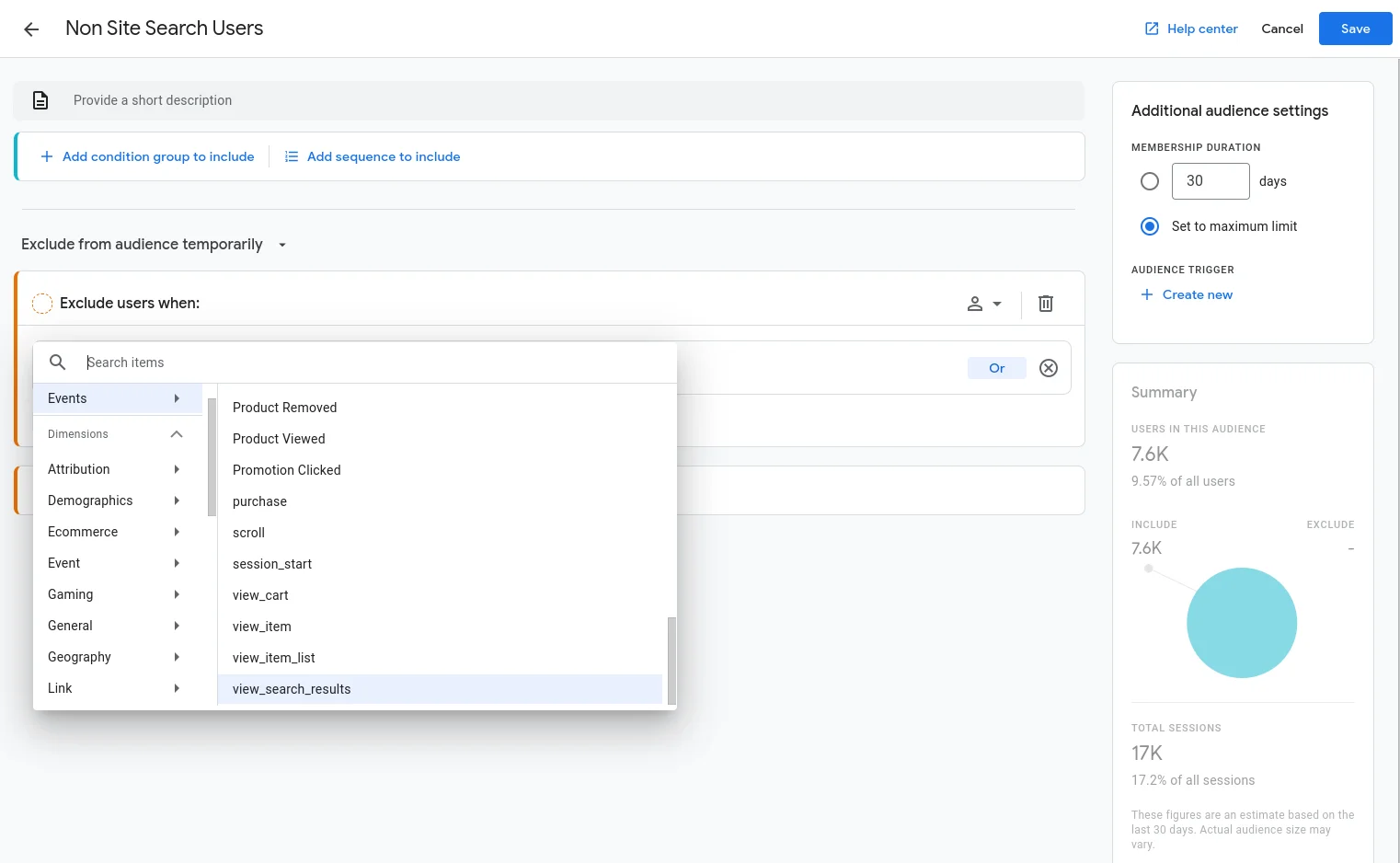
3. Add your Property ID to Search Magic
-
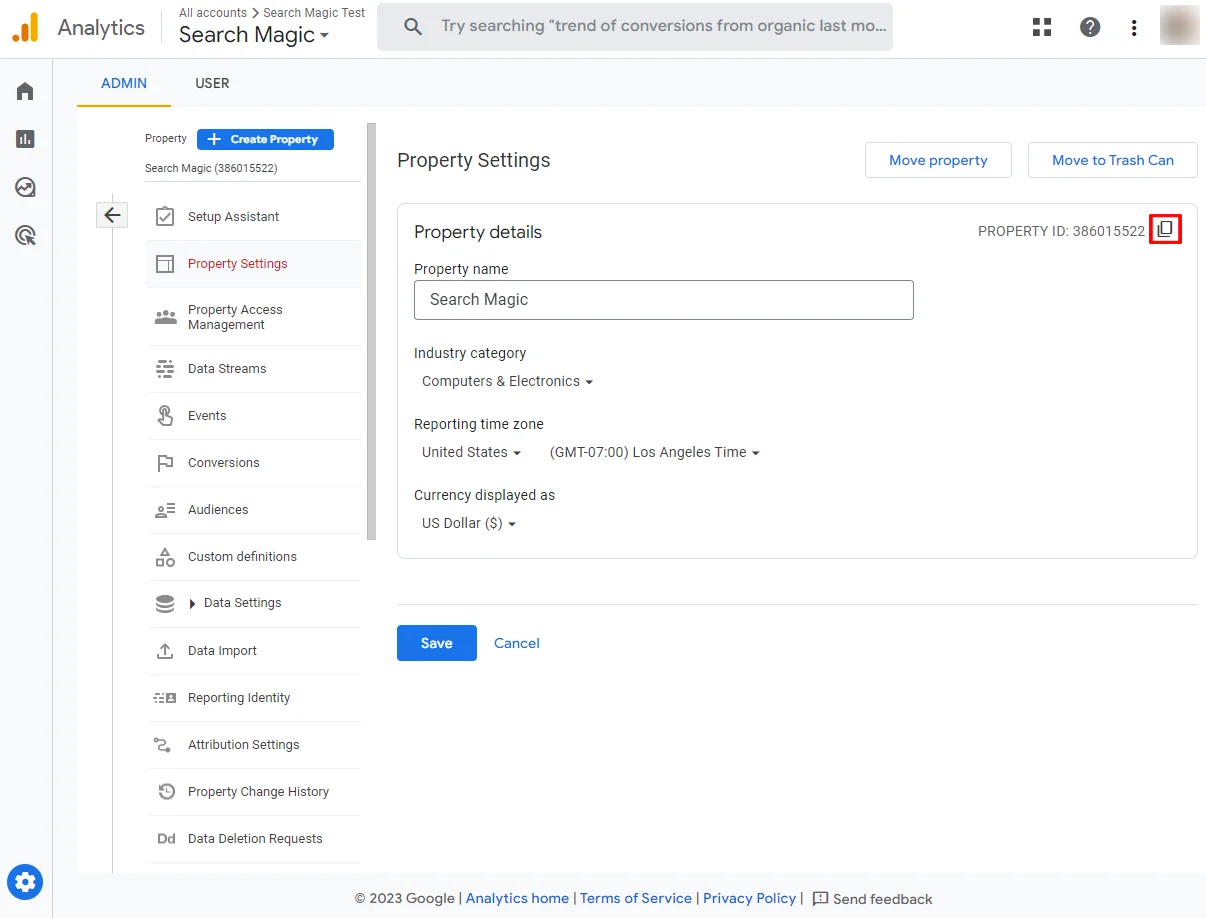
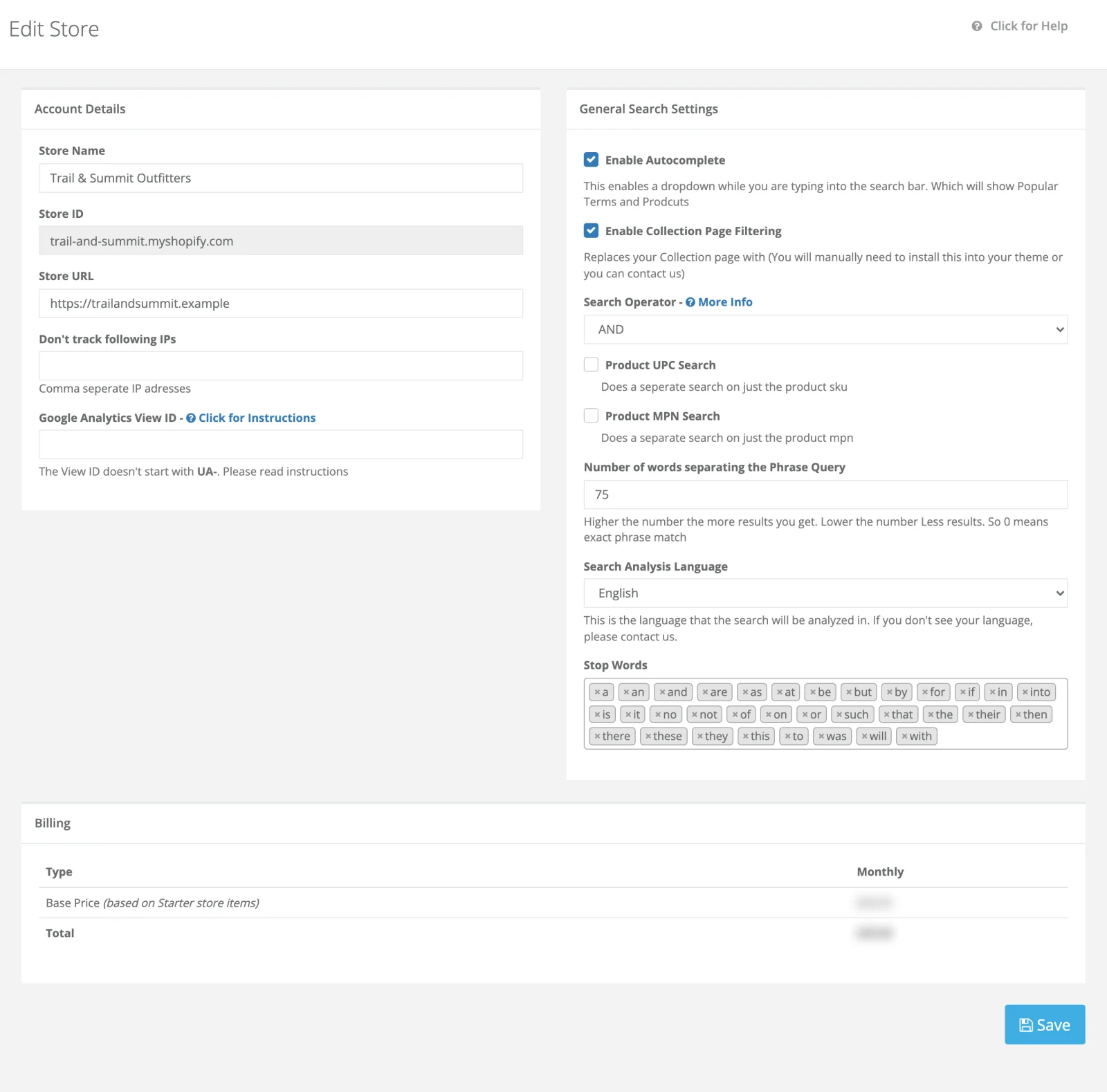
Copy the Property ID. In Admin, open Property Settings and copy the Property ID.
-
Paste it into Search Magic. In Search Magic, open Store Settings, paste the ID into Google Analytics View ID and click Save.
4. Turn on site search tracking
-
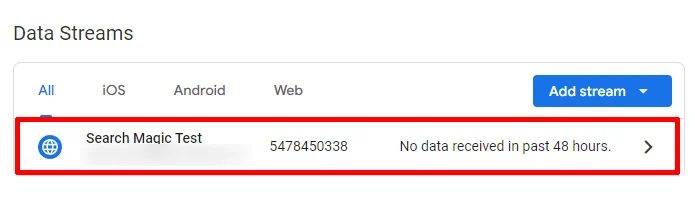
Data Streams. In Admin, open Data Streams and click your store's stream.
-
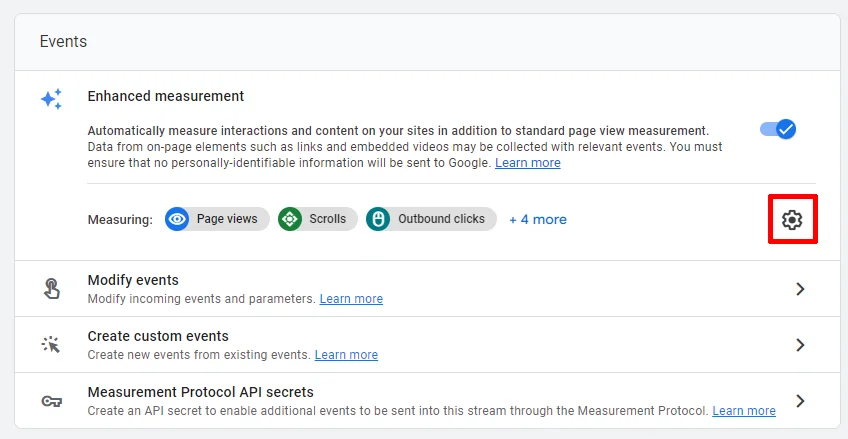
Enhanced measurement. Click the settings icon under Enhanced measurement.
-
Site search. Turn on Site search and set the Search Term Query Parameter to
query. If it already has a value, addqueryafter a comma, for exampleterm,q,query. Click Save.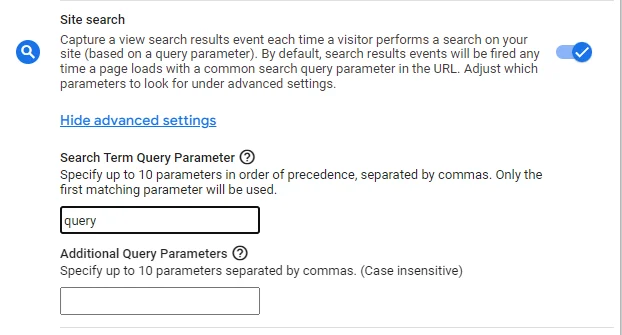
Google Analytics 4 is now set up for Search Magic.
Questions? Email us at help@yourstorewizards.com.