
Field Search Settings in Search Magic for Shopify
What it does
Field Search Settings lists every field Search Magic knows about your products, such as brand, color or price. For each field you decide whether it's searched, shown as a filter or offered in the Sort By list. The order of the list is the order of your filters.
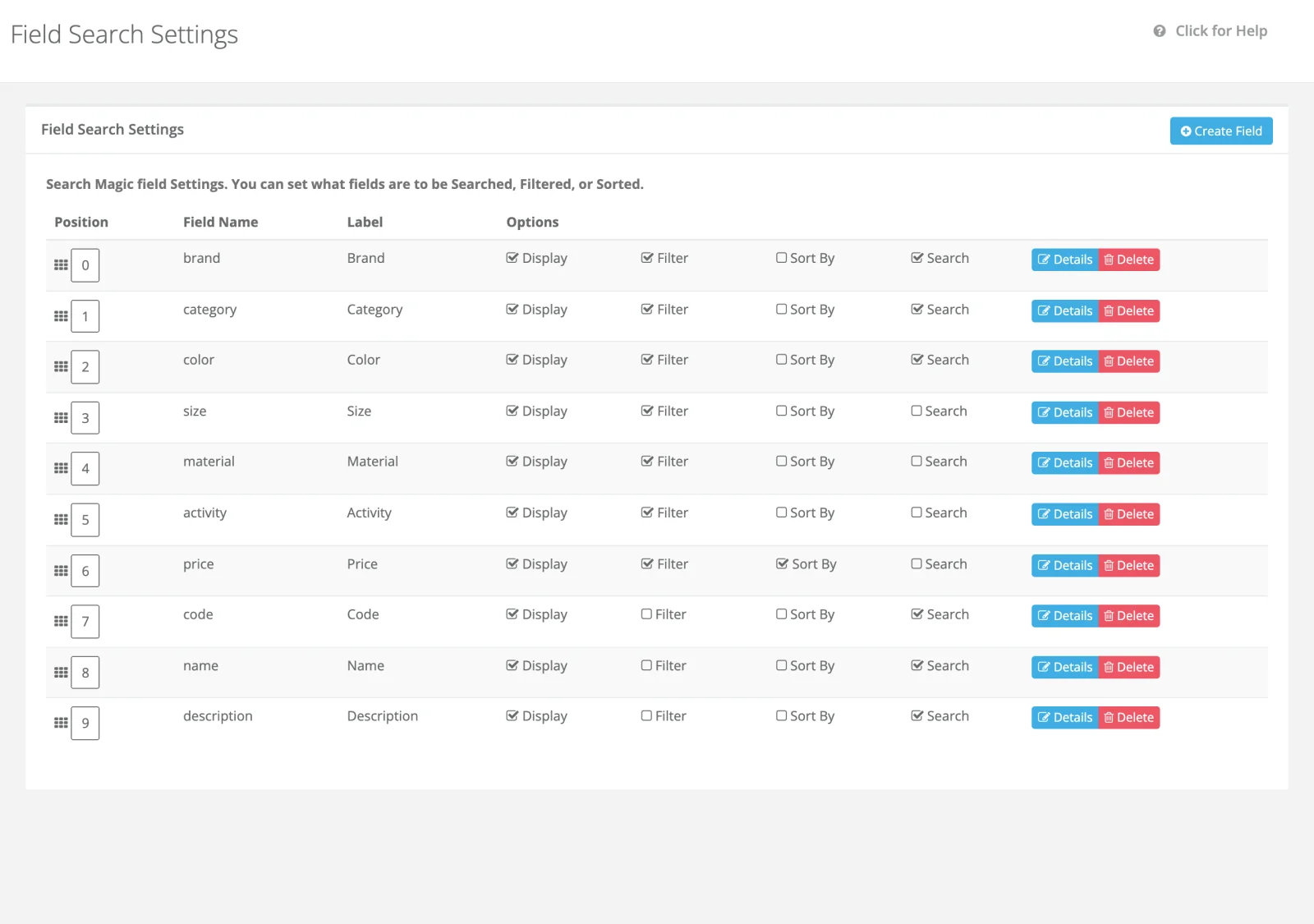
Search Magic also makes a few special fields from your catalog:
- Selling Price: a product's lowest price, taking its price and sale price into account. On Shopify this is usually the price.
- Category Breadcrumbs: the collections a product is in, as a list.
- SectionId Breadcrumbs: the collection pages a product is on. It exists only when collection page filtering is on.
Step-by-step
Change a field
-
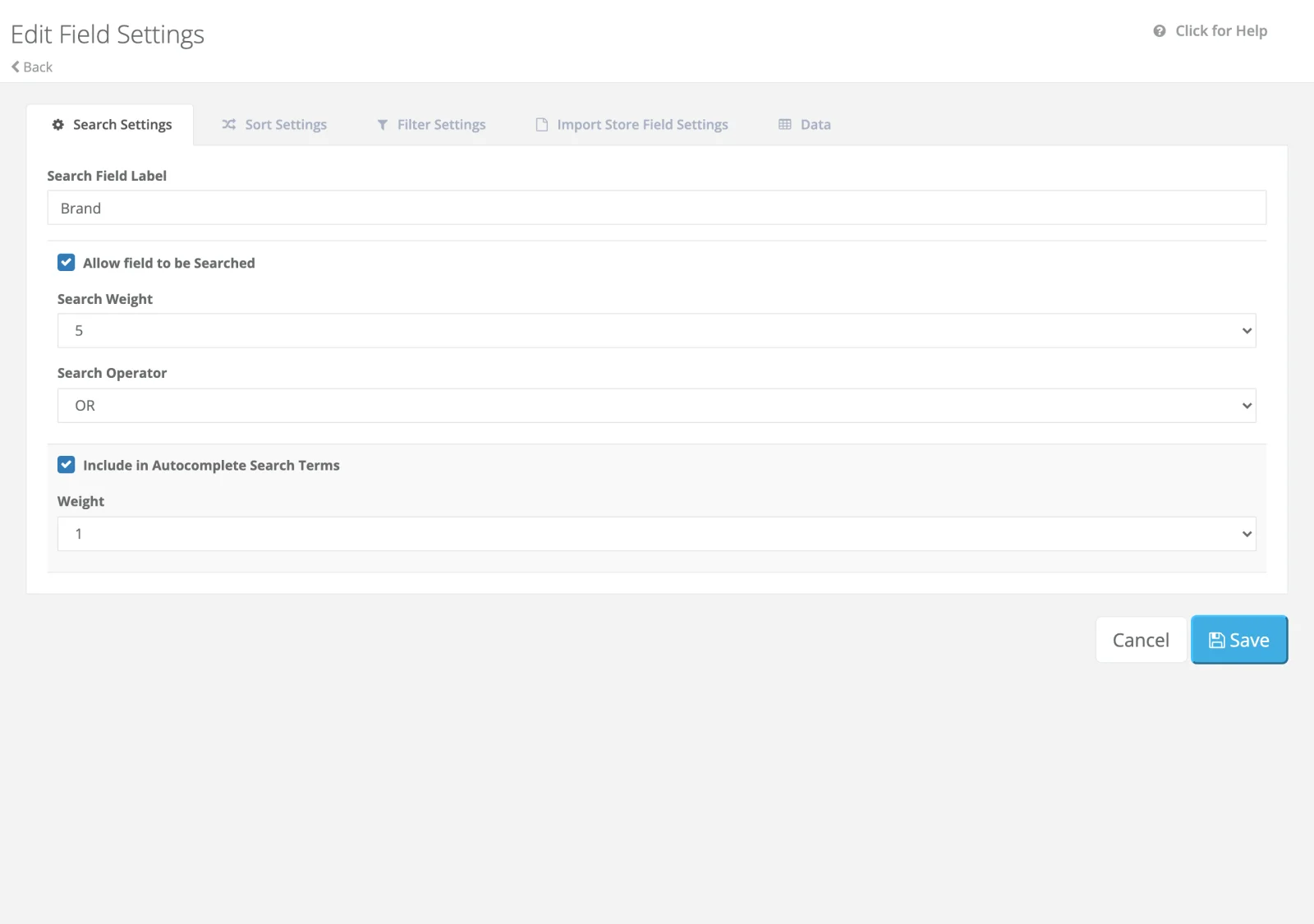
Open the field. Click Details next to it. The field opens on the Search Settings tab.
-
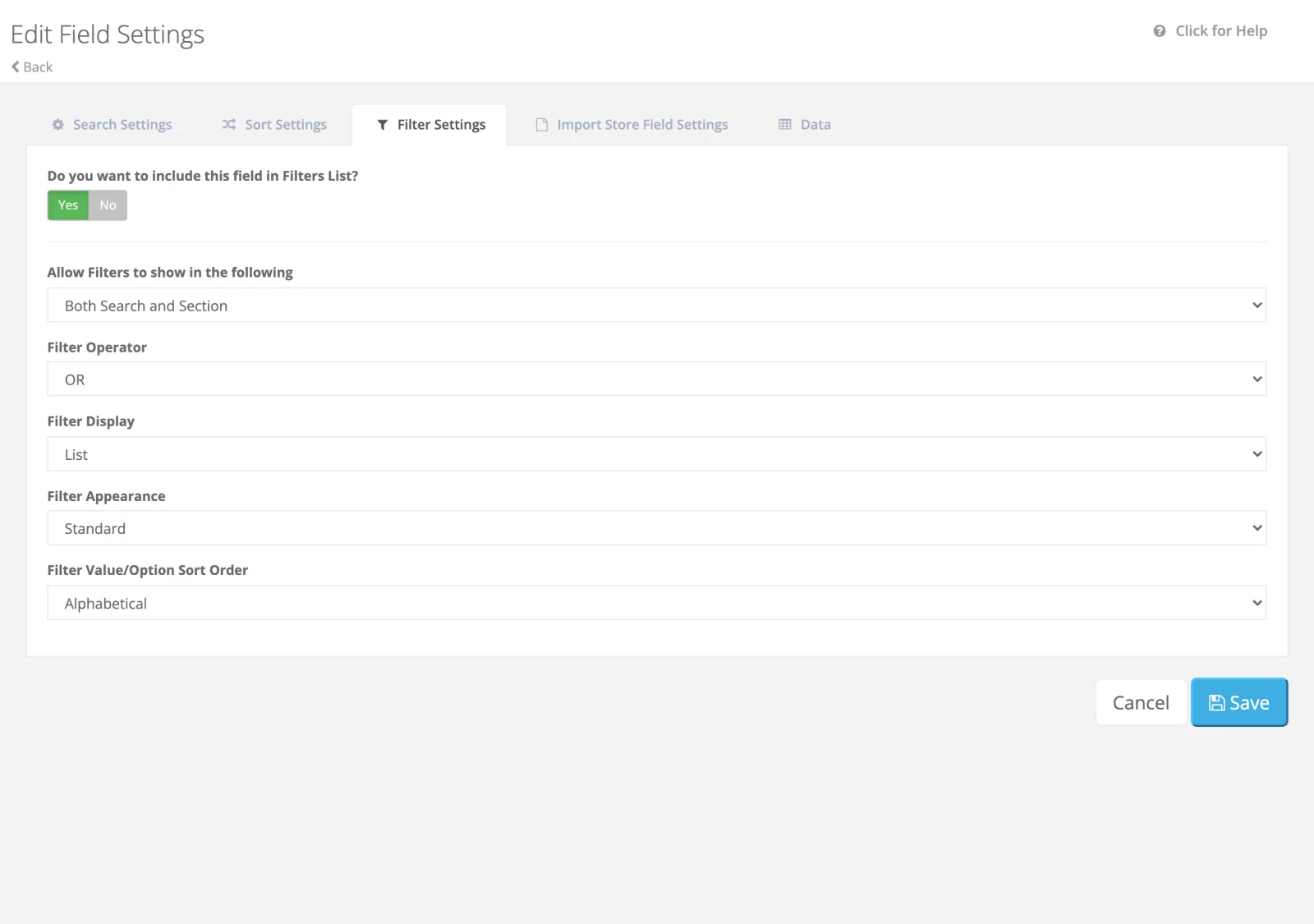
Filter Settings. Turn the field into a filter, or change how its filter works.
-
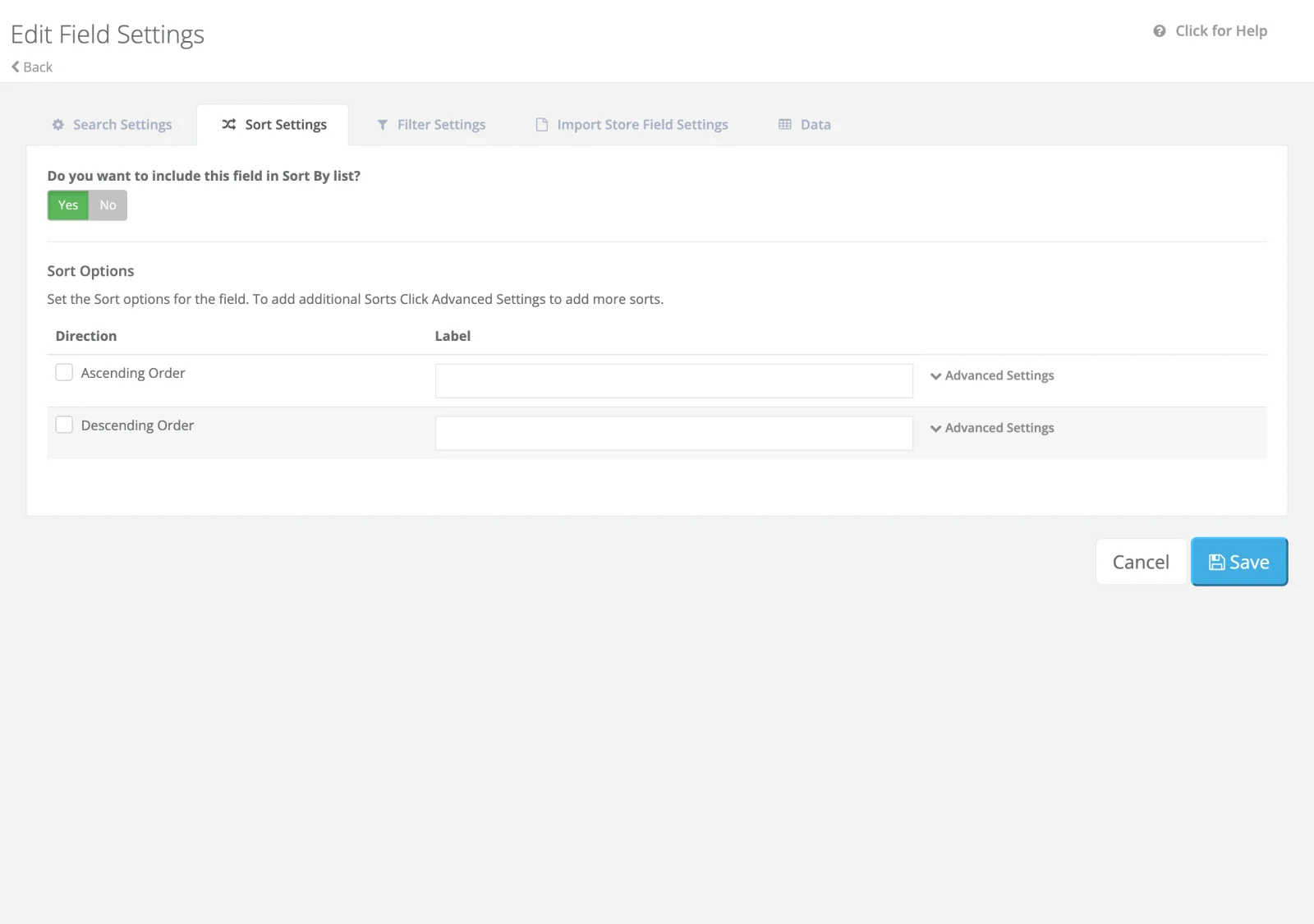
Sort Settings. Add the field to the Sort By list shoppers choose from.
-
Save. Click Save.
A field's Import Store Field Settings tab shows which store data goes into it, with the same options as Select Store Import Fields below.
Change the order of your filters
On the Field Search Settings list, drag a field by its handle, or change the number in its Position box. Filters appear on your store in this order.
Create a field
-
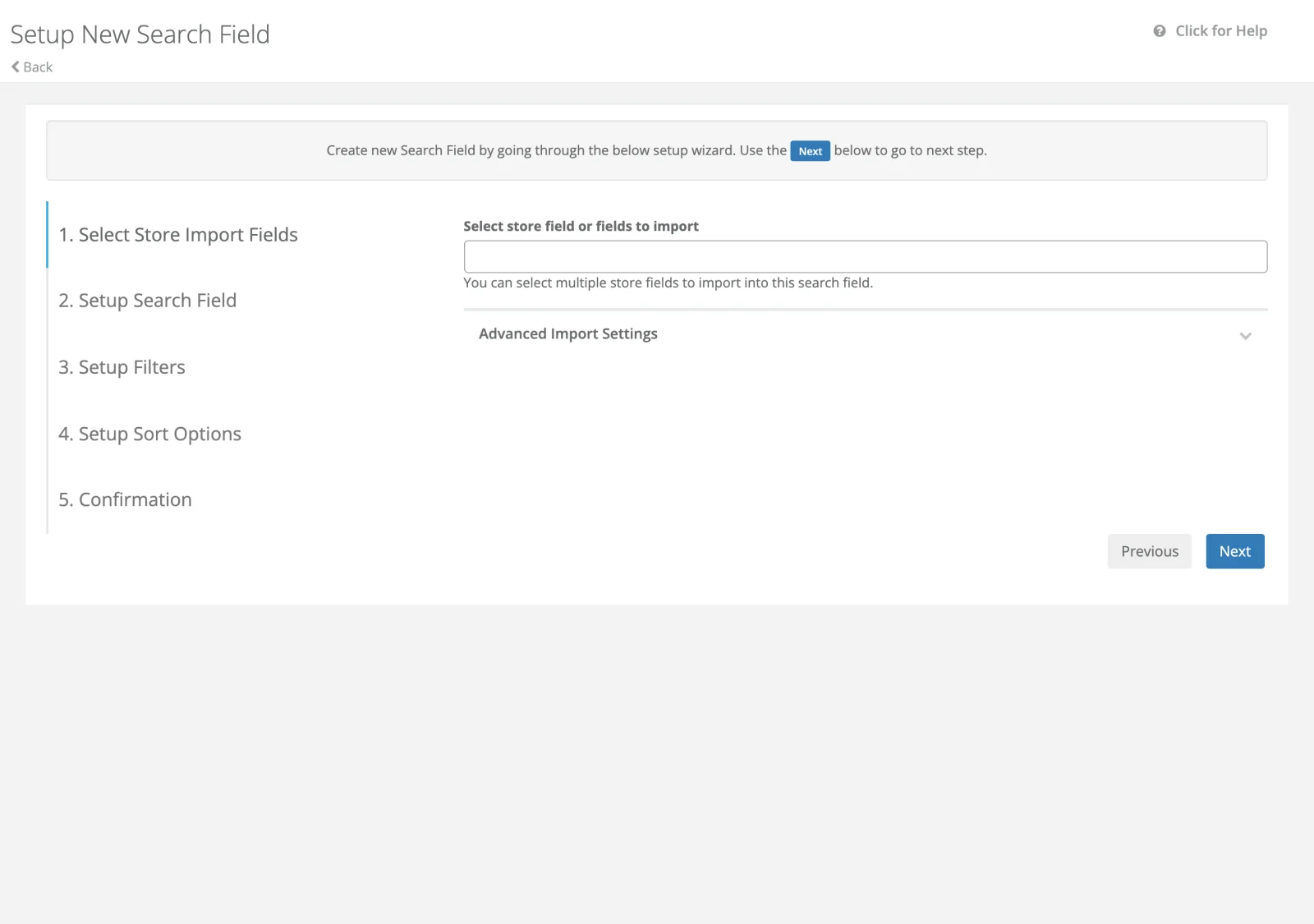
Create Field. Click Create Field at the top of the list. A five-step setup opens: Select Store Import Fields, Setup Search Field, Setup Filters, Setup Sort Options and Confirmation. Use Next and Previous to move between them.
-
Select Store Import Fields. Choose the store field, or several, whose data goes into this field. With more than one, choose how to merge them: Field data added separately or Combine field data. Advanced Import Settings can also change the data on the way in; see the formatting options below.
-
Setup Search Field, Setup Filters, Setup Sort Options. The same settings as a field's Search Settings, Filter Settings and Sort Settings tabs.
-
Confirmation. Check the field and save it.
If you don't see Create Field, email us at help@yourstorewizards.com and we'll add the field for you.
Settings
Search Settings
| Setting | What it does |
|---|---|
| Search Field Label | The field's name. It's also the label of its filter. |
| Allow field to be Searched | Whether shoppers' searches look in this field. |
| Search Weight | How much a match in this field counts. A higher weight ranks matches in this field higher. |
| Search Operator | How a search with several words is matched in this field: AND (every word) or OR (any word). |
| Include in Autocomplete Search Terms | Whether the field's values are suggested in autocomplete, with their own Weight. Shown when autocomplete is on in Store Settings. |
Filter Settings
| Setting | What it does |
|---|---|
| Do you want to include this field in Filters List? | Yes makes the field a filter. |
| Allow Filters to show in the following | Both Search and Section, Search Only or Section Only (collection pages). |
| Filter Operator | OR shows products that match any value a shopper ticks; AND shows only products that match all of them. |
| Filter Display | List, Range, Slider, Category Hierarchy or Category List. A slider works with whole numbers only. A range groups numbers, such as prices, into bands, or groups text values into one, such as Navy, Turquoise and Sky Blue into Blue; use Edit Range Settings to set them. |
| Filter Appearance | Standard, Star Reviews or Color Box. Star reviews and color boxes are custom add-ons; contact us to set them up. |
| Filter Value/Option Sort Order | The order of the filter's values: Alphabetical, Reverse Alphabetical, Ascending Count, Descending Count or Custom. With Custom, click Edit Custom Sort Order and drag the values into order. |
Sort Settings
| Setting | What it does |
|---|---|
| Do you want to include this field in Sort By list? | Yes adds the field to the Sort By list. |
| Ascending Order, Descending Order | Which directions are offered, each with its own label in the Sort By list. |
| Advanced Settings | Extra sorts for that direction. Click Add for a row, choose a Field and an action: Sort By, or Equals to put products with a value you choose first. Remove deletes a row. |
Formatting imported data (Advanced Import Settings)
| Option | What it does |
|---|---|
| Separate Values By Character | Splits one value into several at a character you choose, such as a comma. |
| Prepend the following data to the value | Adds text before each value. |
| Append the following data to the value | Adds text after each value. |
| Remove the following data from the value | Removes text from each value. |
| Data Transformation | Changes a value into another value you choose (Transform To). |
Questions? Email us at help@yourstorewizards.com.